
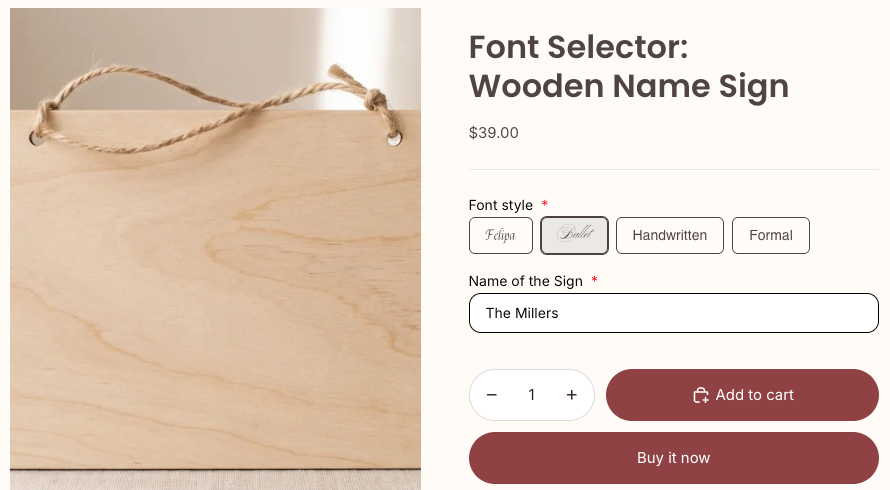
Mini:Custom Fields Personalize (4.9 stars, 143 reviews, Built for Shopify) adds a shopify font picker in 6 steps, and the shopper sees their own words in the chosen font on the product image before adding to cart. The steps: install the app, create a Font Selector field, add only the fonts you can produce, write a clear label, assign it to the right products, and place a test order. Shopify’s theme editor only sets your store’s own fonts, so without a field like this the customer’s font choice arrives by email.
Disclosure: we build Mini:Custom Fields Personalize, the app whose Font Selector field this post walks through, so the steps come from our own setup screens, not a spec sheet.
In this post:
- Which “font picker” do you actually need?
- Why let customers pick a font at all?
- How to add a Shopify font picker in 6 steps
- How many fonts should you offer?
- Where does the chosen font show up?
- Who this setup is for, and who it is not
- FAQ
Which “font picker” do you actually need?
Three different jobs hide behind the same search, and only one of them needs a product page field. The table below sorts them so you can skip straight to the part that applies.
| What you want | How to do it | Where it lives |
|---|---|---|
| Change your store’s own fonts | Theme settings, Typography | Shopify theme editor |
| Use a font your theme does not list | A font-install app or theme code | Theme files |
| Let a shopper choose the font for their engraving or print | A Font Selector custom field | Product page, saved on the order |
If you only need the first row, Shopify’s guide to customizing theme settings covers the Typography section, no app required. The rest of this post is about the third row: a shopify font picker that the customer uses, not you.
Why let customers pick a font at all?
Because font is the one personalization choice customers disagree with you on most. “Elegant” to one buyer is “hard to read” to another, and a wrong guess on an engraved piece is a remake, not a refund of shipping.
Say you sell 300 engraved necklaces a month and 1 order in 30 comes back with “that is not the script I wanted.” That is 10 remakes a month, each costing the blank, the engraving time and a second shipment. A font choice on the product page turns that argument into a field the customer filled in before paying.
We build Shopify apps for a living, so we see the same pattern in support: the font question is rarely about design taste. It is about a missing field, and the fix is one dropdown-style choice sitting next to the text box.
How to add a Shopify font picker in 6 steps
The whole shopify font picker setup takes about ten minutes per product type. These steps use Mini:Custom Fields Personalize; other options apps follow a similar order.
- Install the app and turn it on in your theme editor under App Embeds, then save.
- Create a field and choose Font Selector as the field type.
- Add the fonts you can actually produce. The Font Selector accepts any font family through a search box, plus an italic option, so you can match the exact font your engraving or print software uses instead of settling for a short stock list.
- Write a specific label and cart label, such as “Engraving font”. The cart label is what your team sees on the order, so make it unique.
- Assign the field to the products, collections or variants that support it. A silver finish that cannot take script engraving should not show script.
- Place a test order and open it in Shopify admin to confirm the font name sits under the product, next to the engraving text.
“This is simple, easy to use app. You can do many variation options. Perfect for those in the engraving business.”
Engraving Arts, South Africa, October 1, 2026 (Shopify App Store review)
Pair the font picker with a text field for the words themselves. Our guide to Shopify engraving personalization covers character limits and engraving fees for that text field.
How many fonts should you offer?
Offer 3 to 5 fonts in your shopify font picker. More than that and shoppers stall, and every extra font is one more file your production team has to keep, test and match.
A good shopify font picker list covers three styles and stops: one clean sans serif for small text and long names, one serif for a classic look, and one script for initials or short names. Add a fourth only when you sell a product where it reads well, such as a bold block font for leather patches.
- Test every font at your smallest engraving size before you list it. Thin scripts often fill in below a few millimetres.
- Name fonts by look (“Script”, “Classic serif”) rather than by brand name the customer has never heard of.
- Show a sample photo of each font on the product gallery, so the choice is not a guess.
Where does the chosen font show up?
The choice is saved on the order as a line item property, right under the product it belongs to. Your team sees it in Shopify admin, and you can add it to order emails and the packing slip with a short template edit.
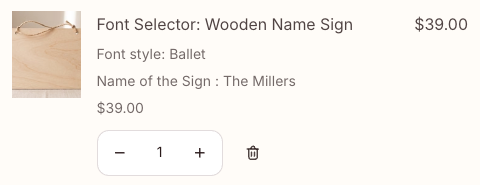
That matters most at the hand-off to production. A font name copied from the order cannot be misread the way a customer email can, and it stays attached to the right item when one order holds three engraved pieces. If you use several fields on one product, our walkthrough on adding custom fields to product pages shows how they sit together.
Who this setup is for, and who it is not
A Font Selector field fits stores where the font is a choice from a short, fixed list and the shopper types a short line such as a name, initials or a date.
- Good fit: engraved jewelry, tumblers, cutting boards, leather goods, embroidered names, wedding signs.
- Good fit: stores that want the font name on the order without asking the customer twice.
- Not a fit: stores that need curved text, text effects or several product views in the preview. That calls for a full product designer.
- Not a fit: stores that want customers to upload their own font files.
My honest take: most stores overthink this. A short list of three fonts with a sample photo beats a twenty-font menu every time.
The caveat on our side: Font Selector is not one of the free-plan field types (the free plan covers Textbox, Checkbox, Radio Button and Dropdown), and while the Font Selector can carry one flat extra charge for the whole field, a different price per font needs a Dropdown, Checkbox or Radio field. If only one font costs extra, list fonts in a Dropdown instead, so each option can carry its own price. Our post on charging for personalization shows that setup.
FAQ
Does Shopify have a built-in font picker for customers?
No. Shopify’s theme editor lets you, the merchant, choose your store’s fonts under Typography. There is no native field that lets a shopper choose a font for their own engraving or print, so stores add one with a custom fields app.
How do I let customers choose a font on Shopify?
Add a Font Selector field with a custom fields app such as Mini:Custom Fields Personalize, list the fonts you offer, and assign the field to the products that support them. The customer picks a font before adding to cart, and the choice is saved on the order.
Will a shopify font picker change my store’s theme font?
No. A Font Selector field only records the customer’s choice for their personalized item. Your theme’s headings and body text stay exactly as they are.
How many fonts should I offer for engraving?
Three to five is the sweet spot: a sans serif, a serif and a script cover most requests. Fewer choices make the decision faster and keep production simple.
Can I charge more for a specific font?
Yes. In Mini:Custom Fields Personalize, the Font Selector can add one flat extra charge whenever a font is chosen. If one font should cost more than the others, list the fonts in a Dropdown or Radio field instead, because per-option pricing works on Dropdown, Radio Button and Checkbox fields. Either way, the fee shows as its own cart line.
Where do I see which font the customer chose?
Open the order in Shopify admin. The font appears under the product as a line item property, using the cart label you set, next to any engraving text from the same order line.
Can customers see a preview in the font they pick?
Yes. In Mini:Custom Fields Personalize you can link a text field to the Font Selector, and the live preview on the product image then shows the shopper’s own words in the font they picked, before they add to cart. The font list also shows each font name in its own typeface, so shoppers can compare styles at a glance. For curved text or several product views, you need a product designer app.