

Shopify photo upload takes 6 steps with an app: install it, turn it on in the theme editor, add an upload field to the product, set minimum pixel dimensions, choose a crop shape, and place a test order. The dimension rule matters most, because it rejects a blurry photo before the customer pays instead of after. Mini: File Upload Image Upload (5.0 stars, 30 reviews, Built for Shopify) adds the field with no theme code, lets the customer crop the photo in a built-in editor, and links the file to the order.
Disclosure: we build Mini: File Upload Image Upload, the app used in the steps below, so the settings come from running it on real product pages rather than from a feature list.
In this post:
- What does Shopify photo upload need to do?
- How to add Shopify photo upload in 6 steps
- How many pixels does a customer photo need?
- Should customers crop their own photo?
- Where do uploaded photos go after the order?
- Who this setup is for, and who it is not
- FAQ
What does Shopify photo upload need to do?
A photo upload field has one job: get a photo you can actually print onto the order, before the customer pays. Accepting any file is the easy part. Rejecting the blurry ones is what saves you money.
Here is something our own App Store data shows: in the last 90 days (to November 12, 2026), more merchants installed our upload app after searching “photo upload” (22 organic installs) than after searching “image upload” (14). Merchants who say “photo” usually sell photo products: prints, canvases, mugs, pet portraits, photo blankets. For them the upload is the product, so quality checks matter more than for a logo or a document.
We build Shopify apps for a living, so we hear the same story from photo stores: the order looked fine until production opened a 600-pixel screenshot of a Facebook photo. The fix is a size rule on the upload field, not a follow-up email.
How to add Shopify photo upload in 6 steps
Each step is one setting, and most stores finish their Shopify photo upload setup in under fifteen minutes.
- Install the app from the Shopify App Store.
- Turn it on in your theme: Online Store, Themes, Customize, App Embeds, toggle the app on and save. On some themes you can add it as a block near the buy buttons instead.
- Create the upload field for the product and limit file types to JPG and PNG for photo products.
- Set dimension rules under Rules & Settings, using the pixel table below for your product size. On Premium, also make the upload required.
- Choose a crop mode in the image editor: free-form, square, circle or a fixed aspect ratio, to match the print area.
- Place a test order from your phone and open it in Shopify admin to check the photo link sits under the product.
Need more than one photo per product, for a collage or a family canvas? Turn on file count limits and set a minimum and maximum, for example 3 to 6 photos. For other file types such as PDF artwork, our Shopify file upload guide covers the differences.
How many pixels does a customer photo need?
For sharp prints, aim for 300 pixels per inch of print size; 150 is the lowest most print shops will accept. Set your minimum dimension rule from the right column, not the left one.
| Product | Sharp (300 PPI) | Minimum (150 PPI) |
|---|---|---|
| 4 x 6 in print | 1200 x 1800 px | 600 x 900 px |
| 8 x 10 in print | 2400 x 3000 px | 1200 x 1500 px |
| 11 x 14 in canvas | 3300 x 4200 px | 1650 x 2100 px |
| 11 oz mug wrap (8.5 x 3.5 in) | 2550 x 1050 px | 1275 x 525 px |
A modern phone photo is about 4000 x 3000 pixels, so original camera files pass easily. The ones that fail are screenshots and photos saved from social media, which is exactly what a dimension rule should catch at upload time instead of in production.
Say you sell 250 canvases a month and 1 in 25 arrives too small to print. That is 10 orders a month where someone emails the customer, waits a day or two, and the delivery date slips. A minimum-size rule turns those 10 delays into 10 customers who pick a better photo on the spot.
Should customers crop their own photo?
Yes, when the print area has a fixed shape. Letting the customer crop to square or circle puts the decision about which face stays in the frame with the person who knows the photo.
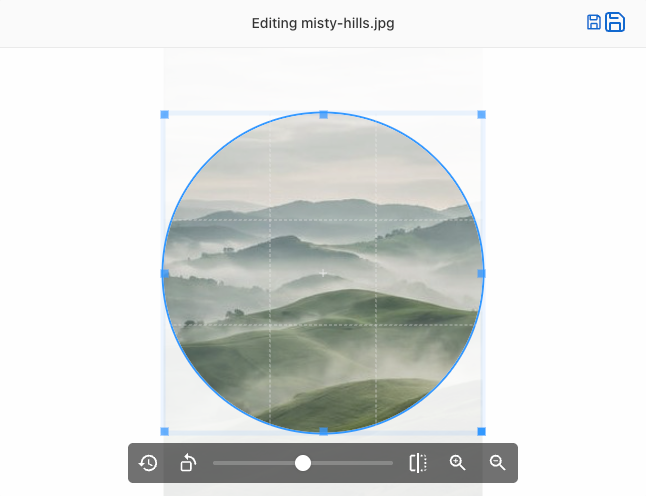
Use square for coasters, tiles and Instagram-style prints, circle for ornaments and badges, and free-form when you print the whole photo. The built-in image editor offers those three modes, plus fixed aspect ratio cropping for rectangular print areas. If customers also need to see the photo on the product before buying, our post on product preview personalization explains when a preview is worth adding.
“ZEI immediately responded to our needs and quickly took care of everything. This is exactly what we wanted ….someone to just fix the issue rather training us on how to fix the issue.”
Rise Above It-Let’s Do It, United States, October 29, 2026 (Shopify App Store review)
Where do uploaded photos go after the order?
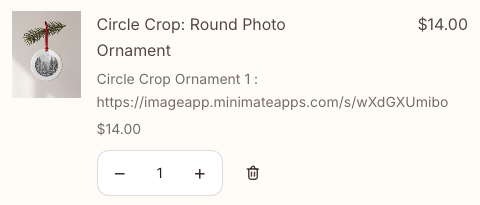
Each photo is stored on Amazon S3 and linked to the order as a line item property, under the product it belongs to. Your team opens the order in Shopify admin and clicks the link to download the original file. The link is a short one rather than a long storage address, so the cart line and the order stay readable, even on a phone.
One thing to plan for: uploads are kept for 1 month on the free Starter plan and 3 months on Premium ($7.90/month or $71.90/year, as of November 2026). Download photos into your production folder when you fulfil the order, not when a reprint request arrives months later.
Who this setup is for, and who it is not
A Shopify photo upload field fits stores that print or engrave the customer’s photo as supplied, with a crop at most.
- Good fit: photo prints, canvases, mugs, ornaments, pet portraits, photo cakes and blankets.
- Good fit: stores that want size checks and the photo on the order without email back and forth.
- Not a fit: stores that need customers to design the whole product with clipart, text layers and templates. A full product designer does that; our image upload apps comparison shows where each type of app fits.
- Not a fit: custom upload shapes such as hearts. The image editor crops to free-form, square, circle or a fixed aspect ratio, not to custom shapes.
My opinion: a dimension rule does more for a photo store than any live preview. A beautiful preview of a blurry photo is still a blurry print. The honest caveat about our app: the Starter plan covers upload on one product page, so a store with many photo products needs Premium. And if you add an upload fee, it uses Shopify’s Cart Transform, which can conflict with another bundling app that already registered one.
FAQ
Can customers upload photos on Shopify without an app?
Not on most themes. You can hand-code a file input as a line item property, but you then handle storage, file checks and mobile behaviour yourself. An upload app adds the field, stores the files and links them to the order.
How do I let customers upload a photo to a Shopify product?
Install a photo upload app, enable it in the theme editor’s App Embeds tab, create an upload field for the product and set file type and size rules. The customer uploads before adding to cart, and the photo link is saved on the order.
Does shopify photo upload work on mobile?
Yes. Customers can pick a photo from their camera roll or take a new one. Test on your own phone before launch, because most photo orders are placed on mobile.
What photo resolution should I require?
Use 300 pixels per inch of print size as the target and 150 as the minimum. For an 8 x 10 inch print that means at least 1200 x 1500 pixels, ideally 2400 x 3000.
Can customers upload several photos for one product?
Yes. Turn on file count limits and set the minimum and maximum number of photos, for example 4 to 9 for a collage print.
Where can I find the customer’s photo after an order?
In Shopify admin, open the order: the photo appears as a link under the product. Download it when you fulfil, because uploads are kept for 1 month on Starter and 3 months on Premium.
Can I charge extra for photo upload?
Yes, on the Premium plan you can attach an add-on charge to the upload. Check first that no other bundling app in your store already uses Cart Transform.