

Product preview personalization means the shopper sees their customization, typed text or an uploaded image, rendered directly on the product photo before they add it to cart. Mini:Custom Fields Personalize supports this today: textbox and image upload fields update the product image live, as the customer types or uploads, with no add-to-cart required to see the change. This post covers which field types support it today, which plan you need, and one gap worth knowing before you promote it as instant everywhere.
Disclosure: we build Mini:Custom Fields Personalize and the live preview feature this post describes, so what’s below comes from rolling it out and supporting it ourselves, not a general writeup of someone else’s app.
In this post:
- What product preview personalization actually shows
- Which field types support it today
- Turning it on: is there a setting?
- Which plan you need
- A real limit worth stating
- Setting up a field with live preview
- FAQ
What Product Preview Personalization Actually Shows
Visual-preview-first competitors, Teeinblue, Customily, and Zepto among them, have marketed this as a headline differentiator for a while. We rolled live preview out carefully, field type by field type, prioritizing the ones merchants asked for most and the ones we could guarantee render correctly across themes, rather than shipping every field type at once. That sequencing is why some types are live today and others are still queued.
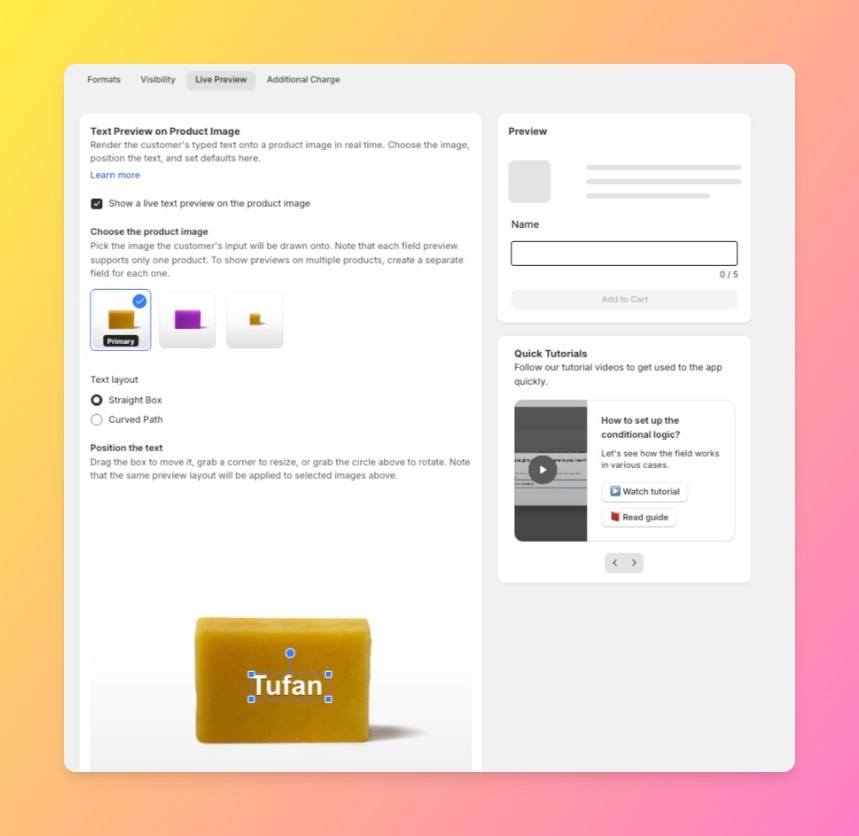
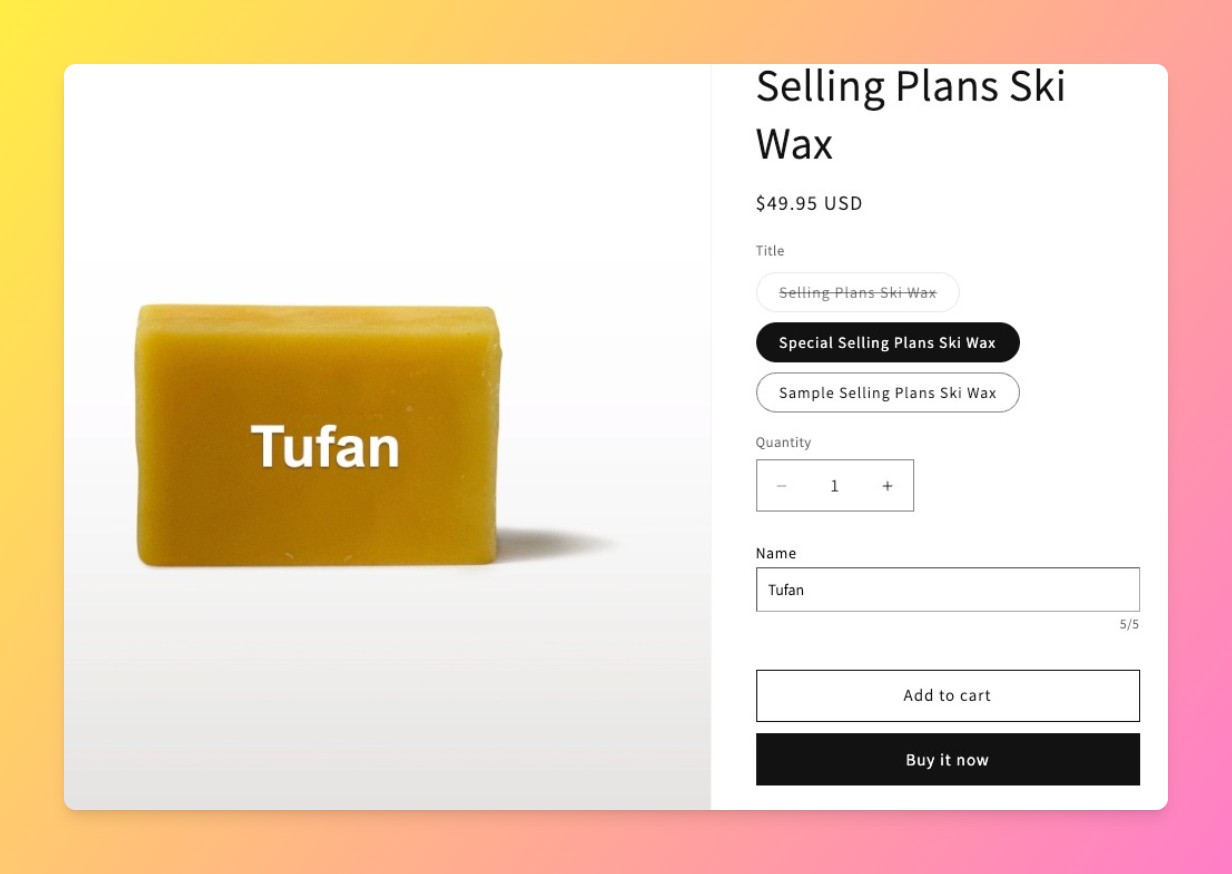
The mechanism is simple in concept: as a shopper types into a personalized textbox, or uploads an image into an upload field, the product photo on the page updates to reflect that input immediately, before add to cart, before checkout, before any page reload.

Which Field Types Support Product Preview Personalization Today
Not every custom field type renders on the image yet. Here’s the honest breakdown, not a marketing page that implies full coverage across every field.
| Field Type | Live Preview? | Plan Needed |
|---|---|---|
| Textbox | Yes | Premium |
| Image upload | Yes | Premium |
| Dropdown, radio, checkbox, other types | Not yet | — |
Why only two field types so far? Text and image are the two customizations shoppers most often want to visually confirm before buying, an engraving message or an uploaded photo. Dropdown and radio selections tend to change color or add-on choices rather than something that needs a visual preview, which is part of why they were sequenced later.
Turning It On: Where the Setting Lives
Live preview has its own dedicated section in the app dashboard, separate from the field editor itself. Toggle it on there, and set the predefined location where the preview should render on the product page. Once it’s configured, it applies to your textbox or upload fields automatically.
Which Plan You Need for Live Preview
Live preview itself is a Premium feature for both field types it currently supports, textbox and image upload. That’s a separate gate from the field types themselves: a textbox field exists on the Free plan, but the live-preview rendering on top of it does not. If a product needs the preview to show, the store needs to be on Premium, regardless of which of the two supported field types is being used.
A Real Limit Worth Stating: What Doesn’t Update Live Yet
One honest limit worth stating: dropdown, radio, checkbox, and the other field types don’t render on the product image today, even though they’re fully functional as personalization options. A merchant selling engraved jewelry with both a textbox for the engraving text and a dropdown for metal finish will see the text preview live, but not a visual change when the finish dropdown is switched. That’s a real gap, not a hidden bug, and it’s worth setting expectations with customers accordingly until more field types are added.
Setting Up a Personalized Field With Live Preview
Add a textbox or image upload field to a product through the app dashboard the same way you normally would, then confirm live preview is toggled on and positioned correctly in its own dashboard section, that’s a one-time, store-level setup, not a per-field step. Shopify’s own theme editor documentation is a useful reference if you’re placing the field block for the first time and want to confirm it’s positioned correctly relative to the product image.
For a broader walkthrough of customizing a product page, see our complete guide to customizing your Shopify product page. If you’re deciding between field types more generally, our personalized product and product configurator posts cover the wider setup.
Frequently Asked Questions
- 1. Can customers preview their personalization before adding to cart on Shopify?
- Yes, with Mini:Custom Fields Personalize’s textbox and image upload fields, the product image updates live as the customer types or uploads, before add to cart.
- 2. Does live preview work for every custom field type?
- Not yet. Today it covers textbox and image upload fields only. Dropdown, radio, checkbox, and other field types remain fully functional but don’t render visually on the product image.
- 3. Do I need the Premium plan to show a live preview?
- Yes, live preview requires Premium for both supported field types, textbox and image upload. Having a textbox field on a lower plan doesn’t include the live-preview rendering.
- 4. Does live preview update automatically, or does the customer need to click something?
- It updates automatically as the customer types or uploads, no button click or page reload required.
- 5. Can I show a live preview of an uploaded image before checkout?
- Yes, on the Premium plan, image upload fields render the uploaded image directly on the product photo before checkout.
- 6. Why isn’t my dropdown or radio button field showing a live preview?
- Those field types don’t support visual preview yet. This is a current scope limit, not a setup mistake on your store.



