

A variant level restock notification alerts a shopper only when the exact variant they wanted, not just any variant of the product, is back in stock. Restock Alert & Waitlist ‑ Mini supports this by tagging each signup with a productId-variantId combination and firing the restock email only when that specific variant’s webhook triggers, plus resource-picker rules and test-email tools that let a merchant target individual variants directly. This post covers how that targeting works and how to set rules for specific variants instead of the whole product.
In this post:
- What variant-level actually means
- How a signup gets tagged to one variant
- Setting rules to target individual variants
- Manual vs. automatic waitlist display
- Testing a rule before it goes live
- A theme conflict worth checking
- FAQ
What a Variant Level Restock Notification Actually Means
We tag every waitlist signup with its exact variant ID ourselves, so when a merchant asks why a shopper got notified for the wrong size, the tagging logic is usually the first thing we check. A variant level restock notification means a shopper who signed up for “blue, size medium” gets emailed when blue medium restocks, not when any other combination of that product comes back.
Without this, a merchant either notifies everyone who signed up on a product every time any variant restocks, which annoys shoppers waiting for a different option, or has no way to target restocks at all.

How the App Tags a Signup to One Specific Variant
When a shopper submits their email on a sold-out variant, the app creates or updates a Shopify customer record and tags it with a productId-variantId combination specific to that exact option. When that variant later restocks, a webhook fires, the app matches it against tagged customers for that exact productId-variantId pair, and only those shoppers get queued for the restock email.
Setting Rules to Target Individual Variants (Resource Picker)
Variant-level targeting for the resource picker, rules, and test emails shipped as a dedicated release milestone, not a side effect of general product support. In the app dashboard, use the resource picker to select a specific variant rather than the whole product when building a targeting rule, this lets you scope a notification campaign, a custom email template, or a manual send to one exact option.
Manual vs. Automatic: Which Waitlist Display Mode You Need
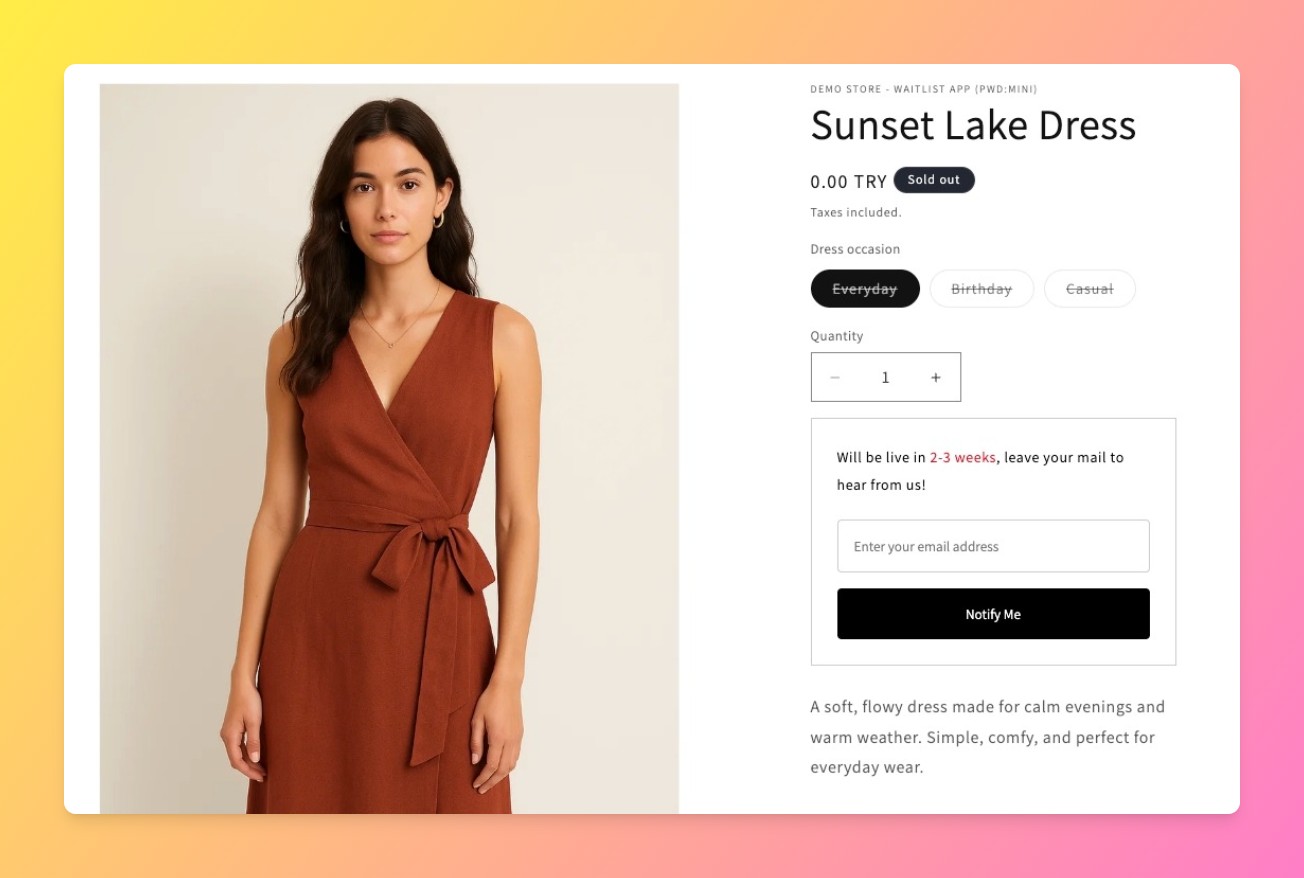
This is a different setting from the variant-level targeting covered above, and it’s worth not confusing the two. Variant-level targeting controls who gets notified once a restock happens. Manual vs. automatic controls when the waitlist form shows up on the product page in the first place.
| Mode | When the Form Shows | Best For |
|---|---|---|
| Automatic | Only when Shopify’s own inventory marks that variant as sold out | The regular sold-out-to-back-in-stock flow for physical inventory |
| Manual | Always, regardless of the variant’s actual stock level in Shopify Admin | Cases where stock count doesn’t reflect real availability |
Why would a merchant want the form to show regardless of what Shopify’s inventory count says? Because plenty of “sold out” situations aren’t inventory problems at all. A workshop with 20 seats, an in-person class, a one-time cohort, these are things a merchant closes off manually, not something a Shopify stock count tracks natively. Manual mode puts the waitlist form on that listing on command, independent of whatever quantity happens to be set in Shopify Admin.
Testing a Variant-Level Rule Before It Goes Live
The app’s test-email tools apply to variant-level rules the same way they apply to product-wide ones, send a test through the specific rule you’ve built before real signups depend on it. This matters more for variant-level rules than product-wide ones, since a misconfigured resource picker selection is easy to miss until a real restock happens.
A Theme Conflict Worth Checking: Variant Switching and Buy Buttons
A known issue worth flagging plainly: variant switching can break buy buttons or the waitlist form on some themes if the theme’s variant-change event doesn’t fire the way the app expects, a fix for this was shipped for several affected themes, but it’s not universal. If your notify-me form doesn’t reappear correctly after a shopper switches to a different sold-out variant, this is the first thing to check.
Also worth checking: cart-drawer apps like UpCart can intercept the same click your waitlist form is trying to capture. We ship the exact button that replaces your sold-out add-to-cart, so when a cart-drawer app swallows that click before the signup is captured, we’re usually the ones who catch it in support before the merchant does.
For the setup steps behind the notify-me button itself, see our guide to adding a notify me button on Shopify. For the broader question of native vs. app-based notifications, see does Shopify have back in stock notifications, and for setting up a waitlist from scratch, see how to create a waitlist on Shopify. Shopify’s own documentation on product variants is a useful reference for how variant IDs work at the platform level.
Frequently Asked Questions
- 1. What does a variant level restock notification mean on Shopify?
- It means a shopper is only notified when the exact size, color, or option they signed up for comes back in stock, not any other variant of the same product.
- 2. Can I notify customers only when a specific size or color restocks?
- Yes, Restock Alert & Waitlist ‑ Mini tags each signup to its specific variant and only fires the notification for that exact combination.
- 3. Does the waitlist app know which variant a customer signed up for?
- Yes, the app tags the customer record with a productId-variantId combination at the moment of signup, which is what makes variant-specific targeting possible.
- 4. What’s the difference between manual and automatic waitlist display?
- Automatic mode only shows the waitlist form when Shopify’s own inventory marks a variant as sold out. Manual mode shows the form regardless of the actual stock level, useful for things like a sold-out course, class, or workshop where availability isn’t tracked by inventory count.
- 5. Can I test a variant-level restock rule before it goes live?
- Yes, the app’s test-email tools work with variant-specific rules the same way they work with product-wide ones.
- 6. Why didn’t a customer get notified when their exact variant restocked?
- Check the resource picker selection on the rule first, a misconfigured variant selection is the most common cause, followed by a theme not firing a standard variant-change event.



