

A two-step product page for personalized items shows the base product first, photo, variant picker, price, and only reveals the personalization fields, textbox, upload, dropdown, after the shopper commits to customizing, instead of putting every field on the page at once. Mini:Custom Fields Personalize supports this pattern today by combining conditional logic (Basic plan and up) to gate fields behind a trigger with the live preview feature, so the customization reflects on the product image the moment step two opens. This post covers exactly how to wire the two steps together.
Disclosure: we build Mini:Custom Fields Personalize, the app behind the conditional logic and live preview features described in this post, so everything here comes from configuring this exact flow ourselves, not from testing a competitor’s app. Verify the specifics in your own app dashboard, since exact menu labels can shift between plan tiers.
In this post:
- What a two-step personalized product page actually means
- Why gate personalization fields behind a step
- Setting up conditional logic to reveal fields after a trigger
- Confirming the choice with live preview before add-to-cart
- One-step vs. two-step: which fits your product
- A real limit worth knowing
- FAQ
What a Two-Step Personalized Product Page Actually Means
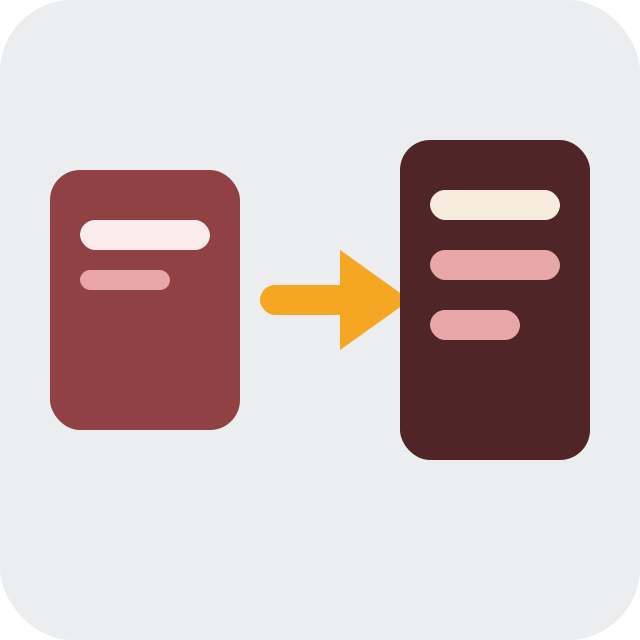
A two-step product page for personalized items splits the page into a default view (photo, variant picker, price, add to cart) and a personalization view that only appears once the shopper indicates they want to customize the item. The fields themselves don’t change, textbox, upload, dropdown, whatever the product needs, only when they render changes.
Why Gate Personalization Fields Behind a Step
Why hide fields that a shopper might want to see right away? Because a product page with six visible input rows before the shopper has even decided to buy reads as a form, not a product. Gating the fields behind a single click keeps the first view simple and shows the customization options only to shoppers who are already committed, which is exactly the audience that fields are meant for.
We see this pattern most on products with three or more fields, or any field that involves a visual choice like font, color, or an uploaded image, where showing everything up front adds clutter without adding clarity.
Setting Up Conditional Logic to Reveal Fields After a Trigger
Conditional logic, a Basic-plan-and-up feature, lets one field’s visibility depend on another field’s value. To build a two-step flow, add a simple trigger field, a checkbox or dropdown labeled something like “Personalize this item”, then set every personalization field’s condition to “show only when” that trigger is checked or selected. Nested conditional logic works the same way if a later field should only appear after an earlier personalization choice.
Confirming the Choice With Live Preview Before Add-to-Cart
Once a field is revealed, live preview for textbox and upload fields reflects the customer’s input directly on the product image as they type or upload, with no add-to-cart required to see the change. That confirmation step is what makes a two-step flow feel safe rather than uncertain: the shopper sees exactly what they’re buying before they commit.
One-Step vs. Two-Step: Which Fits Your Product
Not every product needs the extra step. Here’s how to decide:
| Product Type | Recommended Pattern | Why |
|---|---|---|
| Single simple option, e.g. one monogram field | One-step | Extra click adds friction for no benefit |
| 3+ fields or a visual customization, e.g. engraving + font + placement | Two-step | Reduces initial page clutter, live preview confirms the choice before add-to-cart |
| High-price or gift items where shoppers hesitate | Two-step | Matches how shoppers already decide on higher-consideration purchases |
A Real Limit Worth Knowing
One honest limit worth stating: this entire pattern depends on conditional logic, which is a Basic-plan-and-up feature. On the Free plan, every field a product has is visible at once, there’s no way to gate a field behind a trigger without upgrading. If a two-step flow is the goal, Basic is the minimum plan required, not just a nice-to-have.
We build the conditional logic and live-preview mechanics this pattern runs on, so we see which merchants gate fields behind a step and which ones show everything at once, and the two-step group consistently reports fewer support tickets about shoppers missing that a product could be customized at all.
“Not only is the app easy to use, it’s highly customisable and solved a lot of legacy issues. On top of this the support is second to none and they go above and beyond. I’ve gone through a lot of apps over the years but I would put this top of my list overall in terms of service and performance.” (attributed to The Precious People, United Kingdom)
For the conditional logic mechanics behind step two, see our full guide to Shopify conditional logic. If you’re combining several field types on one page, how to customize your Shopify product page covers the full setup. And for background on what a personalized product page looks like end to end, see Shopify Personalized Product. Shopify’s own documentation on Online Store 2.0 sections is useful background on how product page layout works at the platform level.
Frequently Asked Questions
- 1. What is a two-step product page for personalized items?
- A product page that shows the base product first and only reveals personalization fields, textbox, upload, dropdown, once the shopper indicates they want to customize the item.
- 2. Why would I hide personalization fields instead of showing them all at once?
- Showing every field up front on a product page reads as a form rather than a product. Gating fields behind one click keeps the default view simple and shows customization only to shoppers who are already committed.
- 3. Can I use conditional logic to reveal fields after a customer picks a variant?
- Yes, conditional logic can trigger off any field’s value, including a variant-linked field, not just a dedicated checkbox.
- 4. Does live preview work with a two-step personalization flow?
- Yes, live preview for textbox and upload fields works the same way regardless of whether the field is visible from the start or revealed after a trigger.
- 5. Is conditional logic available on the free plan?
- No, conditional logic requires the Basic plan or higher. The free plan shows all fields at once with no gating option.
- 6. Does a two-step flow slow down checkout?
- No, it adds one click before checkout, not during it. The fields still need to be filled in before add-to-cart either way.



