

A Shopify required field product page setup usually fails for one of 3 reasons: the theme’s product form carries novalidate, the field sits outside the form, or the shopper buys through a button that never shows the field. The fix that holds is a field with its own validation, such as Mini:Custom Fields Personalize (Built for Shopify, 4.9 from 145 reviews, required validation from $5.99/month), plus switching off Buy it now and quick add on personalized products. Then test all 4 ways a shopper can add the product.
Disclosure: we build Mini:Custom Fields Personalize, so the validation behavior and the gaps described below come from supporting merchants who hit them, not from a feature list.
In this post:
- Why the required attribute does nothing on most themes
- The 4 ways a shopper can skip your field
- How to set up a Shopify required field product page with an app
- Close the Buy it now and quick add gaps
- Required uploads, dates and checkboxes
- Check that the value reaches the order
- Code or app: how to choose
- FAQ
Why does the required attribute do nothing on most Shopify themes?
Because the theme tells the browser to skip validation. In Dawn, Shopify’s reference theme, the product form in snippets/buy-buttons.liquid is rendered with novalidate (Dawn 16.2.0, checked in the public repository, November 2026). With that attribute, the browser ignores every required on the inputs inside the form, and the theme’s JavaScript sends the product to the cart without asking.
The second cause is placement. A field added through a Custom Liquid block usually renders outside the <form> tag. Unless the input carries a form="product-form-..." attribute that points to the product form, its value never reaches the cart, required or not. Shopify Community threads about Dawn and Prestige describe both problems with the same symptom: the asterisk shows, and the order still arrives blank.
What are the 4 ways a shopper can skip your field?
A required field only protects the path that shows it, so a Shopify required field product page check can be perfect and still leak orders. List every way to buy before you trust any setup:
| Entry point | Shows your field? | What to do |
|---|---|---|
| Add to cart on the product page | Yes | Validation must run here (app or custom script) |
| Buy it now (dynamic checkout) | Yes, but skips the cart | Turn off on personalized templates |
| Quick add on collection pages | No | Turn off, or exclude the product |
| Upsell or bundle widgets in the cart | No | Exclude personalized products |
The last two rows are where most “it worked when I tested it” stories end. You test on the product page, a shopper uses quick add from the holiday collection, and the engraving line is empty.
How do you set up a Shopify required field product page with an app?
An app field carries its own validation, so it does not depend on the theme’s form settings. With Mini:Custom Fields Personalize the setup takes 6 steps:
- Install Mini:Custom Fields Personalize and turn on its app embed in the theme editor.
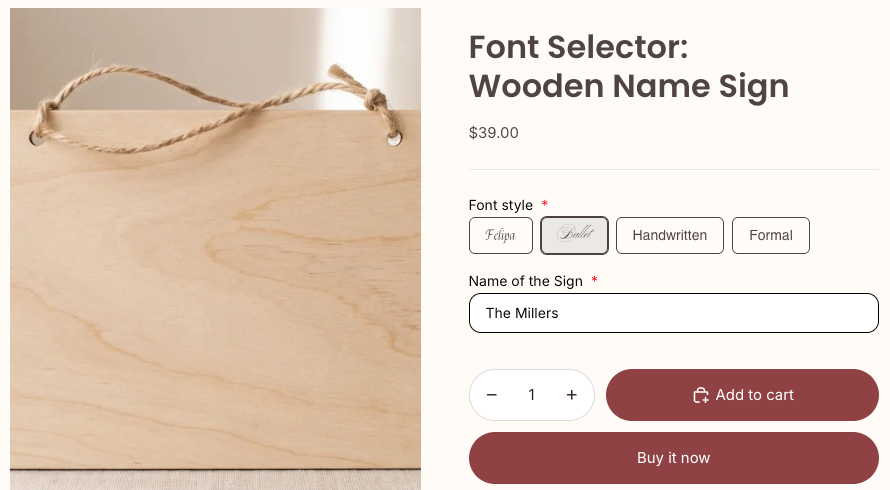
- Create a field and pick the type: textbox for a name, dropdown or radio for fixed choices, font selector, date picker or upload.
- Switch on Required. Required validation and tooltips are part of the Basic plan ($5.99/month or $47.90/year, as of November 2026).
- Set a maximum character limit for text, so the name fits the sign.
- Assign the field to the products that need it, or to chosen variants on Premium ($9.99/month).
- Open the product page, leave the field empty and press Add to cart. The field should stop the add and show its message.
A merchant in India put it plainly in a September 2026 review: “The setup is simple, the customization options work smoothly” (MONTEXOO, India, 15 September 2026).
Few merchants search for this before it hurts. In the last 90 days, merchants who installed our app from App Store search typed “textbox” (22 installs, ads included), “custom fields” (17) and “text field” (6); “required text field” brought exactly 1. People look for a field first and learn about required validation after the first blank order.
How do you close the Buy it now and quick add gaps?
Turn off the buttons that skip the field, but only on products that need it. A Shopify required field product page is only as strong as its weakest button:
- In the theme editor, duplicate your product template and name it “Personalized”.
- In that template’s Buy buttons block, untick “Dynamic checkout buttons” (the Dawn 16 label; older versions say “Show dynamic checkout buttons”). Shopify’s own accelerated checkout guide explains what those buttons do.
- Assign the template to your personalized products in the product admin.
- In collection sections, turn off quick add, or keep personalized products out of collections that use it.
- Check cart upsell and bundle apps, and exclude the same products there.
Say you sell 300 engraved bracelets a month and 2% arrive blank. That is 6 emails, 6 delayed shipments and usually 1 or 2 refunds every month, from a button you forgot was there.
Can uploads, dates and checkboxes be required too?
Yes. On a Shopify required field product page built with Mini:Custom Fields Personalize, Required is a setting on each field, so textbox, dropdown, radio, checkbox, date picker, font selector, image swatch and upload can all be mandatory (the font selector above is). Upload and image swatch fields need Premium, which also lets a date picker block past dates and weekends.
A required checkbox works well as a proof step, for example “I checked the spelling of the name above”, which cuts reprint requests on engraving and print orders (see our engraving personalization guide).
If photos are the whole product, Mini: File Upload Image Upload is our photo-first app, with crop, preview and a required upload setting on Premium ($7.90/month). Our Shopify photo upload guide walks through that setup.
How do you check that the value reaches the order?
Place a test order and look at the line item, not just the cart drawer. A Shopify required field product page that blocks blank adds is only half the job if the value is lost on the way to the order. The value should sit under the product name in the cart, on the order page and on the packing slip.
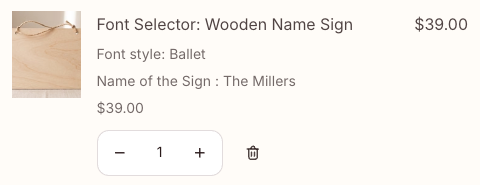
If the cart shows the value but the order does not, a cart app or a custom cart template is rebuilding the line without its properties. Our guide to adding a custom text field on Shopify product pages covers where those properties appear.
Code or app: how should you choose?
- Pick custom code if you have one product, one text field, a developer, and you are willing to remove
novalidateor add a submit check yourself and re-test after every theme update. - Pick an app field if you have several personalized products, need uploads, dates or fixed choices, or want the check to keep working after a theme change.
- Either way, turn off Buy it now and quick add on those products and test all 4 entry points from the table.
Our opinion: a Shopify required field product page setup is a fulfillment control, not a design detail. Treat it like a checklist you run after every theme update.
One honest caveat about our own app: Mini:Custom Fields Personalize validates when the product form submits to the cart, so a Buy it now button or another app’s quick-add button can still skip it. That is why the steps above turn those buttons off instead of promising that validation alone is enough. Required also only checks that something was entered, so use a character limit, a tooltip and dropdowns where a typo would cost you a reprint.
FAQ
Why is my required field not working on Shopify?
Most themes, Dawn included, render the product form with novalidate, which tells the browser to ignore required. Fields added in a Custom Liquid block often sit outside the form as well. An app field with its own validation avoids both problems.
How do I make a personalization field mandatory before add to cart?
Create the field in a custom fields app, switch on Required, and test by pressing Add to cart with the field empty. In Mini:Custom Fields Personalize, required validation is on the Basic plan at $5.99/month.
Does the Buy it now button skip required fields?
It can, because it sends the shopper straight to checkout instead of through the cart. Turn off “Dynamic checkout buttons” on the template your personalized products use, and keep it on for everything else.
Can I make an image upload required on Shopify?
Yes. Mini:Custom Fields Personalize supports required upload fields on its Premium plan ($9.99/month), and Mini: File Upload Image Upload lists required field control on its Premium plan ($7.90/month).
Can a required field stop customers typing nonsense?
Not on its own. Required only checks that something was entered. Use dropdowns or radio buttons for fixed choices, and a character limit and tooltip for free text.
Do required fields work with quick add on collection pages?
No. Quick add puts the product in the cart without showing product page fields. Turn quick add off for personalized products, or keep them out of collections that use it.
Where does the required field value show up after the order?
As a line item property under the product in the cart, on the order page in the Shopify admin and on packing slips that print properties.