

You can change the Shopify out of stock message in 4 ways: edit the “Sold out” text in your theme’s default content (free, 2 minutes, applies to every product), show a custom message on chosen products with an app, replace the dead button with a notify-me form, or show a backorder note when you keep selling at zero stock. The theme edit changes the words; it cannot say anything different per product or tell shoppers when the item is back.
Disclosure: we build Hey!Scarcity Low Stock Counter and Restock Alert & Waitlist – Mini, two of the apps mentioned below, so the setup notes come from running them, not from a feature list.
In this post
- Where the Shopify out of stock message appears
- How to change the sold out text in your theme
- How to show a different message on chosen products
- Replace the message with a notify-me form
- What to show when you keep selling at zero stock
- Should you edit the Liquid code instead?
- How to choose
- FAQ
Where does the Shopify out of stock message appear?
Most Shopify themes show the out of stock state in two places: the disabled “Sold out” button on the product page and a “Sold out” badge on product cards in collections and search. Both read from the same theme text, which is why one edit changes both. Here is what each job needs.
| What you want | How to do it | Where it lives |
|---|---|---|
| Different words everywhere | Edit default theme content | Shopify admin, free |
| A message on chosen products | Custom sold-out message | App (or Liquid code) |
| Capture the lost sale | Notify-me form | Back-in-stock app |
| Keep selling at zero stock | Backorder note | Inventory setting plus a message |
We see merchants search this exact wording. In the 90 days to November 8, 2026, “shopify out of stock message” showed our site 13 times in Google Search Console at an average position of 10.7, and “shopify change out of stock message” another 4 times. Most of the top results are Shopify Community threads that solve one theme at a time.
How to change the sold out text in your theme
The quickest way to change the Shopify out of stock message is your theme’s default content. It works on Dawn, Horizon and most Online Store 2.0 themes, and no code is involved.
- In Shopify admin, go to Online Store, then Themes.
- Next to your live theme, click the three-dot menu and choose Edit default theme content.
- Type “sold out” in the search box.
- Replace the text in each matching field, for example “Back soon” for the button and the badge.
- Click Save, then check a sold-out product page and a collection page.
Shopify’s help article on changing the wording in themes covers the same screen and the translated versions. Two limits apply: the change hits every sold-out product at once, and a theme update or theme switch can bring back the original text, so recheck after updates.
How do I show a different out of stock message on chosen products?
A different message per product needs an app or custom Liquid code, because the theme text is one value for the whole store. A seasonal candle and a discontinued mug should not both say “Sold out”.
Hey!Scarcity Low Stock Counter (rated 4.9 from 159 reviews, Built for Shopify) shows a custom sold-out message near the buy button, on all products, selected products or chosen collections, and on collection page product cards when you turn that on, which the theme text edit cannot target product by product. The same app shows low stock counters (“Only 3 left”) before the item runs out, so one widget covers both states. Premium is $5.99/month, or $47.88/year.
- Install Hey!Scarcity Low Stock Counter and add its app block or app embed in the theme editor.
- Choose the products or collections the message should apply to.
- Write the sold-out message, for example “Sold out. New batch arrives in March.”
- Pick an emoji or animation if you want the message to stand out.
- Turn on collection page display if the message should show on product cards too.
We build Shopify apps for a living, so we know why merchants ask for this: a plain “Sold out” can read as “gone for good”. One line saying when stock returns changes that. For the low stock side of the same widget, see our guide to showing “only X left in stock” on Shopify.
“App works really well! Easy to understand, easy setup. Super fast support if you need it too.”
Chelsea Market Baskets, United States, October 29, 2026, Shopify App Store review
Replace the Shopify out of stock message with a notify-me form
A notify-me form turns the Shopify out of stock message into a signup: the shopper leaves an email and hears from you the day the variant is back. This is the option that actually recovers the sale.
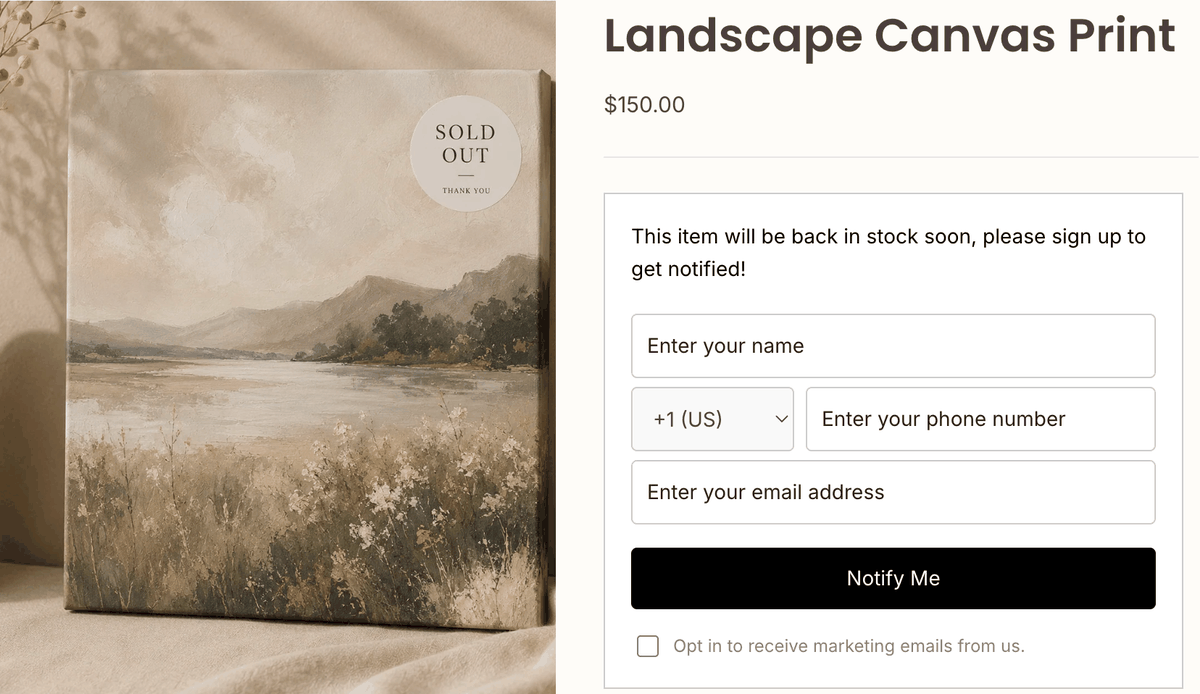
Restock Alert & Waitlist – Mini adds the form to sold-out products, per variant or on every sold-out product automatically, and emails each shopper when stock returns. Premium is $8.99/month with unlimited restock emails, Shopify Flow and sending from your own domain. Our guide to the notify me button on Shopify walks through the setup, and if the product has not launched yet, see coming soon products on Shopify.
Say a size M hoodie sells out on a Friday and 40 people view it over the weekend. With the default text, the only thing those 40 people can do is leave. With a form, everyone who signs up gets an email on Monday when the restock lands.
What should the message say when you keep selling at zero stock?
If you turn on “Continue selling when out of stock” for a product, Shopify keeps the Add to cart button live and no sold-out text appears at all. That is the right setup for made-to-order items, but the shopper then has no idea the item ships later.
Add a short note for that case, such as “Ships in 2 to 3 weeks”. Hey!Scarcity Low Stock Counter has a separate continue-selling message for products sold below zero stock. If you are deciding between backorders and a waitlist, our comparison of back in stock vs preorder covers the trade-offs.
Should you edit the Liquid code instead?
Only if you are comfortable maintaining theme code. The common Shopify Community fix edits the theme’s inventory block with if/else branches on stock level and the continue-selling policy. It works, but stock thresholds are easy to get subtly wrong: mix a “more than 5” check with a “less than 5” branch and a variant with exactly 5 units shows no message at all.
Code edits also live in one theme. Switch or update the theme and the change is gone, the same weak spot as the theme text edit, only harder to redo.
How to choose
Pick the lightest option that does the job.
- You only want different words: edit default theme content. Free and done in 2 minutes.
- Some products need their own message: Hey!Scarcity Low Stock Counter, or custom Liquid if you maintain your theme.
- Restocks are coming and you want the sales: a notify-me form with Restock Alert & Waitlist – Mini.
- You sell made-to-order: continue selling plus a shipping-time message.
My opinion: for any product you will restock, the words on the button matter less than what the shopper can do next. A better Shopify out of stock message helps, but a form that captures the email helps more. One caveat on our own apps: if you run both Hey!Scarcity and Restock Alert & Waitlist – Mini on the same product, both place an element near the buy button, so check the product page on mobile after setup.
FAQ
How do I change the out of stock message on Shopify?
Go to Online Store, Themes, click the three-dot menu on your theme, choose Edit default theme content, search “sold out” and replace the text. It changes the message on every sold-out product.
Can I change “Sold out” to “Coming soon” on Shopify?
Yes. Edit default theme content and replace “Sold out” with “Coming soon”. This applies to all sold-out products; for only some products, use an app or Liquid code.
Can I show a different sold out message on each product?
Not with theme settings alone. Hey!Scarcity Low Stock Counter shows a custom sold-out message on selected products or collections, or a developer can add product-specific Liquid code.
Why did my sold out text change back?
Theme content edits belong to one theme. If you switch themes or install a new theme version, the default text can return. Recheck after every theme change.
How do I change the sold out badge on collection pages?
The badge reads from the same theme text, so Edit default theme content changes it too. For a different message on chosen product cards, use an app that supports collection pages.
Can I let customers sign up when a product is out of stock?
Yes. A back-in-stock app such as Restock Alert & Waitlist – Mini adds a notify-me form to sold-out products and emails each shopper when their variant is restocked.
What happens if I keep selling when out of stock?
Shopify keeps the Add to cart button active and shows no sold-out text. Add a shipping-time message so shoppers know the order ships later.