

Coming soon products shopify pages are usually built the hard way, merchants assume they need a dedicated pre-order app just to collect interest before a launch. You don’t. Restock Alert & Waitlist – Mini already has two ways to show a waitlist form on a product that isn’t in stock yet: leave “Continue selling when out of stock” on in Shopify admin, or set the product to a manual out-of-stock state inside the app. Either way, customers join the list and you collect real demand data before the product ships.
In this post:
- What a coming soon product page actually needs
- Two ways to trigger it
- Step-by-step: setting up a coming soon waitlist page
- Why this doubles as demand validation
- How coming soon differs from back-in-stock
- How to choose
- FAQ
Disclosure: I’m the founder of Minimate Apps, and we build Restock Alert & Waitlist – Mini, the app this post walks through. The setup steps below for coming soon products shopify pages come from running this feature ourselves, not a general marketing claim.
What a Coming Soon Product Page Actually Needs
A coming soon products shopify page needs exactly one working mechanism: a way for an interested customer to leave their email and get notified the moment the product goes live. That’s it. It doesn’t need a deposit system, a countdown timer, or a separate app category. Merchants searching for coming soon products shopify solutions often land on pre-order apps built for a bigger job, when the waitlist mechanism they may already have covers this specific case.
Two Ways to Trigger It: Shopify’s Setting or a Manual Override
The first path uses Shopify’s own inventory setting. On a product with zero stock, turn on “Continue selling when out of stock” in Shopify admin, and Restock Alert & Waitlist – Mini treats it as a live, waitlistable page rather than a dead sold-out listing. The second path is a manual override inside the app itself: mark a product as out-of-stock in the app’s dashboard regardless of what Shopify’s real inventory count says, useful when you haven’t created real stock yet because the product hasn’t shipped from your supplier.
Step-by-Step: Setting Up a Coming Soon Waitlist Page
- Create the product in Shopify as you normally would, with images, description, and price, even though you have no stock yet.
- Decide which trigger fits: turn on “Continue selling when out of stock” in Shopify admin, or use the app’s manual override instead.
- Install Restock Alert & Waitlist – Mini and confirm the waitlist form is showing on that product’s page.
- Customize the form copy so it reads as a launch signup (“Notify me when this drops”) rather than generic restock language.
- When the product is ready, flip stock on (or remove the manual override), and the app sends the notification automatically to everyone who joined.
Why This Doubles as Demand Validation, Not Just a Signup Form
Every email collected before launch is a real signal, not a guess, about whether the product is worth producing at the volume you’re planning. A coming soon page that collects 40 emails in a week tells you something a coming soon page with 3 emails doesn’t, and you get that signal before committing to inventory, not after. This is the same underlying mechanism as a standard back-in-stock waitlist, just pointed at a product that hasn’t existed yet rather than one that sold out.
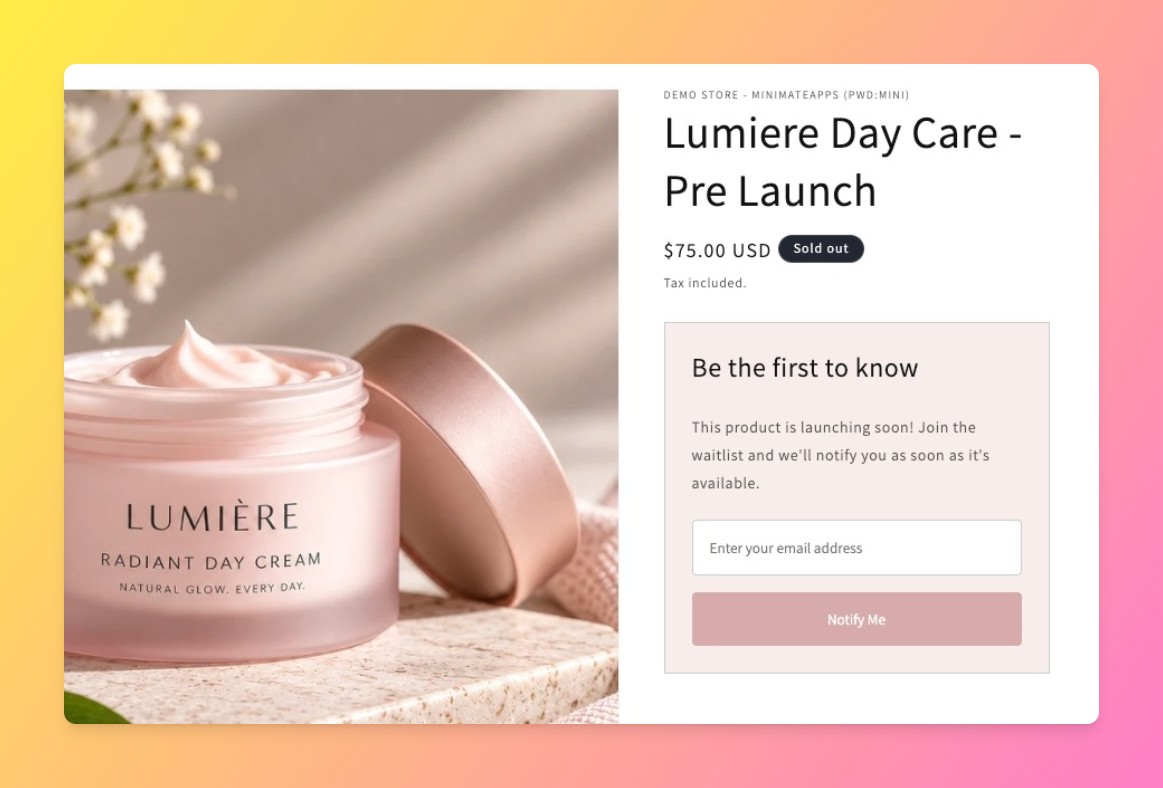
How Coming Soon Differs From Back-in-Stock in Messaging and Timing
Coming soon products shopify pages and back-in-stock pages use the same underlying app, but they solve different problems. A back-in-stock page is reactive: the product existed, sold out, and you’re recovering lost demand. A coming soon page is proactive: you’re building a list before the product exists in inventory at all. The mechanics inside Restock Alert & Waitlist – Mini are identical either way, the difference is entirely in your copy and timing, not in a separate feature you need to configure.
How to Choose
Most coming soon products shopify questions boil down to one of two scenarios:
- Launching a brand new product with no stock yet: use the manual override so the waitlist form shows immediately, independent of Shopify’s real inventory count.
- Restocking an existing product that sold out: leave Shopify’s native inventory tracking on and let the app pick up the sold-out state automatically.
- Running both scenarios across different products: both triggers work side by side on the same store without conflict.
One honest limit worth stating: we don’t have a dedicated deposit or partial-payment system, so if you need customers to actually pay before launch, that’s a pre-order app’s job, not ours. What we do is make sure you’re not paying for pre-order infrastructure you don’t need just to collect interest.
“This is the perfect app for a small store like ours that gives workshops with limited numbers of spaces available. We can keep track of who is on the waitlist for a specific workshop and then let the waitlist participants know if there is a cancellation they can fill.”
Source: Mountain Intaglio, United States (Shopify App Store review)
Restock Alert & Waitlist – Mini currently holds a 4.7 rating across 38 Shopify App Store reviews, and the free plan covers one product with 250 restock emails a month, enough to test a coming soon page before deciding whether to upgrade.
Shopify’s own inventory tracking documentation covers exactly how “continue selling when out of stock” behaves at the platform level.
See our core guide to creating a waitlist on Shopify and our how-to on adding a Notify Me button for more on the mechanics behind both paths.
Frequently Asked Questions
- 1. How do I show a coming soon waitlist on a Shopify product before I have stock?
- Turn on “Continue selling when out of stock” in Shopify admin, or use Restock Alert & Waitlist – Mini’s manual override to mark the product out-of-stock regardless of real inventory. Either way, the app’s waitlist form appears on the page.
- 2. Do coming soon products shopify pages need a separate pre-order app?
- No, not for simple email collection before launch. A pre-order app is only necessary if you need customers to pay a deposit or place an order before the product ships.
- 3. What’s the difference between “continue selling when out of stock” and manually marking a product out of stock?
- The Shopify setting relies on your real inventory count staying at zero. The manual override in the app ignores Shopify’s inventory count entirely, useful when you haven’t created stock records yet.
- 4. Can I use this to gauge demand before committing to inventory?
- Yes. Each waitlist signup is a real interest signal you can review before deciding how much stock to order or whether to produce the item at all.
- 5. Will customers get notified automatically when the product goes live?
- Yes. Once you flip the product back in stock or remove the manual override, the app sends the notification email automatically to everyone on the list.
- 6. Does this work the same way as a standard back-in-stock alert?
- Mechanically, yes, it’s the same waitlist and notification system. The only difference is that you’re applying it to a product before it ever had stock, rather than after it sold out.
- 7. How many products can I do this on the free plan?
- The free plan covers one product with up to 250 restock emails a month. The $8.99/month Premium plan removes both caps.
- 8. Can I export the waitlist emails before launch day?
- Yes, on the Premium plan, which adds CSV export so you can review or use the list outside the app if needed.



