

A shopify stock countdown pulls a live number, or a manually set one, from your actual inventory and shows it on the product page so shoppers see exactly how much is left. Hey!Scarcity Low Stock Counter reads Shopify’s real inventory count by default, or you can set a manual number instead for made-to-order and digital goods where Shopify’s count isn’t meaningful. Setup takes a few minutes, and the message swaps automatically as stock actually changes.
In this post:
- What a stock countdown is and why it converts
- Two data sources: live inventory vs. a manual count
- Step-by-step: turning on the countdown
- The 5 stock message states
- Why faking a low-stock count backfires
- How to choose
- FAQ
Disclosure: I’m the founder of Minimate Apps, and we build Hey!Scarcity Low Stock Counter, the app this post walks through. The shopify stock countdown mechanics below come from running this feature ourselves, not a general marketing claim.
What a Stock Countdown Is and Why It Converts
Say a shopper is comparing your product against three other tabs open in their browser. A shopify stock countdown that reads “Only 2 left” gives them a reason to decide now instead of closing the tab to think about it. That’s the entire mechanism, urgency tied to something real, not a decorative badge. It only works, though, if the number is actually true, which is the whole reason live inventory matters more than a generic “selling fast” label.
Two Data Sources: Live Shopify Inventory vs. a Manual Count
The default mode reads your real Shopify inventory count directly, so the countdown updates the moment a sale, a restock, or a manual inventory edit changes the number. The second mode lets you set a manual count instead, useful for made-to-order products, print-on-demand items, or digital goods where Shopify’s own inventory tracking doesn’t reflect anything meaningful. Both modes drive the same countdown display, the difference is only where the number comes from.
Step-by-Step: Turning On the Countdown
- Install Hey!Scarcity Low Stock Counter from the Shopify App Store and open the dashboard.
- Choose your data source: live Shopify inventory, or a manual count you set per product.
- Set your low-stock threshold, the inventory level at which the countdown starts showing.
- Customize the message text and style for each of the five stock states.
- Preview on a live product page and confirm the number matches your actual inventory (or your manual setting).
The 5 Stock Message States and When Each Fires
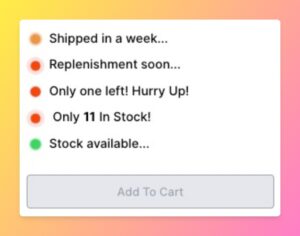
Hey!Scarcity Low Stock Counter supports five distinct message states, not one generic badge: high in stock, low in stock, only one left, sold out, and a restocking message for items you know are coming back. Each fires automatically based on your threshold settings and current inventory, live or manual, so the message a shopper sees always matches the actual state of that product.
Why Faking a Low-Stock Count Backfires With Customers
An inflated or fake low-stock count doesn’t just risk a platform policy problem, it actively damages trust with shoppers who’ve learned to distrust urgency messaging. Customers notice when “Only 1 left” shows up on the same product for three weeks straight. A shopify stock countdown tied to real inventory doesn’t have that problem, because the number changes when the inventory actually changes, which is also why it converts better than a static scarcity label over time.
How to Choose
Whether a shopify stock countdown should read live or manual inventory usually comes down to your product type:
- Selling standard stocked inventory: use live Shopify inventory as the data source, no manual maintenance required.
- Selling made-to-order, print-on-demand, or digital products: use the manual count instead, since Shopify’s own inventory number won’t reflect real scarcity.
One honest limit worth stating: the manual count mode is only as accurate as what you set, if you never update it, it becomes exactly the kind of fake urgency this post argues against. Live inventory mode avoids that problem entirely because it can’t fall out of sync with reality.
“The application itself is incredibly useful to allow our customers know which items are in-stock which greatly boosts our conversions, which is especially necessary when we’ve just restocked and want to clear inventory fast!”
Source: D’zage Designs, Hong Kong SAR (Shopify App Store review)
Hey!Scarcity Low Stock Counter currently holds a 4.9 rating across 155 Shopify App Store reviews, and the free Starter plan covers stores with fewer than 3 products and the first 5,000 monthly page views, enough to test a shopify stock countdown before deciding whether to upgrade.
Shopify’s own inventory settings documentation covers how Shopify tracks quantity at the platform level, useful background before configuring either data source above.
See our comparison of inventory countdowns vs. low stock badges for how this display type differs from a simpler badge, and if a product on your countdown sells out entirely, our guide to creating a Shopify waitlist covers capturing that demand instead of losing it.
Frequently Asked Questions
- 1. How do I add a live stock countdown to a Shopify product page?
- Install Hey!Scarcity Low Stock Counter, choose live Shopify inventory as your data source, set a low-stock threshold, and the countdown appears automatically on product pages.
- 2. Does the countdown use my real Shopify inventory count?
- Yes, by default. It reads your actual inventory number directly, so it updates as sales, restocks, or manual edits change your stock.
- 3. Can I set a manual stock number instead, for made-to-order or digital products?
- Yes. A manual count mode lets you set a number yourself for products where Shopify’s own inventory tracking doesn’t reflect real scarcity.
- 4. What are the different low-stock message states and when does each show?
- Five states: high in stock, low in stock, only one left, sold out, and restocking. Each fires based on your threshold settings and current inventory level.
- 5. Does a fake or inflated low-stock count actually hurt conversion?
- Yes. Customers notice when urgency messaging doesn’t match reality over time, which erodes trust. A countdown tied to real inventory doesn’t have that problem.
- 6. Can I show the countdown on collection pages too, not just product pages?
- Yes, collection page display is supported in addition to individual product pages.
- 7. Does this work with high-variant products (250+ variants)?
- Yes. High-variant products are supported through additional paginated inventory calls, so the countdown stays accurate even on products with 250 or more variants.
- 8. What happens to the countdown message once a product sells out?
- It automatically switches to the sold-out state, or a restocking message if you’ve configured one, rather than continuing to show a low-stock number.



