

A shopify color swatch custom field takes 5 steps: install a custom fields app, create a Color Swatch field, add each color as an option, assign the field to the products that offer those colors, and place a test order. Use it when the color is a personalization detail you do not stock separately, such as thread, ink or ribbon color. When the color is a stocked version of the product, a Shopify variant with native swatches is the better tool.
Disclosure: we build Mini:Custom Fields Personalize (4.9 stars, 143 reviews), the app whose Color Swatch field this post sets up, so the steps and the caveats come from our own product.
In this post:
- Variant swatch or custom field swatch?
- How to add a Shopify color swatch custom field in 5 steps
- When do variants get out of hand?
- Where does the chosen color show up?
- Who this setup is for, and who it is not
- FAQ
Variant swatch or custom field swatch?
Ask one question: do you count this color in inventory? If yes, it is a variant. If no, it is a custom field. The table sorts the common cases.
| The color is… | Use | Why |
|---|---|---|
| The product itself (red mug, blue hoodie) | Variant with native swatch | Stock, SKU and photo per color |
| A detail you add (thread, ink, ribbon, vinyl) | Color Swatch custom field | No stock to track per color |
| A detail that costs extra (metallic thread) | Dropdown or Radio custom field | Each option can carry its own add-on price |
| A pattern or texture, not a flat color | Image Swatch custom field | Shows a photo instead of a color dot |
Shopify’s native swatches work through category metafields linked to variant options, and they need a theme that supports swatches. Shopify’s guide to adding color swatches with category metafields covers that route. A custom field swatch skips both: it does not create variants, and it shows up on any theme the app supports.
How to add a Shopify color swatch custom field in 5 steps
Setting up a Shopify color swatch custom field takes about five minutes. These steps use Mini:Custom Fields Personalize.
- Install the app and turn it on in the theme editor under App Embeds, then save.
- Create a field and choose Color Swatch as the field type. Give it a clear header (“Thread color”) and a unique cart label, which is the name your team sees on the order.
- Add each color as an option, with the name your production team uses (“Navy 2245”, not just “Blue”). Shoppers see each option as a color dot, not a text list, as in the screenshot below.
- Assign the field to the products, collections or specific variants that offer those colors, and mark it required if you cannot produce the item without a choice.
- Place a test order and open it in Shopify admin to confirm the color name sits under the product.
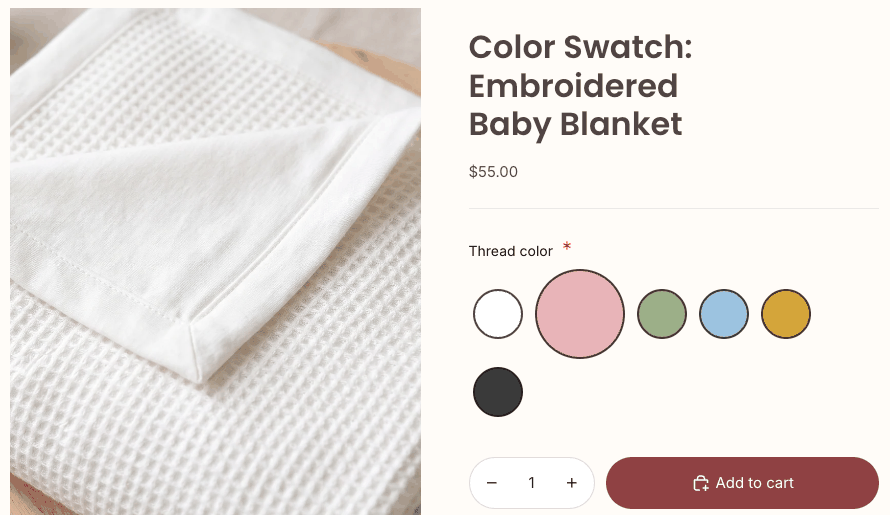
Most stores pair the swatch with a text field, for example an embroidered name plus its thread color. Our guide to adding custom fields to product pages shows how several fields sit together on one product.
“Easy to handle and works beautifully. And the customer service is great!”
Fancypawstore, Canada, September 25, 2026 (Shopify App Store review)
When do variants get out of hand?
Faster than most merchants expect. Shopify now allows up to 2,048 variants per product (raised from 100 in October 2025), so the limit is rarely the problem. The problem is managing hundreds of variants for colors you do not stock separately.
Say you sell an embroidered sweatshirt in 5 sizes, with 12 thread colors and 6 fonts. As variants, that is 5 x 12 x 6 = 360 variants, each with its own SKU, inventory number and line in every bulk edit. With a shopify color swatch custom field for thread and a font field next to it, the product keeps 5 size variants, and the thread and font choices ride along on the order.
That is my opinion stated plainly: if a color never changes your stock count, it does not belong in your variant matrix. Our post on Shopify custom variants goes deeper on where variants end and custom options begin.
Where does the chosen color show up?
The chosen color is saved on the order as a line item property, under the product it belongs to. It appears in Shopify admin and, with a short template edit, in order confirmation emails and on the packing slip.
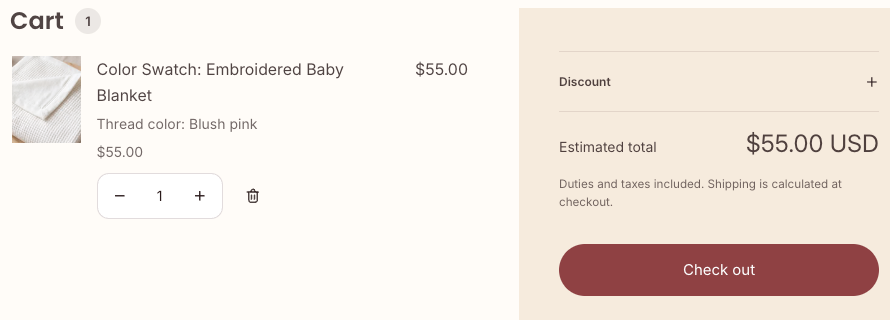
We build Shopify apps for a living, so we know the support ticket a vague color creates: “the dark blue one” in a customer email can match three thread spools on your shelf. “Navy 2245” copied from the order line matches exactly one.
Who this setup is for, and who it is not
A Shopify color swatch custom field fits stores where color is a production instruction rather than a stocked product.
- Good fit: embroidery thread, vinyl and ink colors, ribbon and gift wrap, enamel fill, resin colors, cake decoration.
- Good fit: stores that want fewer variants and cleaner inventory.
- Not a fit: products where each color is a separate stocked item with its own photo. Use variants and native swatches.
- Not a fit: a color that should switch the product image. Variant swatches do that; a custom field records the choice.
The honest caveats on our side: Color Swatch needs a paid plan, because the free plan covers only Textbox, Checkbox, Radio Button and Dropdown fields. Per-option add-on pricing works on Dropdown, Radio Button and Checkbox fields, so a premium color that costs extra belongs in a Dropdown. And conditional logic can use Dropdown, Checkbox, Radio Button or Image Swatch fields as the trigger, not a Color Swatch, so if one color should reveal another field, use a Radio Button for that choice. Our conditional logic guide shows that setup.
FAQ
How do I add color swatches to Shopify products?
For colors you stock, add a Color variant option and connect it to the color category metafield so your theme shows swatches. For colors you only apply, such as thread or ink, add a Color Swatch custom field with an app like Mini:Custom Fields Personalize.
Can I add a color swatch without creating variants?
Yes. A shopify color swatch custom field records the customer’s color choice on the order without adding variants, SKUs or inventory counts to the product.
Does a color swatch custom field change the product image?
No. It records the choice for production. If each color needs its own product photo, use variants with native swatches instead.
Can I charge more for certain colors?
Yes, but put those colors in a Dropdown or Radio Button field. In Mini:Custom Fields Personalize, per-option add-on pricing works on Dropdown, Radio Button and Checkbox fields, and the fee appears as its own cart line.
How many variants can a Shopify product have?
Up to 2,048, since Shopify raised the limit from 100 in October 2025. Some older apps that use legacy product APIs may not handle more than 100 variants well, so check your apps before you expand.
Where do I see the color the customer picked?
Open the order in Shopify admin. The color appears under the product as a line item property, labeled with the cart label you set for the field.
Can a color swatch work together with a text field?
Yes. Add both fields to the same product, for example “Name to embroider” and “Thread color”. Both answers are saved on the same order line.