

If you want to add custom fields to product pages in your Shopify store, you’re solving one of the most common personalization problems merchants face. Custom fields let you collect specific information from shoppers, like an engraving name, a gift message, or a preferred delivery date, right on the product page before checkout. Whether you sell personalized gifts, custom apparel, or made-to-order items, this small addition can save you dozens of back-and-forth emails a week.
In this guide, we’ll walk through why custom fields matter, how to set them up with Mini: Custom Fields Personalize, and a few mistakes to avoid along the way.
In this post:
- Why add custom fields to product pages in Shopify?
- Features that make this easy
- Step-by-step: how to add custom fields
- Common mistakes to avoid
- Best practices for using custom fields
- FAQ
Quick disclosure: I’m the founder of Minimate Apps, and Mini: Custom Fields Personalize, the app referenced below, is one of ours. The core setup steps apply whichever custom-fields tool you end up using.
Why Add Custom Fields to Product Pages in Shopify?
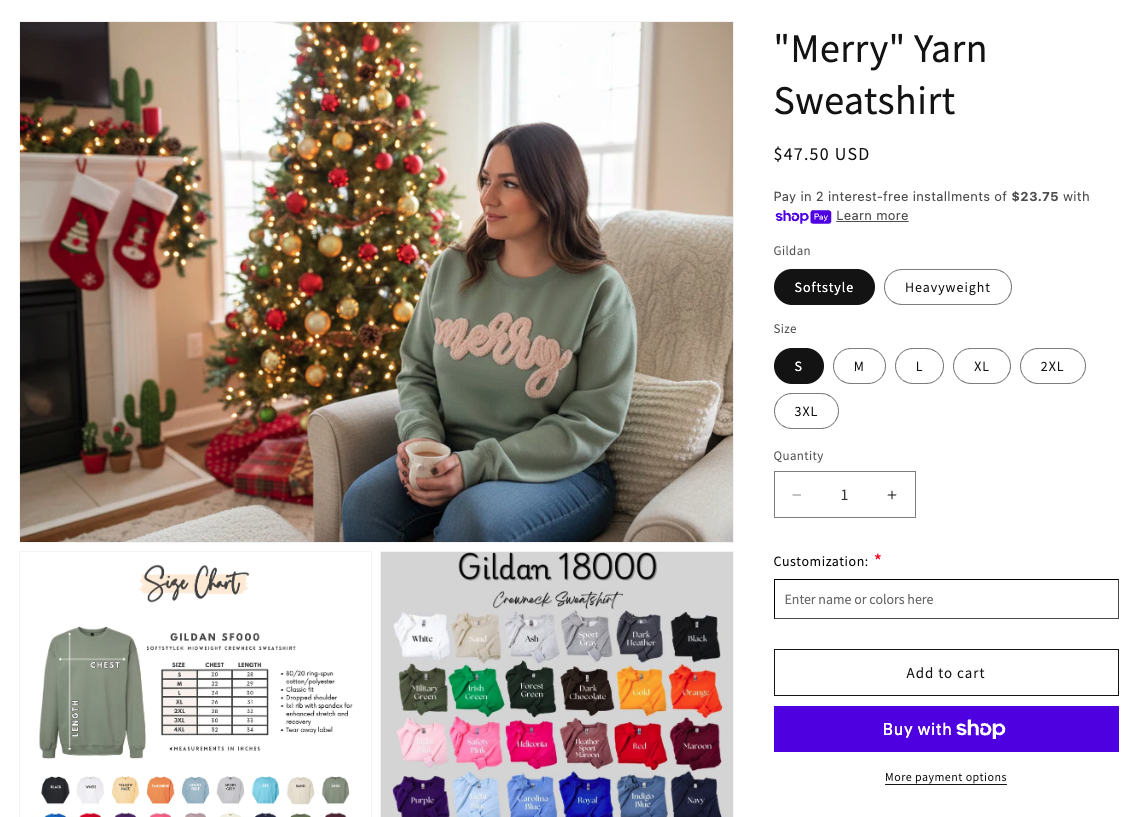
When you add custom fields to product pages in Shopify, you capture customer requests before the order is placed instead of chasing details afterward. That single change removes a huge amount of manual follow-up work.
Say you sell jewelry. You might need customers to type in a name or date to engrave. With custom fields, that information arrives attached to the order automatically. No missed emails, no guessing, no delayed fulfillment. And because customers see the personalization option right there on the page, you also open the door to upsells, like charging extra for engraving or a premium gift box.
Features That Make This Easy
Mini: Custom Fields Personalize was built specifically so merchants can do this without touching a line of code. Rated 5.0 from 127 reviews, here’s what you get:
- ✅ Multiple field types: text boxes, dropdowns, checkboxes, date pickers, image swatches, and file uploads.
- 📦 Product-level or variant-level control: apply fields only where they’re relevant, not across your whole catalog.
- 🎨 Theme compatibility: works with Online Store 2.0 themes out of the box, no template edits required.
- 🔄 Conditional logic: show or hide fields based on a customer’s earlier choices, so forms stay short and relevant.
“I have tried several different add on apps for custom fields and this is the best for ease. I am 70 and not very good with computers and they made it so easy to learn so yes the best customer service on shopify! thank you for all your help”
VIForiginals, United States. Mini: Custom Fields Personalize on the Shopify App Store
Step-by-Step: How to Add Custom Fields to Product Pages
Here’s the actual workflow, start to finish:
- Install the app. Search the Shopify App Store for Mini: Custom Fields Personalize and click Add app.
- Create your first field. From the dashboard, pick a field type (text, dropdown, date picker, etc.) and give it a clear label.
- Add conditional logic if you need it. For example, only show a “gift message” field if a customer checks “This is a gift.”
- Assign the field to specific products. You don’t have to apply every field store-wide, keep it targeted to the products that actually need it.
- Preview, then publish. Check how the field renders on the live product page on both desktop and mobile before saving.
If you’d rather use Shopify’s native line item properties instead of an app, Shopify’s own documentation on managing product fields is a useful reference, though it typically requires manual theme edits.
Common Mistakes to Avoid
Merchants run into a handful of predictable issues when they first add custom fields to product pages. Watch out for these:
- Too many required fields. Every extra required field is friction. If it’s not essential to fulfill the order, make it optional.
- Vague labels. “Notes” tells a customer nothing. “Name to engrave on the front” tells them exactly what to type.
- No character limits. Long, unstructured text fields lead to messy, hard-to-fulfill orders. Set limits where it makes sense.
- Skipping the mobile preview. Most shoppers are on mobile. A field that looks fine on desktop can crowd the page on a phone.
- Forgetting to test the checkout flow. Always place a real test order to confirm the field data actually shows up where your fulfillment team expects it.
One honest limit worth naming: the free plan on Mini: Custom Fields Personalize covers a single field. If a product needs more than one, you’re into the paid plan territory right away, worth knowing before you build out a whole page around it.
Best Practices for Using Custom Fields
Once the basics are working, a few habits keep things running smoothly long term:
- Keep it simple: only ask for information you genuinely need to fulfill the order.
- Give clear instructions: placeholder text and short tooltips reduce customer errors.
- Test before launch: run through the full purchase flow yourself first.
- Review customer feedback: if shoppers are confused by a field, simplify or relabel it.
If you’re also exploring broader personalization strategies, our post on 5 ways product customization can transform your store is a good next read, and if you only need a single text input rather than a full custom-fields setup, check out how to add a custom text field to Shopify product pages for a lighter-weight approach.
Adding custom fields to product pages in Shopify changes how you collect customer information, especially for personalized or made-to-order products. With Mini: Custom Fields Personalize, you can set this up in minutes, without writing any code, and start capturing exactly what you need to fulfill every order correctly the first time.
Frequently Asked Questions
- 1. Can I add custom fields to all my products?
- Yes. You can choose specific products or apply fields store-wide, whichever fits your catalog.
- 2. Do I need coding skills to use Mini: Custom Fields Personalize?
- No. The app is built for merchants with no development experience.
- 3. What types of custom fields can I add?
- Text fields, dropdowns, checkboxes, date pickers, image swatches, and file uploads.
- 4. How does conditional logic work?
- Fields can appear or hide based on a customer’s earlier selections, keeping forms short and relevant.
- 5. Can I charge extra for a personalization option?
- Yes, the Premium plan supports add-on pricing tied to specific field selections.
- 6. Will custom fields slow down my product page?
- No meaningfully. The app renders fields client-side and is built for Online Store 2.0 themes, so load time impact is negligible for typical field counts.



