

Shopify cart custom fields aren’t something you configure separately from your product page setup, they carry through automatically. Add a custom field with Mini:Custom Fields Personalize on the product page, and by the time a shopper reaches the cart, that same field and its value are already sitting there as a line item property, no extra cart-stage setup required. What you can’t do is edit the value once it’s in the cart, Shopify’s native cart page doesn’t support in-place editing of a line item property, only removing the line and re-adding it with a new value.
In this post:
- Can you edit a custom field directly on the cart page?
- How line item properties carry custom fields to the cart
- Setting up shopify cart custom fields in 3 steps
- Why some themes don’t show custom fields in the cart drawer
- Cart-stage vs. product-stage fields: which one you need
- Common mistakes with shopify cart custom fields
- FAQ
Disclosure: we build Mini:Custom Fields Personalize and the line item property mechanic that carries shopify cart custom fields from the product page through to checkout, so what follows comes from configuring and supporting this exact feature, not a general writeup.
Can You Edit a Custom Field Directly on the Cart Page?
No. Why not, when Shopify lets you change quantity right on the cart page? Because Shopify treats a line item property as fixed at the moment the item is added to the cart, there’s no native edit control for it on the cart page or in a cart drawer, only remove and re-add.
Say a shopper orders a custom hoodie, types “Sara” into the name field on the product page, then notices in the cart it should say “Sarah.” The only fix is deleting that line item and adding the hoodie again with the corrected value, Shopify doesn’t expose a way to patch a line item property after the fact.
This isn’t a limitation of Mini:Custom Fields Personalize specifically, it’s a platform-level behavior every custom fields app runs into, because line item properties were never designed to be editable post-cart. Shopify’s own cart template documentation confirms the cart object treats these values as read-only display data, not editable form fields.
How Line Item Properties Carry Custom Fields to the Cart and Checkout
When a shopper fills in a custom field on the product page and clicks add to cart, Mini:Custom Fields Personalize writes that value as a Shopify line item property, the same mechanism Shopify itself uses for gift wrap notes and monogramming apps. Line item properties travel with the line item automatically through the cart, checkout, and into the order, no separate cart integration is required for shopify cart custom fields to show up correctly at every stage.
That data also prints on the order and packing slip by default, our guide on customizing a packing slip on Shopify covers formatting that data once it lands there.
That’s the part worth understanding upfront: the cart step doesn’t involve the app doing anything new, it’s just displaying data that was already attached to the line item back on the product page. If you haven’t set up the fields themselves yet, start with our guide on adding custom fields to product pages in Shopify, this post picks up from there.
Setting Up Shopify Cart Custom Fields in 3 Steps
1. Create the custom field on the product page, textbox, dropdown, swatch, or any of the other field types, and set it as required if the value is mandatory.
2. Add the product to the cart as a test and confirm the field label and value display correctly on your cart page. Most themes show line item properties by default underneath the product title.
3. Check your cart drawer separately from your full cart page, some themes render these with different templates, and a property visible on one doesn’t guarantee it’s visible on the other. If it’s missing from the drawer specifically, that’s a theme display issue, covered next.
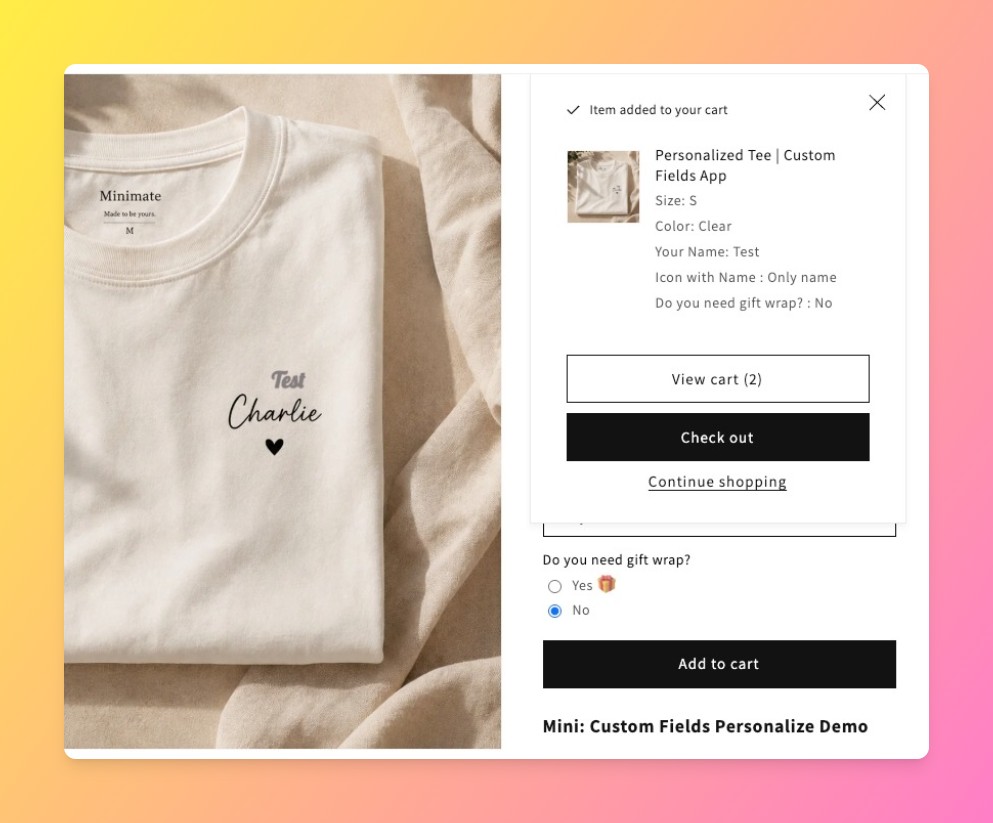
Why Some Themes Don’t Show Custom Fields in the Cart Drawer
“Cart fields” converts at Shopify App Store search position 3.0 in our own listing data, a small but real signal that cart-stage display is a distinct question from product-stage setup, not the same search in different words. In support, this is the single most common cart-related question we get: the field worked fine on the product page, but it’s not showing in the cart drawer.
The cause is almost always the theme, not the app. Cart drawers are frequently built as a separate, simplified template from the full cart page, and some theme developers strip line item properties out of that template to save space. As long as the field is visible at checkout, the app is working correctly, whether it also renders in a specific cart drawer is a theme-styling choice, not a functionality gap.
“The app performs well, we are using it to capture names to be written on custom hoodies. Customer service has been really helpful when I had issues that turned out to be limitations of my theme.”
Source: SUMMITSPORT, Australia (Shopify App Store review)
Cart-Stage vs. Product-Stage Fields: Which One You Actually Need
| What You’re Trying to Do | Where It Happens | What to Set Up |
|---|---|---|
| Let a customer type a gift message or personalization | Product page | Add a custom field on the product (textbox, dropdown, swatch) |
| Show that value to the customer before they pay | Cart page and cart drawer | Nothing extra, line item properties display automatically |
| Let a customer fix a typo after adding to cart | Not supported natively | Remove the line item and re-add it with the corrected value |
Common Mistakes With Shopify Cart Custom Fields
- Assuming a missing field in the cart drawer means the app broke. Check the full cart page and checkout first, most of the time the data is there, just not rendered by that specific drawer template.
- Not testing the cart drawer separately from the cart page. They’re often different templates on the same theme.
- Expecting to edit a field value after checkout starts. Line item properties are fixed once added, plan the field’s required or optional setting accordingly so customers don’t need to fix it later.
One honest limit worth stating: we don’t build a way to edit a line item property from the cart, because Shopify itself doesn’t expose that capability to any app. If in-cart editing matters more to your store than a clean product-page flow, that’s a real constraint worth knowing before you build your setup around it.
Frequently Asked Questions
- 1. Can I edit a custom field value directly on the Shopify cart page?
- No. Shopify treats line item properties as fixed once added to the cart. The only way to change a value is to remove the line item and add the product again with the corrected field.
- 2. Why isn’t my custom field showing up in the cart drawer?
- This is almost always a theme issue, not an app issue. Cart drawers often use a simplified template that some themes strip line item properties from. Check the full cart page and checkout to confirm the data is there.
- 3. Do custom fields carry over from the product page to checkout automatically?
- Yes. Custom fields save as Shopify line item properties, which travel with the line item through the cart, checkout, and order with no separate setup required.
- 4. Can I make a custom field required only at checkout, not on the product page?
- No. Required fields are enforced at the point of adding to cart on the product page, since that’s the only stage where an app can block the add-to-cart action.
- 5. Will custom field data show up on the packing slip and order page?
- Yes. Since the data saves as a line item property, it appears in Shopify Admin, on the order page, and on packing slips by default.
- 6. Does Shopify’s cart page support editing line item properties natively?
- No. This is a platform limitation that applies to every custom fields app, not something specific to Mini:Custom Fields Personalize.



