

Merchants who want to customize packing slip on Shopify templates almost always have the same goal: getting extra order information, like a gift note or an engraved initial, to print on the sheet that ships inside the box. Shopify’s own packing slip template supports this through Liquid, and if a store uses Mini: Custom Fields Personalize, the custom field data already saved on the order can be pulled onto the slip with one snippet pasted into the template, no developer required.
In this post:
- What it means to customize packing slip on Shopify templates
- What shows up by default vs. what needs the snippet
- Step-by-step: editing the packing slip template
- The exact Liquid snippet to paste
- Testing it with a real order
- Common mistake: the wrong template
- FAQ
Quick disclosure: I am the founder of Minimate Apps, and Mini: Custom Fields Personalize, the app in this walkthrough, is one of ours. The Liquid snippet and the packing slip template steps below work the same way regardless of which app writes the line item property.
What It Means to Customize Packing Slip on Shopify Templates
Shopify’s packing slip template is Liquid-based and lives under Settings, not inside a theme, so editing it does not touch your storefront (Shopify’s own background is here: Customizing packing slips).
Most merchants who search for how to customize packing slip on Shopify are not trying to redesign the layout, they are trying to get one specific piece of order data, a custom field response, to show up where it currently does not. If you have not set up a custom field yet, start with add custom fields to your Shopify store before coming back to customize packing slip on Shopify templates with the data that field collects.
What Shows Up by Default vs. What Needs the Snippet
Here is the distinction as a table instead of three paragraphs of disambiguation:
| Field Type | Shows by Default? | Needs the Liquid Snippet? |
|---|---|---|
| SKU, quantity, product title | Yes | No |
| Custom field line item properties | No | Yes |
| Gift notes from a text box field | No | Yes |
Line item properties are a native Shopify mechanism, not something the app invents, which is why the same snippet approach works no matter which app wrote the property.
Step-by-Step: Editing the Packing Slip Template
- Go to Shopify Admin, then Settings, then Shipping and delivery.
- In the Documents section, click Packing slip template.
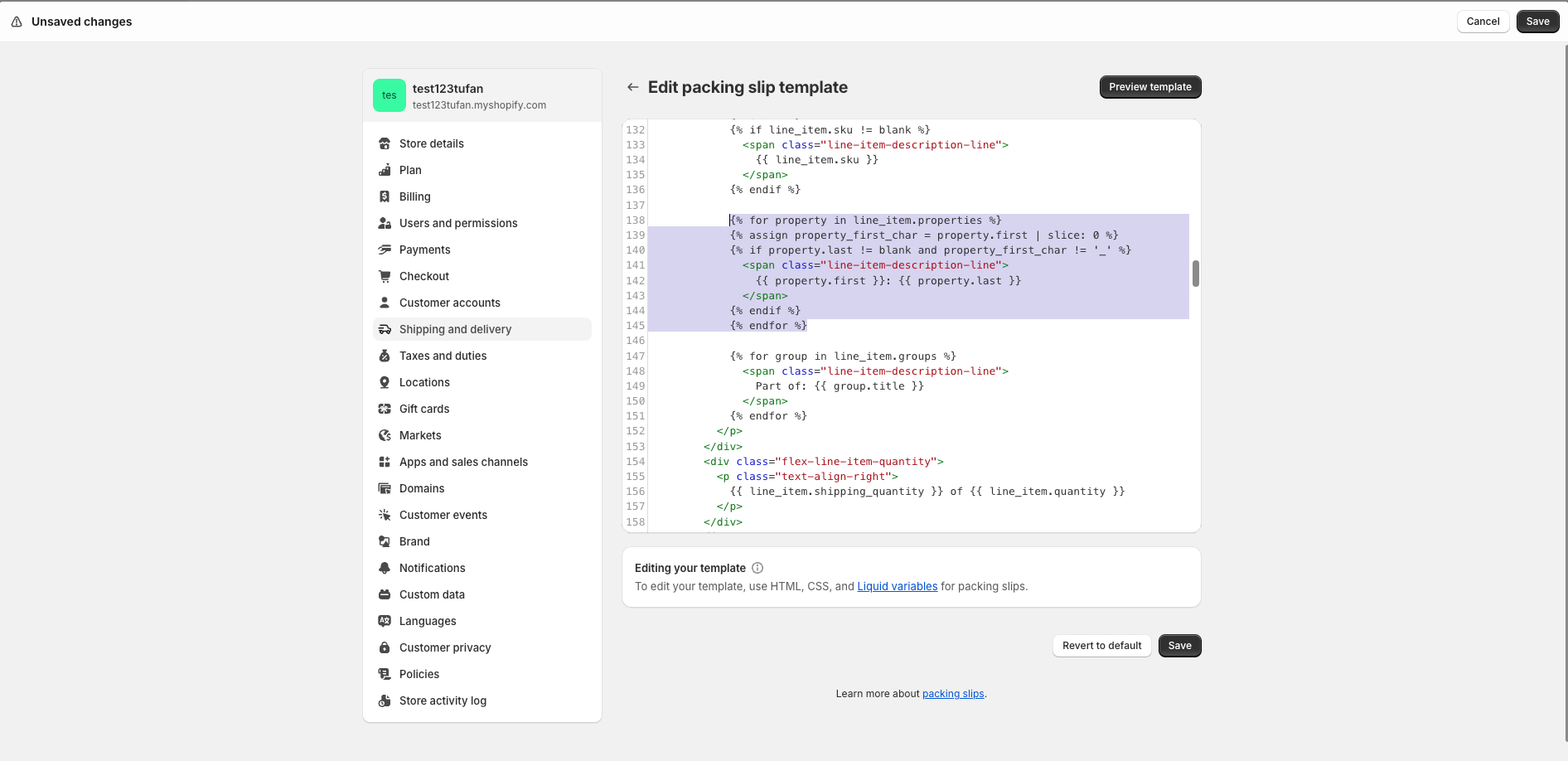
- Search the template code for
line_item.sku. - Find the
{% endif %}that closes the block right after it. - Paste the snippet below immediately after that closing tag.
- Click Preview template to confirm the layout still looks right, then Save.
The Exact Liquid Snippet to Paste
This is the snippet, copied directly from our own documentation rather than re-derived:
{% for property in line_item.properties %}
  {% assign property_first_char = property.first | slice: 0 %}
  {% if property.last != blank and property_first_char != '_' %}
    <span class="line-item-description-line">
      {{ property.first }}: {{ property.last }}
    </span>
  {% endif %}
{% endfor %}
The underscore check matters. Some apps store internal, non-customer-facing properties prefixed with an underscore, and this snippet deliberately skips those rather than printing internal data on a slip a customer might see.
“Not only is the app easy to use, it’s highly customisable and solved a lot of legacy issues. On top of this the support is second to none and they go above and beyond. I’ve gone through a lot of apps over the years but I would put this top of my list overall in terms of service and performance.”
The Precious People, United Kingdom. Mini: Custom Fields Personalize on the Shopify App Store
Testing It With a Real Order
Place a test order on a product that has a custom field filled in, a gift note or engraving text works well for this. Once the order exists, open it from Shopify Admin and print the packing slip. The custom field response should now appear as its own line under the product, using the label and value from the field itself, confirming the customize packing slip on Shopify steps above actually worked end to end.
Why does Shopify not do this automatically? Line item properties are meant to be flexible enough for hundreds of different app use cases, so Shopify leaves the decision of what prints where to the merchant rather than guessing which properties matter on a packing slip.
Common Mistake: The Wrong Template
Order confirmation emails and packing slips use different Liquid variables for the same underlying data, line.properties on the email side, line_item.properties on the packing slip side. Pasting the email snippet into the packing slip template, or the reverse, will fail silently rather than throw a visible error. If nothing shows up after saving, this mismatch is the first thing to check.
One honest limit worth stating: uninstalling the custom fields app never deletes this data, because it is stored as a native Shopify line item property, not in the app’s own database. Past orders keep their custom field data whether or not the app is still installed. The same underlying data also powers the text field walkthrough in how to add a custom text field on Shopify product pages, worth reading if a text box is the field type feeding your packing slip.
Frequently Asked Questions
Does a Shopify packing slip show custom field data by default?
No. SKU, quantity, and product title show by default, but custom field data saved as a line item property needs the Liquid snippet added to the template first.
What is a line item property in Shopify?
It is a native Shopify mechanism that attaches custom data, like a gift note or engraving text, to a specific product in a cart or order, separate from the product’s own fields.
How do I edit the packing slip template in Shopify Admin?
Go to Settings, then Shipping and delivery, then find Packing slip template in the Documents section. The template is edited directly in Liquid code.
Can I show the same custom field data on order confirmation emails too?
Yes, a similar snippet using line.properties instead of line_item.properties works in the order confirmation email template, and in staff notification and fulfillment emails.
Will uninstalling the custom fields app delete data already on past orders?
No. Line item properties are stored as part of the order in Shopify itself, so uninstalling the app does not remove data already attached to existing orders.
Why isn’t my custom field showing up on the packing slip after I added the snippet?
The most common cause is pasting the wrong variant of the snippet, packing slips need line_item.properties, not line.properties. Double-check the variable name matches the template you are editing.



