

Setting up shopify gift box store custom options usually comes down to three real choices on the product page before checkout: box size, wrap style, and a personal gift message, plus a way to charge extra for wrapping or engraving without folding that cost into the product price. Mini:Custom Fields Personalize covers this with a dropdown for size, a color or image swatch for wrap style, a textbox for the gift note, and add-on pricing so the wrap surcharge shows up as its own line item on the order.
In this post:
- Why a gift box store needs more than one custom field
- Step 1: Add a dropdown for box size
- Step 2: Add a color or image swatch for wrap style
- Step 3: Add a textbox for the personal gift message
- Step 4: Charge extra for gift wrap or engraving
- Step 5: Use conditional logic for the right fields on the right products
- Common mistakes gift box merchants make
- FAQ
Disclosure: we build Mini:Custom Fields Personalize, the app this walkthrough uses, so the steps below come from configuring the app directly on a gift box store, not a general product description.
Why Shopify Gift Box Store Custom Options Need More Than One Field
Say you run a gift box store with 60 SKUs and every one of them ships in three sizes, two wrap styles, and an optional handwritten note. Shopify’s native variant system can technically hold size and wrap style as variants, but the moment you add a free-text gift message, native variants stop working, Shopify doesn’t have a field type for that. You need a form on the product page that isn’t just variant selection.
Why does a single dropdown never cover a gift box store? Because a gift box product page is really answering three separate questions at once: what size, what it looks like wrapped, and what it says. Each one needs its own field type, a dropdown, a swatch, and a textbox, not one field doing three jobs. That’s the core of setting up shopify gift box store custom options correctly from the start.
Step 1: Add a Dropdown for Box Size
In Mini:Custom Fields Personalize, add a Dropdown field to the product and set the options to your box sizes, for example Small (4 items), Medium (8 items), and Large (12 items). Set it as required so a customer can’t add to cart without picking one. This is the field type to reach for whenever the choice is a short, fixed list, size, quantity tier, or a small number of named options.
“I installed the app and 1 minute later I had a new field up and working. You guys understand SIMPLE. Thank you.”
Source: Prof Pierre.ca, Canada (Shopify App Store review)
Step 2: Add a Color or Image Swatch for Wrap Style
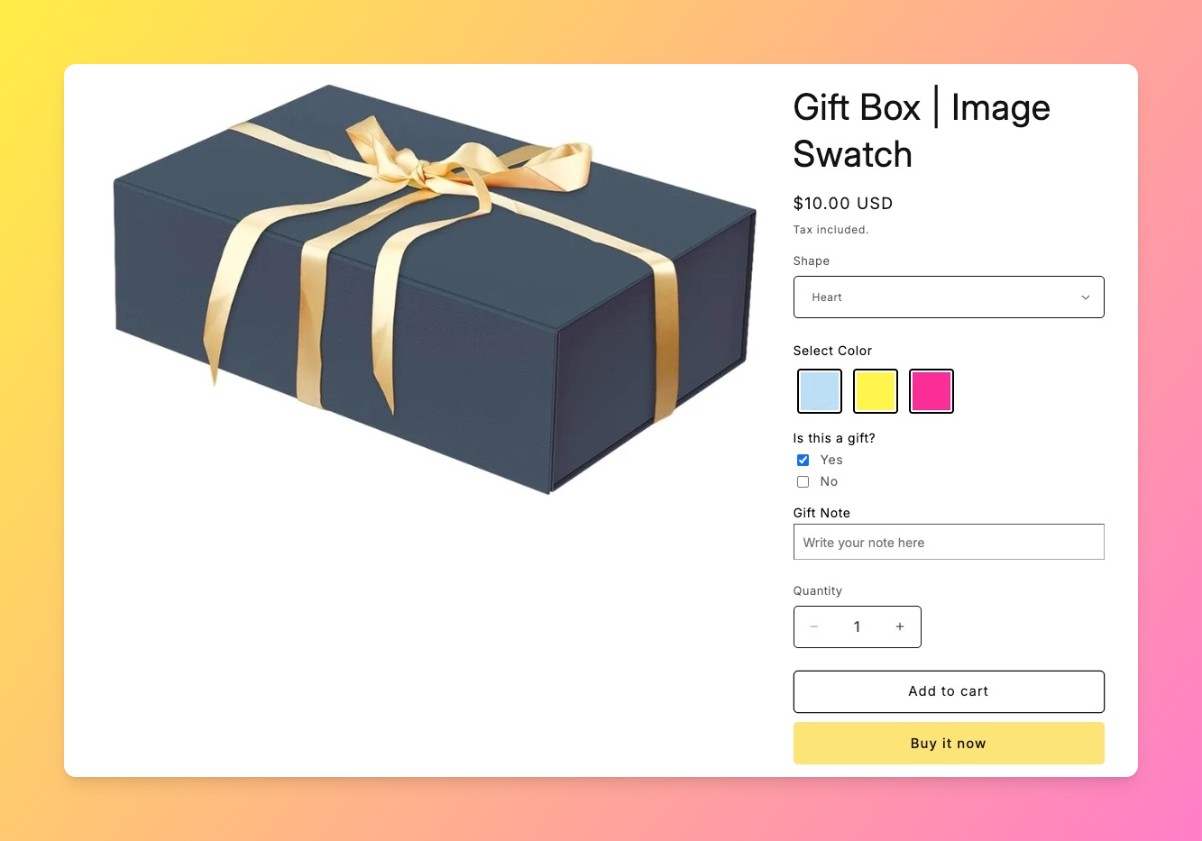
Wrap style is a visual choice, so a plain dropdown listing “Kraft Brown” and “Blush Pink” makes the customer guess. Add an Image Swatch field instead and upload a small photo of each wrap option. This field type is only available on the $9.99/month Premium plan, along with file upload and add-on pricing, everything a gift box product page tends to need in one tier.
Set the swatch as required if wrap style always applies, or leave it optional and use conditional logic (Step 5) to only show it on gift-eligible products.
Step 3: Add a Textbox for the Personal Gift Message
Add a Textbox field labeled “Gift Message (optional)” with a character limit, 200 characters is enough for a card without letting one customer’s note run long enough to break your packing slip layout. Leave this field optional; not every buyer is sending a gift, and a required message field on every order creates friction for people buying for themselves. Our dedicated guide to offering gift messages on Shopify covers the textbox setup and formatting options in more depth.
The text a customer types here saves as a line item property on the order, the same mechanism Shopify uses for its own native order data, so it shows up in Shopify Admin and on packing slips without any extra setup. Our full guide to customizing a packing slip on Shopify covers formatting that note onto the slip itself.
Step 4: Charge Extra for Gift Wrap or Engraving
Add-on pricing in Mini:Custom Fields Personalize is set per option, not per field, so you can charge $3.50 for the “Blush Pink” wrap option while leaving “Kraft Brown” free, and leave the gift message textbox with no charge at all. This is a specific configuration detail worth knowing up front: add-on pricing isn’t all-or-nothing per field, it’s set option by option within the same dropdown or swatch. Our guide on how to charge extra for personalization on Shopify walks through the pricing setup in more detail.
The surcharge appears as its own line on the order, not folded into the product price, so both you and the customer can see exactly what the wrap or engraving cost.
Step 5: Use Conditional Logic So the Right Fields Show on the Right Products
If your store sells gift boxes alongside other products, use conditional logic to keep the size dropdown, wrap swatch, and gift message textbox from showing up on non-gift items. Conditional logic is available starting on the Basic plan ($5.99/month) and lets one field’s visibility depend on another field’s selection, or you can simply apply the field set only to the gift box collection using collection-level targeting. Shopify’s own product options documentation is a useful baseline for what’s possible natively before layering an app’s fields on top.
Common Mistakes Gift Box Merchants Make With Custom Fields
Most shopify gift box store custom options setups run into one of the same four problems, usually discovered after the first batch of holiday orders comes in:
- Making the gift message required. Forces a note on every order, including the customer who’s buying for themselves.
- No character limit on the message field. A long note can push text off a packing slip template or overflow a gift tag design.
- Pricing wrap style into the base product. Hides the actual wrap cost and makes it harder to track which wrap options are worth offering.
- Skipping conditional logic on multi-category stores. Gift fields show up on products that were never meant to be gifted, which reads as sloppy to a shopper.
One honest limit worth stating: the free plan on Mini:Custom Fields Personalize allows only one custom field total, so a real gift box setup with size, wrap style, and a message needs at least the $5.99/month Basic plan, and Premium if wrap style is a swatch rather than a plain dropdown. This isn’t a workflow you can fully build on the free tier.
Frequently Asked Questions
- 1. What custom fields does a gift box store actually need on Shopify?
- A working shopify gift box store custom options setup needs, at minimum, a dropdown for box size, a color or image swatch for wrap style, and an optional textbox for a gift message. Add-on pricing on the wrap option covers a wrap or engraving surcharge.
- 2. Can I charge extra for gift wrap without changing the product price?
- Yes. Add-on pricing is set per option, so a specific wrap style or engraving choice can carry its own surcharge that shows as a separate line item on the order.
- 3. How do I add a color swatch for wrap style on Shopify?
- Use an Image Swatch field type (available on the Premium plan in Mini:Custom Fields Personalize) and upload a photo for each wrap option instead of listing them as plain dropdown text.
- 4. Can I make the gift message field required?
- You can, but it’s not recommended, it adds friction for customers who aren’t buying a gift. Leave it optional and use conditional logic if you only want it on certain products.
- 5. How do I show gift-wrap options only on certain products?
- Use conditional logic or collection-level field targeting so the size dropdown, wrap swatch, and message field only appear on your gift box collection, not your full catalog.
- 6. Will the gift message the customer types show up on the packing slip?
- Yes. Custom field values save as Shopify line item properties, which print on packing slips by default, no separate setup required beyond formatting the slip template itself.



