
A Shopify print on demand file upload takes 5 steps: add an upload field to the product, set file rules, hold new orders, hand the customer’s file to your print provider, and test one order end to end. Shopify has no upload field of its own, and a separate upload app saves the file on the Shopify order, not inside Printify or Printful, so step 4 is the one most stores get wrong.
Disclosure: we build Mini: File Upload Image Upload, the upload app used in the steps below, so this guide comes from running uploads for print shops, not from a spec sheet. Our app does not send files to Printify or Printful for you, and this post says where that matters.
In this post
- What does a Shopify print on demand file upload need to do?
- Who prints the order, and how does the file get there?
- How to set it up in 5 steps
- What file should customers upload?
- Where does the file go after the order?
- How to choose
- Our honest take
- FAQ
What does a Shopify print on demand file upload need to do?
It has to do two jobs: collect a printable file before checkout, and get that exact file to whoever prints the order. Most guides cover the first job and skip the second, which is where wrong prints come from.
The first job is the easy half. An upload app adds a button to the product page, checks the file type and size, and saves the file with the order. We build Shopify apps for a living, so we know exactly where an upload app stops: at the Shopify order. If your provider prints the order before anyone swaps in the customer’s file, the customer gets your sample design.
Our own App Store data shows how merchants think about it. Between mid-July and November 2026, “photo upload” brought 32 installs of Mini: File Upload and “image upload” brought 23, while print-on-demand searches brought 1. Merchants look for the upload button first and find the printer handoff later.
Who prints the order, and how does the file get there?
Pick the route by who prints the order, because that decides how the file travels. Here are the three setups we see most often.
| Who prints | How the file reaches the printer | Fits |
|---|---|---|
| You, in-house (DTF, sublimation, engraving) | Download from the Shopify order | Any upload app |
| A local print partner | You forward the file link | Any upload app |
| Printify, Printful or another POD provider | You attach it at the provider, or a personalizer that integrates with the provider does it | Upload app plus a manual step, or a provider-integrated personalizer |
If you print yourself, a Shopify print on demand file upload is simple: the file link sits on the order and you open it when you print. The provider row is where the manual step lives.
How to set up a Shopify print on demand file upload in 5 steps
These steps use Mini: File Upload (Built for Shopify, 5.0 stars from 30 App Store reviews as of November 2026), but steps 3 to 5 apply to any upload app that saves files on the order.
- Add an upload field. Install the app, turn on its app embed in the theme editor, and create an upload field on the print product. Our guide to adding an image upload button on Shopify shows each screen.
- Set file rules. Allow PNG and JPEG for artwork and photos, add PDF only if your printer accepts it, set a minimum image size (the table below gives the numbers), and on Premium make the upload required so no order arrives without a file.
- Hold new orders at your provider. In Printify, an order goes to production 24 hours after import by default, based on your order approval settings, according to Printify’s order status guide. Switch to manual approval so upload orders wait for you. On another provider, find its manual approval setting before launch.
- Hand over the file. Open the Shopify order, download the customer’s file from the link under the product, and attach it at the provider. In Printify, an on-hold order can be edited before production; to change the design, you create a duplicate product with the customer’s file and replace the product in the order.
- Test one order end to end. Place a test order with a real photo, follow it into your provider, and check the proof before you submit. Only then turn the field on for every print product.
Say you sell 120 custom pet-portrait shirts a month through Printify. If the handoff in step 4 takes about 2 minutes per order, that is 4 hours a month of copying files. That is fine for a small shop; at several hundred orders a month, a personalizer that integrates with your provider earns its price.
What file should customers upload for print on demand?
For a Shopify print on demand file upload, ask for 300 pixels per inch at the final print size, and accept 150 as the floor. Below that, a print looks soft no matter how sharp it looked on the customer’s phone.
| Print area | Best (300 PPI) | Minimum (150 PPI) |
|---|---|---|
| 12 x 16 in (large shirt front) | 3600 x 4800 px | 1800 x 2400 px |
| 8 x 10 in (poster, canvas) | 2400 x 3000 px | 1200 x 1500 px |
| 9 x 4 in (mug wrap) | 2700 x 1200 px | 1350 x 600 px |
| 4 x 4 in (coaster, ornament) | 1200 x 1200 px | 600 x 600 px |
The pixel numbers are print inches multiplied by pixels per inch, so check your provider’s exact print area for each product. Two more rules save reprints: ask for PNG with a transparent background when the design sits on a colored garment, and keep JPEG for full photos such as canvas prints. Mini: File Upload adds a crop, rotate and preview step before checkout on every plan, so the customer frames the photo for the product instead of you re-cropping it at fulfilment; our Shopify photo upload guide goes deeper on cropping phone photos.
Where does the file go after the order?
Every Shopify print on demand file upload made with an upload app ends up in the same place: a link under the product on the Shopify order, stored as a line item property. You click it in Shopify admin, download the file, and print or forward it.
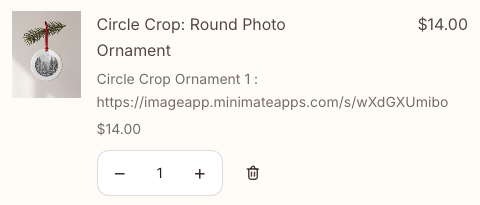
Plan your download window. Mini: File Upload keeps files for 1 month on the free Starter plan and 3 months on Premium, so download each file when you fulfil the order. Our Shopify file upload guide covers file types and storage in more detail, and managing personalized orders shows how to keep a daily fulfilment routine.
“The app is great and easy to set up. Thank you to Zel and the support team for the help!”
Imprime Ton DTF, France, December 12, 2025 (Shopify App Store review)
How to choose a Shopify print on demand file upload setup
- You print in-house or with a local partner: a plain upload app is enough. Your file is one click away on every order.
- You use Printify or Printful at low volume: an upload app plus manual approval works. Budget a couple of minutes per order for the handoff.
- You ship hundreds of personalized POD orders a month: look at a personalizer that integrates with your provider, so files reach production without you.
- Your customers upload phone photos for round or square products: pick an app with a crop step. Mini: File Upload includes one on the free Starter plan, so the customer frames the photo before checkout.
- You want to compare upload apps side by side: see our roundup of the best Shopify image upload apps.
Our honest take
I think the upload button is the easy part of a Shopify print on demand file upload, and the order hold is the part that saves money. One wrong print costs more than a month of our app, and the 24-hour auto-submit is how most wrong prints happen.
The caveats about our own app are real. Mini: File Upload does not push files into Printify, Printful or Gelato; it saves them on the Shopify order. Files are kept for 1 or 3 months depending on plan. The free Starter plan covers one product page, so a catalog of print products needs Premium at $7.90 a month. And an upload fee uses Shopify’s Cart Transform, which can conflict with another bundling app on your store. If you print yourself or handle a modest number of POD orders, those limits rarely bite.
FAQ
Can customers upload their own design on a Shopify print on demand store?
Yes, with an upload app. Shopify has no upload field built in, so the app adds one to the product page and saves the file with the order. Your print provider still needs that file, which is a manual step unless you use a personalizer that integrates with the provider.
Does Printify use files from a Shopify upload app automatically?
Do not count on it. Printify imports the Shopify order and, by default, sends it to production 24 hours later. Set manual approval, then edit the on-hold order with the customer’s design before you submit it.
What resolution should customers upload for print on demand?
Aim for 300 pixels per inch at the final print size, with 150 as the minimum. A 12 x 16 inch shirt print needs 3600 x 4800 pixels at best and 1800 x 2400 at the least.
What file types should I allow?
PNG and JPEG cover almost every customer. Use PNG with a transparent background for designs on garments, and JPEG for full photos. Add PDF only if your printer asks for it.
Where do I find the uploaded file after an order?
With any Shopify print on demand file upload, open the order in Shopify admin. The file appears as a link under the product it belongs to; click it to download the file.
How long are uploaded files kept?
With Mini: File Upload, 1 month on the free Starter plan and 3 months on Premium. Download each file when you fulfil the order so a reprint later is still possible.
Can I charge extra when a customer uploads a design?
Yes. On Mini: File Upload Premium you can attach an add-on product to the upload field, so the fee shows in the cart. Check first that no other bundling app on your store already uses Cart Transform.