

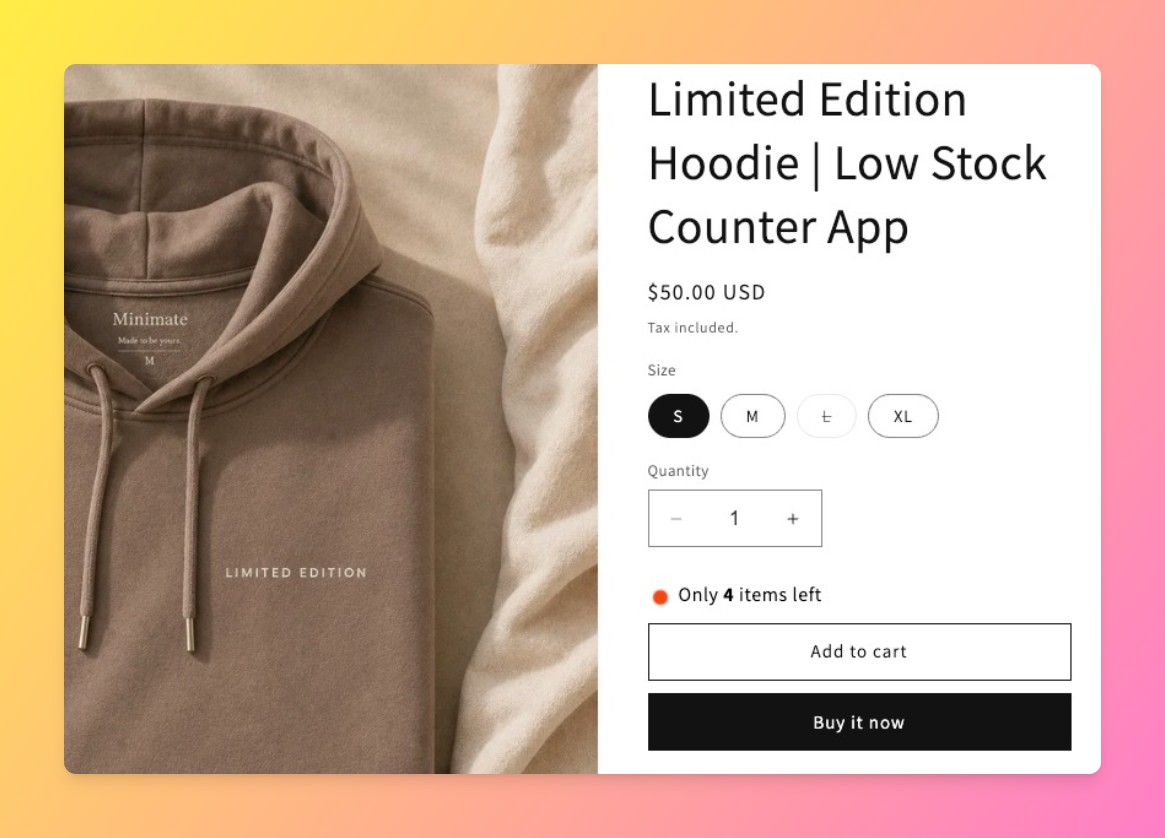
Only x left in stock shopify messaging is a distinct, higher-urgency format from showing a raw quantity number, and it’s a specific phrase shoppers respond to differently. Hey!Scarcity Low Stock Counter sets it up in 3 steps: install the app, set a low-stock threshold, and choose “Only X left” as the display format instead of exact-count or generic “low stock” text. It works per variant too, so a store with 12 colors of the same shirt can show “Only 2 left” on the one color that’s actually running out while the other 11 stay silent.
In this post:
- What “only X left in stock” actually signals to shoppers
- Setting up only x left in stock shopify messaging in 3 steps
- Choosing the right low-stock threshold
- “Only X left” vs. showing full quantity available
- Displaying “only X left” by variant, not just by product
- Common mistakes that make low-stock messaging feel fake
- FAQ
Disclosure: we build Hey!Scarcity Low Stock Counter, the app behind every only x left in stock shopify example in this post, so the setup steps come from configuring the feature directly, not a general description.
What “Only X Left in Stock” Actually Signals to Shoppers
Why does “only 3 left” move shoppers when “47 in stock” doesn’t? Because a small, specific number reads as a real, checkable fact about scarcity, while a generic in-stock badge or a large quantity carries no urgency at all. Say a shopper is comparing two nearly identical jackets from different stores, one shows plain “In Stock,” the other shows “Only 2 left in your size.” The second store is the one that gets the faster decision, the number itself is doing the persuading, not any extra copy around it.
That’s the core difference from just showing quantity available: a raw number like “14 in stock” is informational, only x left in stock shopify messaging is built to be urgency-triggered and closer to the actual purchase decision.
Setting Up Only X Left in Stock Shopify Messaging in 3 Steps
1. Install Hey!Scarcity Low Stock Counter and connect it to your product catalog, no theme code editing required on a standard Online Store 2.0 theme.
2. Set your low-stock threshold, the inventory count below which the badge starts showing. This is store-specific, covered in more detail next.
3. Choose the “Only X left” display format in the app’s messaging settings, rather than a plain “Low stock” label or the exact-count format, this is the setting that actually produces the phrase.
Choosing the Right Low-Stock Threshold for Your Store
One honest limit worth stating: if your threshold is set too high, “only 8 left” reads as noise rather than urgency, because 8 doesn’t feel scarce for a product that normally carries 200 units. A threshold has to be calibrated to your own sell-through rate, not copied from another store’s settings.
A fast-moving product that usually holds 300 units might reasonably trigger at 15, while a slow-moving product that never carries more than 10 units to begin with should trigger much lower, maybe 2 or 3, or the badge will show almost constantly and stop meaning anything. Shopify’s own inventory tracking documentation is worth checking first if you’re not sure your store tracks quantity accurately enough for a threshold-based badge to be meaningful.
“Only X Left” vs. Showing Full Quantity Available: When to Use Each
| Format | What It Communicates | Best For |
|---|---|---|
| “Only X left” | Urgency, closer to a purchase decision | Products near the threshold, driving a faster checkout |
| Exact quantity available | Plain information, no urgency framing | Products with healthy stock, B2B or bulk buyers checking availability |
We reopened only x left in stock shopify as its own topic after checking our own App Store search data: “left in stock” and “stock left” are converting search terms in their own right, distinct from the broader show-quantity-available intent our other post already covers, and worth a dedicated setup guide rather than folding the two together. For the plain-quantity version of this question, see our guide on how to show quantity available on Shopify.
Displaying “Only X Left” by Variant, Not Just by Product
Hey!Scarcity reads Shopify’s inventory per variant by default, so “only X left” messaging updates automatically when a shopper switches size or color rather than showing one blended number for the whole product. Our full guide on displaying low stock by variant on Shopify covers the mechanics of that per-variant read in more depth.
Common Mistakes That Make Low-Stock Messaging Feel Fake
- Setting the threshold too high. “Only 20 left” on a product that always carries hundreds reads as marketing copy, not a fact.
- Showing the badge on every product, all the time. If nothing is ever fully in stock, shoppers stop trusting the badge on the one product where it’s actually true.
- Ignoring variant-level counts. A blended “only 3 left” across 12 colors misleads shoppers about the specific variant they actually want.
“Great App! Easy to use with no issues. Must try if you are looking to show how many you have left in-stock.”
Source: The Poke Depot, United States (Shopify App Store review)
We’d push back on one common assumption here: fake or inflated urgency does not actually help conversion long-term, it helps once and then erodes trust the moment a shopper notices the same “only 2 left” badge sitting there for three weeks straight. Real-time, accurately-threshold-tuned only x left in stock shopify messaging outperforms a permanently scary number every time.
Frequently Asked Questions
- 1. What does “only 3 left in stock” mean when I see it on a Shopify store?
- It means the store’s inventory for that specific product or variant has dropped below a threshold the merchant set, and the app is displaying the current count to create urgency.
- 2. Is “only X left” the same as showing exact quantity available?
- They can show the same number, but the intent is different. “Only X left” is framed for urgency near a purchase decision, while a plain quantity display is informational.
- 3. Can I fake low stock numbers to create urgency?
- Hey!Scarcity supports a fake-stock display mode for stores that want a countdown regardless of real inventory, but we’d caution against relying on it long-term, shoppers who catch a static or repeating fake number stop trusting the badge.
- 4. Does “only X left” messaging actually increase conversions?
- Generally yes when the number is real and the threshold is well-calibrated, since it converts a passive in-stock fact into an active scarcity signal near the buy button.
- 5. Can I show “only X left” for a specific variant, not the whole product?
- Yes. Hey!Scarcity Low Stock Counter reads inventory per variant by default, so the message updates when a shopper switches size, color, or any other option.
- 6. What’s a good stock threshold to trigger “only X left” messaging?
- It depends on your normal sell-through volume. A product that usually holds hundreds of units might trigger around 15 to 20, while a product that never carries more than a handful should trigger at 2 or 3.



