

Checkout fields shopify searches usually start from the same confusion: can an app add a custom field to the actual Shopify checkout page? For most stores, no, not directly, that’s a Shopify platform limit, not an app limitation. What Mini:Custom Fields Personalize does instead is add the field to the product page, then carry the customer’s answer through to the cart and checkout so it’s visible there, gift notes, engraving text, size requests, whatever you need to collect.
In this post:
- Checkout fields shopify: what the phrase actually means
- How Mini:Custom Fields Personalize adds fields to the product page
- How those answers carry through to cart and checkout
- Why full checkout-page editing needs Shopify Plus
- Step-by-step: adding your first custom field
- Which field type to use for checkout-visible info
- How to choose
- FAQ
Disclosure: I’m the founder of Minimate Apps, and we build Mini:Custom Fields Personalize, the app this post walks through. The mechanics below, including where checkout editing does and doesn’t work, come from running this feature ourselves, not a general marketing claim.
Checkout Fields Shopify: What the Phrase Actually Means
Say a merchant sells engraved jewelry and wants a message field that shows up clearly at checkout, so the order is unmistakable, not buried on the product page alone. That’s a normal ask, and it’s also where most checkout fields shopify searches quietly go wrong: they assume checkout means the actual Shopify checkout page.
On a non-Plus store, no app, ours included, can inject a new field directly into that page. What every app in this space actually does is collect the answer earlier, on the product page, and pass it along so it displays at cart and checkout instead. That distinction is the whole answer to most checkout fields shopify questions.
How Mini:Custom Fields Personalize Adds Fields to the Product Page
The app adds a field, textbox, dropdown, checkbox, datepicker, or file upload, directly under the product options on the product page. A customer fills it in before adding to cart, the same way they’d pick a size or color. You can make it required, apply it conditionally (only show a gift-note field if a gift-wrap add-on is selected, for example), or scope it to specific variants.
How Those Answers Carry Through to Cart and Checkout
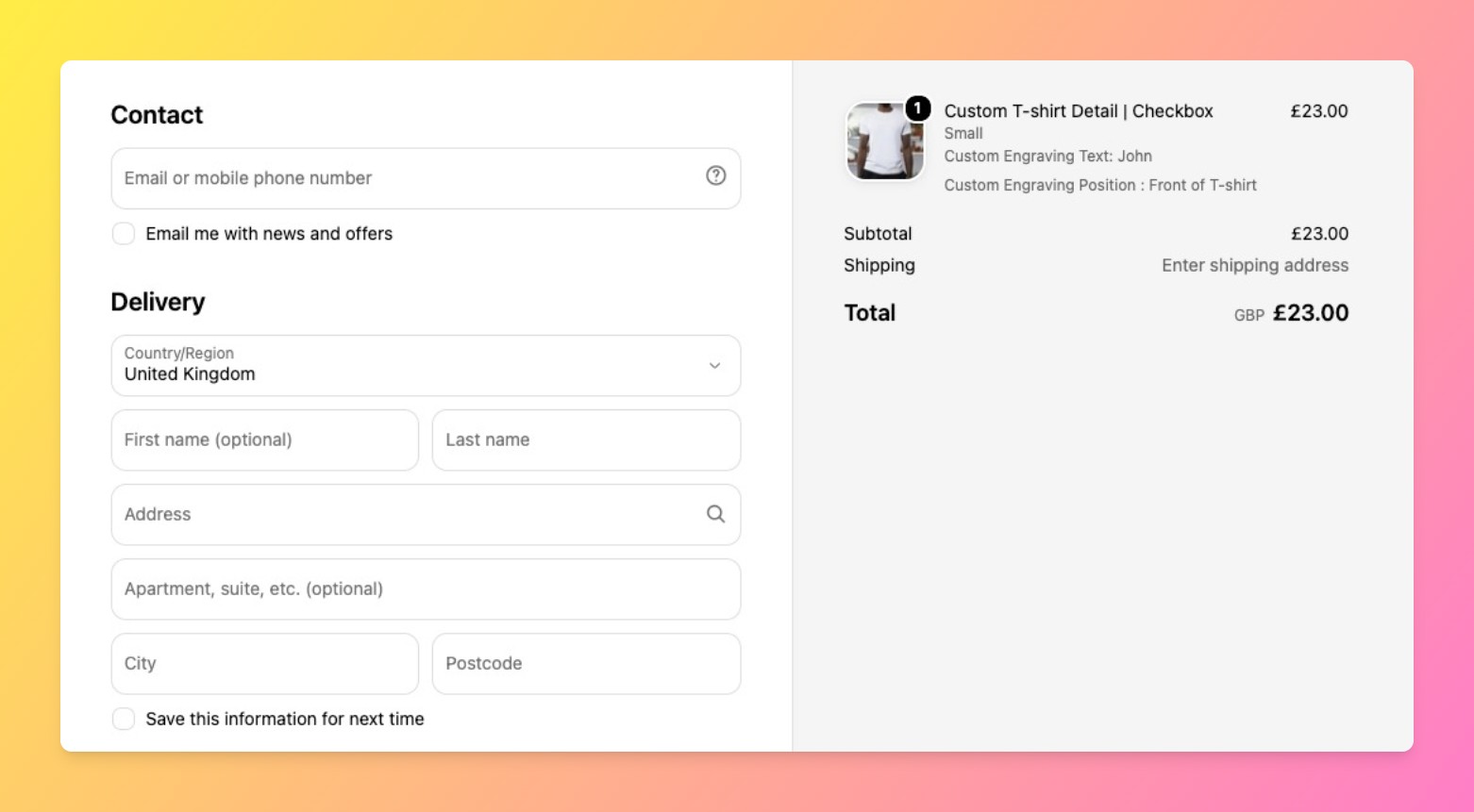
Once a customer submits the field, their answer travels with the line item as a property. It shows up in the cart, on the checkout page as order line item details, in the order confirmation email, and in your Shopify admin order view. This is the part that actually solves the “checkout fields shopify” problem for most merchants: you don’t need to edit the checkout page itself, you need the answer to be visible by the time the order is placed, and it is.
Why Full Checkout-Page Editing Needs Shopify Plus
Shopify restricts direct checkout page customization, adding new input fields inside the actual checkout flow, to Plus merchants using checkout extensibility (Checkout UI extensions). This isn’t a gap in our app or any competitor’s, it’s a platform-level rule tied to security and PCI compliance on the payment step. If you’re not on Plus, the product-page-to-cart-and-checkout flow above is the correct way to collect and display this information, not a workaround.
Step-by-Step: Adding Your First Custom Field
- Install Mini:Custom Fields Personalize from the Shopify App Store and open the app dashboard.
- Click “Add Field” and choose a type: textbox, dropdown, checkbox, datepicker, or file upload.
- Set the field label (what the customer sees), mark it required or optional, and apply it to all products or specific ones.
- Add conditional logic if needed, for example, only show the field when a specific variant or add-on is selected.
- Save and preview on a live product page, then place a test order to confirm the answer appears at cart, checkout, and in the order details.
Which Field Type to Use for Checkout-Visible Info
n
Not every field type is a good fit for checkout fields shopify use cases specifically, some are built for internal notes rather than customer-facing checkout display. Here is how to match the type to the job:
| Field Type | Best For |
|---|---|
| Textbox | Gift messages, engraving text, short custom instructions |
| Dropdown | A fixed list of choices, like delivery preference or wrap style |
| Checkbox | Yes/no add-ons, like “include a gift receipt” |
| Datepicker | Delivery date requests or event dates |
| File upload | Customer-supplied images or documents for personalization |
How to Choose
- Need the customer’s answer visible at cart, checkout, and in order details, without Plus: a product-page custom field is the correct tool, not a checkout-page workaround.
- Need to add entirely new logic inside the checkout flow itself, like custom payment steps: that requires Shopify Plus and checkout UI extensions, outside what any product-page app can do.
- Unsure which field type fits: start with a textbox for anything free-form, and move to dropdown or checkbox once you know the answers are a fixed set.
One honest limit worth stating plainly: we don’t edit the Shopify checkout page, and no app marketed as doing “checkout fields shopify” customization on a non-Plus store is actually injecting a field into that page either, if you see that claim, verify it before you install. What we do is make sure the answer collected earlier shows up everywhere it needs to by the time the order is placed.
“I installed the app and 1 minute later I had a new field up and working. You guys understand SIMPLE. Thank you.”
Source: Prof Pierre.ca, Canada (Shopify App Store review)
As of this writing, Mini:Custom Fields Personalize holds a 4.9 rating across 137 Shopify App Store reviews, and the free plan still covers one custom field with no time limit, useful for testing this exact cart-and-checkout flow before deciding whether to upgrade.
Shopify’s own Checkout UI extensions documentation covers what Plus merchants can build directly into the checkout page, worth a read if that’s the actual goal rather than cart-and-checkout visibility.
See our guide to offering gift messages on Shopify and our full custom fields setup guide for more on specific field types and use cases.
Frequently Asked Questions
- 1. Can I add custom fields directly to the Shopify checkout page?
- Not on a non-Plus store. Checkout page editing is restricted to Shopify Plus merchants using checkout UI extensions. Apps add fields to the product page instead, and the answers carry through to cart and checkout.
- 2. Why can’t apps edit the Shopify checkout for non-Plus stores?
- It’s a platform-level restriction tied to security and payment compliance on the checkout step, not a limitation specific to any single app.
- 3. Do custom fields from the product page show up in the cart?
- Yes. The customer’s answer is attached to the line item as a property and displays in the cart automatically.
- 4. Do they show up at checkout too?
- Yes, as order line item details on the checkout page and in the order confirmation email, along with your Shopify admin order view.
- 5. What’s the difference between checkout UI extensions and product-page custom fields?
- Checkout UI extensions let Shopify Plus merchants build new logic directly into the checkout flow. Product-page custom fields collect the answer earlier and pass it through to be visible at checkout, available on any plan.
- 6. Which field types work best for checkout-visible info like gift messages or engraving text?
- A textbox works for free-form text like gift messages or engraving. Use a dropdown or checkbox once the possible answers are a fixed, known list.
- 7. Does this require Shopify Plus?
- No. Product-page custom fields that carry through to cart and checkout work on any Shopify plan. Only direct checkout-page editing requires Plus.
- 8. How much does Mini:Custom Fields Personalize cost?
- Free for one custom field (textbox, checkbox, radio, or dropdown). Paid plans start at $5.99/month for unlimited fields, datepicker, and conditional logic, with a Premium tier at $9.99/month adding file upload, image swatch, and add-on pricing.



