
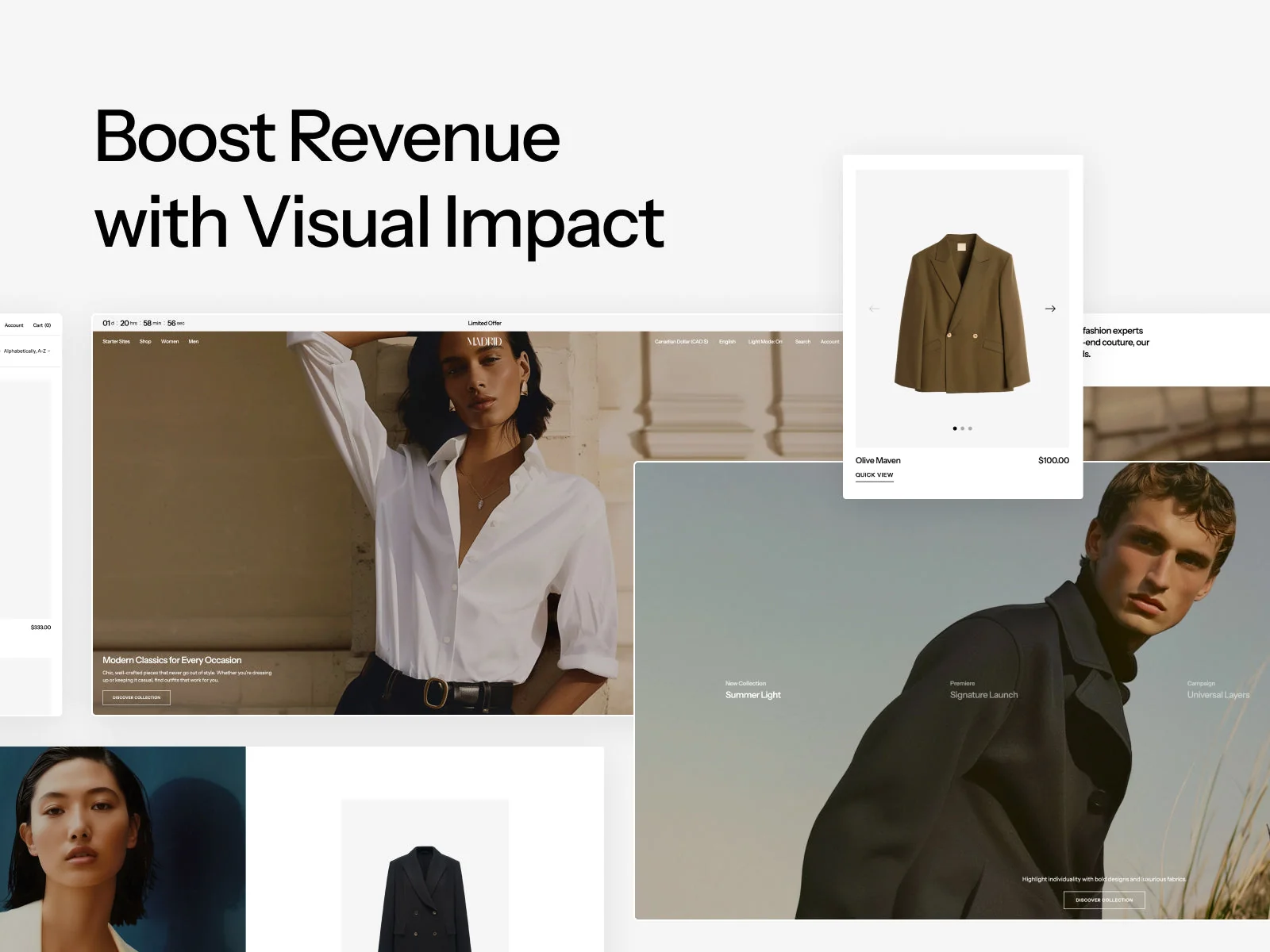
Madrid is a premium Shopify theme from Apparent Collective ($380), built around high-res imagery, image galleries, and visual storytelling for fashion, jewelry, and lifestyle brands, the kind of store that tends to want personalization fields (monogramming, engraving, a custom note) as much as it wants good product photos. Adding a personalization field to a Madrid product page takes one of two independent methods: turning on the app embed, or adding the app block to a product template. You only need one, not both.
Disclosure: we build Mini:Custom Fields Personalize and maintain the app embed and app block logic every Shopify theme depends on, so the setup steps below come from configuring this exact integration ourselves, not a general guess at how Online Store 2.0 themes work.
In this post:
- Two ways to add personalization to Madrid
- Method 1: Turning on the app embed
- Method 2: Adding the app block to a product template
- App embed vs. app block: which one to use
- Troubleshooting: field not showing up on Madrid
- Plan requirements: what’s included on Free vs. Basic
- FAQ
Two Ways to Add Personalization to Madrid
Personalization madrid theme shopify support comes down to a choice between two independent activation methods, an app embed or an app block, not a two-step sequence where you need both. Like every theme currently sold on the Shopify Theme Store, Madrid is built on Online Store 2.0, so it supports both methods the same way Horizon, Dawn, or any other current theme does. Pick whichever fits how you work: the embed is a single theme-wide toggle, the block is added per product template.
Method 1: Turning on the App Embed
Open the Madrid theme editor, go to App embeds in the left sidebar, and toggle Mini:Custom Fields Personalize on. This step happens once per theme, it doesn’t need to be repeated for each product template, and it’s the same toggle used on Horizon, Dawn, or any other Online Store 2.0 theme. Once it’s on, assigned fields render on every product they’re attached to automatically.
Method 2: Adding the App Block to a Product Template
The app block is a separate, standalone way to place fields on a product page, it has no dependency on the app embed setting at all. Open a product template in the Madrid theme editor, click Add block inside the product information section, and select the Custom Fields block. Position it wherever it should sit relative to the price and add-to-cart button, then assign a field to the product from the app’s own admin panel the same way you would with the embed method.
App Embed vs. App Block: Which One to Use
Both do the same job, render your assigned fields on the product page, the difference is control and placement:
| Method | Placement Control | Best For |
|---|---|---|
| App embed | Fixed position the theme decides, one toggle covers every product | Getting fields live fast with no per-template setup |
| App block | You choose exactly where it sits in the template | Stores that want the field positioned precisely, e.g. directly under a size chart |
One honest limit worth stating: turn on only one of the two. Enabling both the app embed and the app block on the same product template can render the field twice or place it inconsistently, since the block is meant to sit inside the layout while the embed injects itself independently. If a field looks duplicated or oddly placed on Madrid, this is the first thing to check.
Troubleshooting: Field Not Showing Up on Madrid
If a field isn’t appearing on a Madrid product page, confirm you actually turned on one of the two methods, not neither. Check App embeds in the theme editor first, since it’s the easiest to forget. If you’re using the app block method instead, confirm it was added to that specific product template, a block added to one template doesn’t carry over to others.
Plan Requirements: What’s Included on Free vs. Basic
Madrid theme compatibility itself isn’t plan-gated, both the app embed and app block work identically on Free and Basic. What’s plan-gated is the field type and count: Free allows one field total (textbox, checkbox, radio, or dropdown only), while Basic and up unlock unlimited fields plus datepicker and translation, useful on a visual, multi-preset theme like Madrid where a store might run several personalized product types across its five available presets (Madrid, Tote, Resort, Affair, Furnish).
“Not only is the app easy to use, it’s highly customisable and solved a lot of legacy issues. On top of this the support is second to none and they go above and beyond. I’ve gone through a lot of apps over the years but I would put this top of my list overall in terms of service and performance.” (attributed to The Precious People, United Kingdom)
For the generic version of this setup that applies to any Online Store 2.0 theme, see how to add a personalization option on Shopify. For combining multiple field types on one page, see how to customize your Shopify product page. Background on personalized product pages generally is in Shopify Personalized Product. Shopify’s own documentation on app blocks covers the platform-level mechanics behind this setup.
Frequently Asked Questions
- 1. Does Mini:Custom Fields Personalize work with the Madrid theme?
- Yes, personalization madrid theme shopify support works through either the app embed or the app block, both are available on Madrid the same as any Online Store 2.0 theme.
- 2. Why isn’t my personalization field showing up on Madrid?
- Most commonly neither the app embed nor the app block has been turned on yet. Check App embeds in the theme editor first, then confirm the app block was added to the right product template if you’re using that method instead.
- 3. Do I need to enable both the app embed and the app block on Madrid?
- No, they’re two independent methods that do the same job. Enabling both on the same template can cause a field to render twice or place inconsistently, pick one.
- 4. Is Madrid theme support available on the free plan?
- Yes, theme compatibility isn’t plan-gated. The free plan limits you to one field total, not which themes or activation methods work.
- 5. Which Madrid preset works best for personalized products?
- Any of Madrid’s five presets, Madrid, Tote, Resort, Affair, or Furnish, support the same app embed and app block setup, since the presets share the same underlying theme code and only change the visual styling.
- 6. What other Shopify themes does Custom Fields Personalize support?
- Any Online Store 2.0 theme, including Horizon, Dawn, and Symmetry, using the same app embed and app block methods described here.



