
To show Shopify order confirmation email line item properties, you need 3 steps and 6 lines of Liquid: open the Order confirmation template, paste the loop under the variant title, and place a real test order. Shopify saves personalization such as engraving text, gift notes and upload links on the order, but many notification templates do not print them, so the customer never sees what they typed.
Disclosure: we build Mini:Custom Fields Personalize, which saves every field as a line item property, so the snippet below is the one we send merchants in support, not a guess from a forum thread.
In this post:
- Why don’t line item properties show in the order confirmation email?
- Which Shopify email templates need the snippet?
- How to add line item properties in 3 steps
- What does the snippet do, line by line?
- Why is it still not showing?
- Should you edit the customer email, the staff email, or both?
- Our honest take
- FAQ
Why don’t line item properties show in the order confirmation email?
Because the email template only prints what its code asks for. A line item property is custom data attached to one product in an order, such as “Engraving: The Millers”, and Shopify’s notification variables reference lists it as line.properties. If a template never loops over line.properties, the data stays on the order in Shopify admin and never reaches the inbox.
We build Shopify apps for a living, so we know this ticket well: the merchant sees the engraving on the order page, the customer emails to ask whether their text was received, and nobody can point to it in the confirmation. The data was never lost. The template just did not print it.
Which Shopify email templates need the snippet?
Every template you want the personalization in needs its own copy of the loop. Here is where each one lives and which variable it uses for the order line.
| Template | Where it lives | Properties variable |
|---|---|---|
| Order confirmation (customer) | Settings, Notifications, Customer notifications | line.properties |
| New order (staff) | Settings, Notifications, Staff notifications | line.properties |
| Shipping and delivery emails | Settings, Notifications, Customer notifications | Match the template’s own loop |
| Packing slip | Settings, Shipping and delivery | line_item.properties |
The packing slip uses a different variable name, so it gets a different snippet. Our guide to customizing the Shopify packing slip has that version.
How to add Shopify order confirmation email line item properties in 3 steps
The whole job takes about five minutes per template and needs no developer.
- Open the template. Go to Shopify admin, Settings, Notifications, Customer notifications, Order confirmation, and click Edit code.
- Paste the loop under the variant title. Search the code for
line.variant.title, find the{% endif %}that closes that block, and paste the snippet below right after it. Save. - Place a real test order. Buy a personalized product with every field filled in, using a discount code or a test payment method, and open the email you receive.
{% for property in line.properties %}
  {% assign property_first_char = property.first | slice: 0 %}
  {% if property.last != blank and property_first_char != '_' %}
    <span>{{ property.first }}: {{ property.last }}</span><br/>
  {% endif %}
{% endfor %}
Repeat step 2 in the Staff notifications, New order template so your team sees the same lines. Do step 3 with a real order rather than the preview, because the preview builds the email from a sample order that may not carry your custom fields.
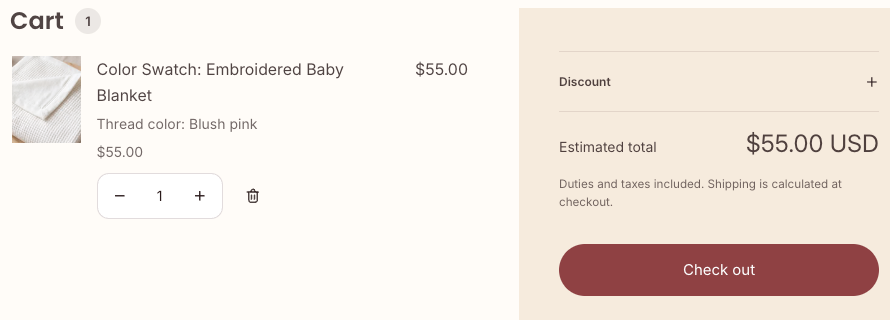
Here is the kind of data the snippet prints: the same values the cart already shows under the product.
What does the snippet do, line by line?
It prints Shopify order confirmation email line item properties as “Name: value” and skips two kinds of noise. That matters more than it looks, because apps also store technical data on the order line.
- The loop walks through every property on the line, so a product with three fields gets three lines.
- The underscore check hides properties whose name starts with “_”. Apps use that prefix for internal values, such as preview image IDs. Shopify’s line_item reference says the prefix hides a property from customers at checkout, but a notification template prints whatever its loop finds, so the snippet has to skip them itself.
- The blank check hides optional fields the customer left empty, so the email does not show “Gift note:” with nothing after it.
Upload fields save a link to the file, so the email shows that link and the customer can click it to confirm the right photo went through.
“…it makes it much easier for customers to add their personal details while placing an order.”
MONTEXOO, India, September 15, 2026 (Shopify App Store review)
Why are Shopify order confirmation email line item properties still not showing?
Four mistakes cause almost every “I pasted it and nothing changed” message.
- Pasted outside the loop. The snippet must sit inside the
for line in ...block that prints each product. Pasted above or below it,linedoes not exist and nothing prints. - Wrong variable for the template. Shipping templates often loop over fulfillment lines and print the product as
line.line_item.title. In that case useline.line_item.propertiesin the first line of the snippet. - The data never reached the order. If the order page in Shopify admin shows no properties, the problem is on the product page or in the cart, not in the email. Our post on Shopify cart custom fields covers why fields drop out before checkout.
- Tested with the preview. Send a real order through and check that email instead.
Should you edit the customer email, the staff email, or both?
Both, but if you only add Shopify order confirmation email line item properties to one template today, make it the customer email. Run through this:
- You sell engraving, monograms or printed names: customer email first. The customer is the only person who can spot “Jonh” before it is cut into metal.
- Your team fulfills from email rather than from the admin order page: staff email first.
- You print packing slips for the workshop: add the packing slip snippet as well.
- You use upload fields: customer email, so they can open the link and confirm the file.
Say you ship 300 personalized orders a month and 2% have a typo nobody catches until delivery. That is 6 remakes a month. A confirmation email that repeats the text back gives the customer a chance to reply “wrong spelling” while the order is still in your queue.
Our honest take
I think Shopify order confirmation email line item properties are the most underrated proofreading step in personalized selling. Stores spend hours on product page fields and then send an email that drops the one detail the customer cares about. Six lines of Liquid fix that for good.
The caveat on our side: Mini:Custom Fields Personalize saves the data as line item properties and keeps it on the order even if you uninstall the app, but it does not edit your notification templates for you. You paste the snippet yourself, once per template, and if a template is ever reset to Shopify’s default, you paste it again. For the wider order workflow, see how to manage personalized orders on Shopify, and for the fields themselves, how to add custom fields to product pages.
FAQ
How do I add line item properties to the Shopify order confirmation email?
Go to Settings, Notifications, Order confirmation, Edit code. Search for line.variant.title, paste a loop over line.properties after the closing {% endif %} of that block, save, and place a real test order.
Why are my custom fields missing from Shopify order emails?
The template has no code that prints line.properties. Shopify keeps the data on the order, but each notification template only shows what its Liquid asks for, so you add the loop to each template.
Can I show Shopify order confirmation email line item properties in the staff notification too?
Yes. The New order staff template uses the same line.properties variable, so the same snippet works there. Paste it under the variant title in that template as well.
How do I hide private properties that start with an underscore?
Check the first character of the property name and skip it when it is “_”. The snippet in this post does that with slice: 0, so internal app data never shows to customers.
Does the email preview show my line item properties?
Often not. Shopify order confirmation email line item properties come from the real order, and the preview uses a sample order that may not carry custom fields. Place a real order with a discount code or a test payment method to see the actual email.
Will uninstalling a custom fields app remove properties from past order emails?
No. Line item properties are stored on the Shopify order itself, so past orders keep them. Emails you send later from those orders can still print them as long as the template has the loop.
Do I need a developer to edit Shopify notification templates?
No. You copy and paste one snippet in the admin code editor. Keep a copy of the original template text before you edit, so you can undo a mistake in seconds.