

A shopify number input field lets shoppers type a numeric value, a quantity, a guest count, or a character limit for engraving, directly on the product page instead of picking from a dropdown or typing free text. Mini:Custom Fields Personalize shipped this field type in 2026, alongside minimum-length enforcement and uppercase transformation. This post covers when a number field beats a dropdown or textbox, how to set a minimum and maximum, and how to tie it to add-on pricing.
In this post:
- When a number field beats a dropdown or textbox
- Adding a number input field
- Setting a minimum and maximum value
- Making the field required
- Charging extra based on what’s entered
- Duplicating the field for another product
- FAQ
What a Number Input Field Is, and When It Beats a Dropdown or Textbox
A shopify number input field exists specifically for numeric validation, a dropdown restricts to a fixed list, and a textbox accepts anything typed, but neither one enforces “must be a number between 1 and 20.” If a product needs a quantity, a guest count, or a numeric limit like engraved characters, a number field is the right tool, not a workaround built from the other two.
Adding a Number Input Field to a Product Page
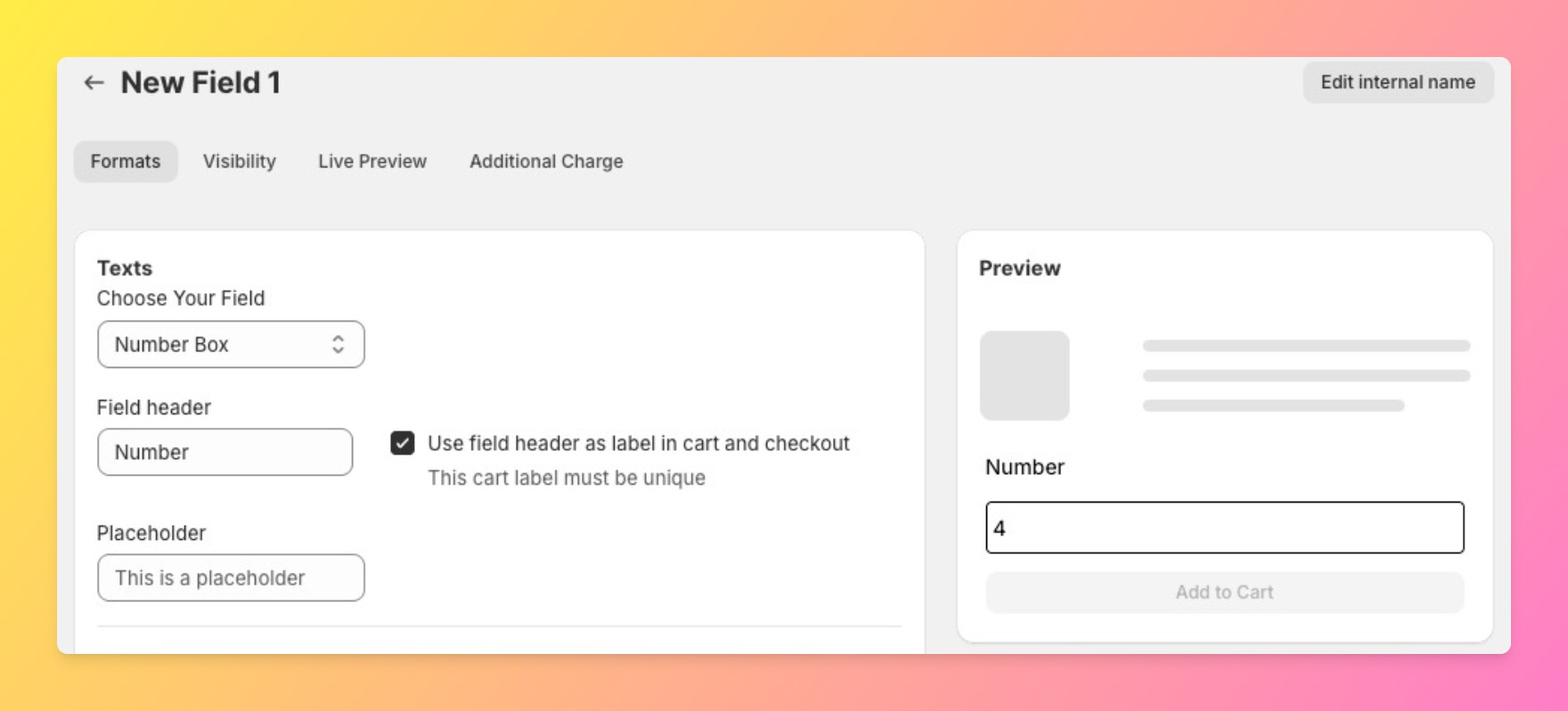
Add the field from the same field-type picker as textbox, dropdown, and the rest, number input has been available since the February 2026 release. Assign it to a product or a whole collection the same way any other field is assigned, and it appears on the storefront immediately once saved.
Making the Field Required
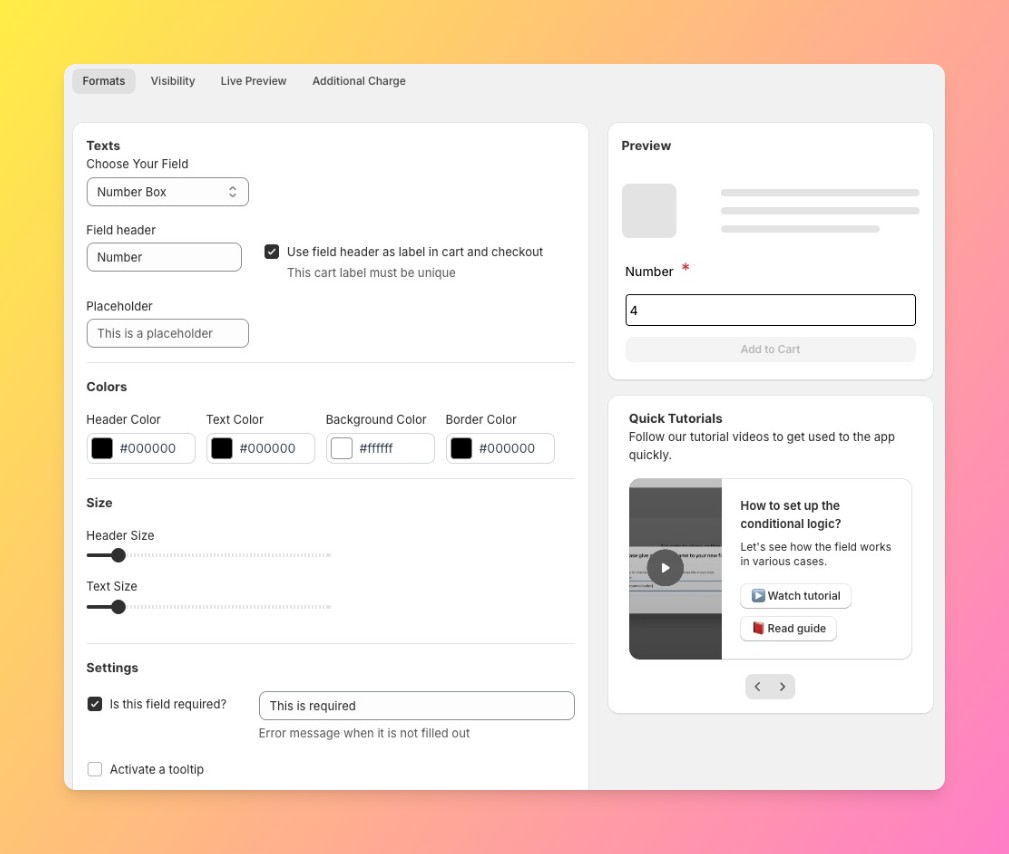
Like every field type, required is a per-field toggle. If the product genuinely can’t be fulfilled without the number, engraving length, guest count, custom quantity, mark it required so the order can’t be placed without a value.
Charging Extra Based on What a Customer Enters
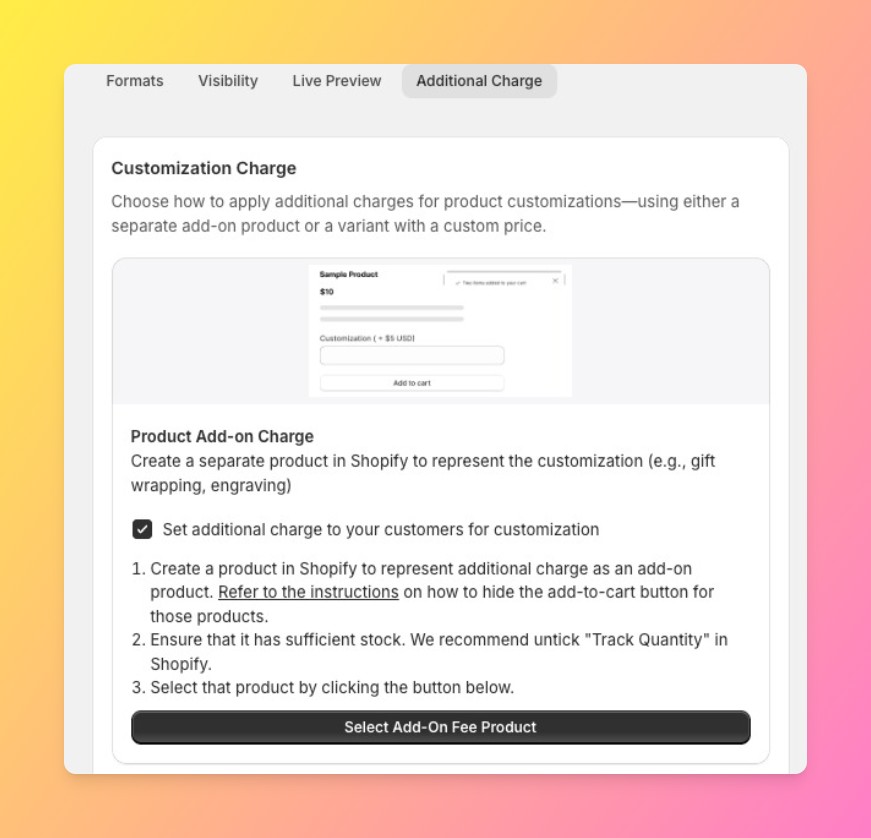
Add-on pricing applies to number fields the same way it applies to checkbox, radio, and dropdown fields, as a separate line item added alongside the main product, not a Cart Transform bundle. That distinction matters if you’re troubleshooting a pricing display issue, the add-on shows as its own cart line, not a modified product price.
Duplicating the Field to Reuse the Same Settings on Another Product
Once a number field’s min, max, and pricing are configured the way you want, duplicate it onto another product rather than rebuilding it from scratch. Duplicate is available on Basic and Premium plans, and it copies the full field configuration, not just the field type.
Here’s how a number field compares to the other two general-purpose field types:
| Field Type | Best For | Validation |
|---|---|---|
| Number input | Quantities, counts, numeric limits | Min/max value enforced |
| Dropdown | A fixed list of choices | No free entry, no numeric range needed |
| Textbox | Open-ended text like a name or note | Character-length limits, not numeric range |
Why does the distinction between a number field and a textbox with a character limit matter? Because a textbox’s character limit caps length, not value, a textbox capped at 2 characters still accepts “ab”, while a number field capped at a max of 20 only accepts numbers up to 20. They solve different validation problems even though both look like a short input on the page.
One honest limit worth stating: number input is one of ten field types we support, but it’s a newer addition than textbox or dropdown, so if you’re on an older field configuration built before February 2026, you’ll need to add it fresh rather than convert an existing textbox into a number field.
For the mechanics of add-on pricing in more depth, see our guide on how to charge extra for personalization on Shopify. If you need a number field to only appear under certain conditions, our step-by-step guide to Shopify conditional logic covers parent-field setups. And for the full picture of combining field types on one product page, see how to customize your Shopify product page. Shopify’s own documentation on metafields is useful background on how numeric product data is stored at the platform level.
Frequently Asked Questions
- 1. What is a number input field on a Shopify product page?
- A field type that only accepts numeric values, with an optional minimum and maximum, for things like quantities or engraving character limits.
- 2. When should I use a number field instead of a dropdown or text box?
- When the product needs numeric validation, a specific range or count, rather than a fixed list of choices or open-ended text.
- 3. Can I set a minimum or maximum value for a number field?
- Yes, both are configurable per field so shoppers can’t submit a value outside the range that makes sense for the product.
- 4. Can I charge extra based on what a customer enters in a number field?
- Yes, add-on pricing works with number fields the same way it works with checkbox, radio, and dropdown fields, as a separate cart line item.
- 5. Is a number input field required by default?
- No, required is a per-field toggle you set explicitly, the same as every other field type.
- 6. Can I duplicate a number field to reuse the same settings on another product?
- Yes, on Basic and Premium plans, duplicating copies the field’s full configuration, including min, max, and pricing.



