

Building a shopify custom form builder-style experience on a product page means stacking several individual custom fields, text input, image upload, and a dropdown, in one place so they read as a single form. Mini:Custom Fields Personalize supports 10 field types today, including textbox, upload, and dropdown, and lets a merchant order and require each one independently. This post covers adding all three field types to one product and making the combination behave like a single required form.
In this post:
- What a “custom form” looks like as fields
- Adding a text input field
- Adding an image upload field
- Adding a dropdown field
- Ordering the fields so they read as one form
- Making fields required
- FAQ
What a “Custom Form” Looks Like as Fields on a Shopify Product Page
Shopify doesn’t ship a native form builder for product pages, so a shopify custom form builder in practice means combining several individual custom fields until they function like one. Mini:Custom Fields Personalize supports ten field types, textbox, checkbox, radio button, dropdown, datepicker, upload, image swatch, font selector, color swatch, and number input, and any combination can sit on the same product.

Adding a Text Input Field
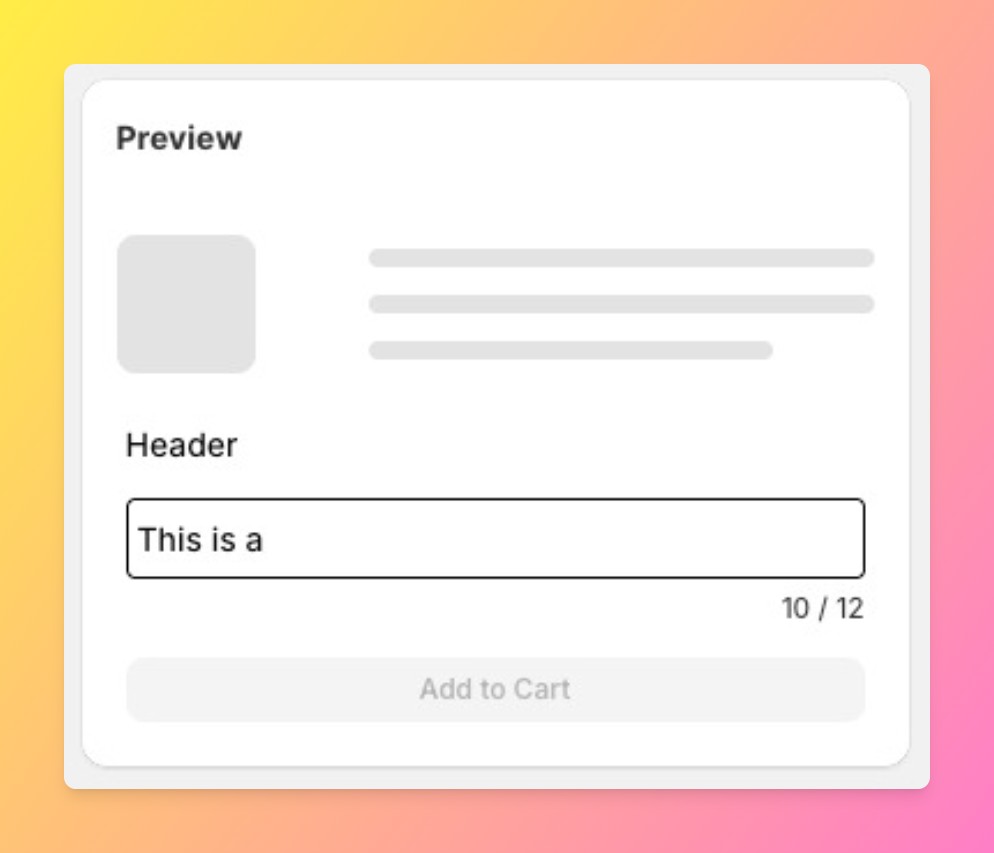
Add a textbox field for anything a shopper types freely, a name for engraving, a gift note, or special instructions. Set a character limit if the space you’re printing to is fixed, and mark it required if the order can’t be fulfilled without it.
Adding an Image Upload Field
Upload fields let a shopper attach a photo or design file, useful for custom portraits, logo placement, or reference images. Upload is a Premium-plan field type, and files are stored in S3 with a size limit, so it’s worth confirming your plan supports it before you build the rest of the form around it.
Adding a Dropdown Field
Dropdowns work best for a fixed list of choices, a size, a finish, a font style, where free text would create fulfillment inconsistency. Combine a dropdown with the text and upload fields above and you have three distinct input types capturing three distinct kinds of information on one product.
Ordering the Fields So They Read as One Form, Not Three
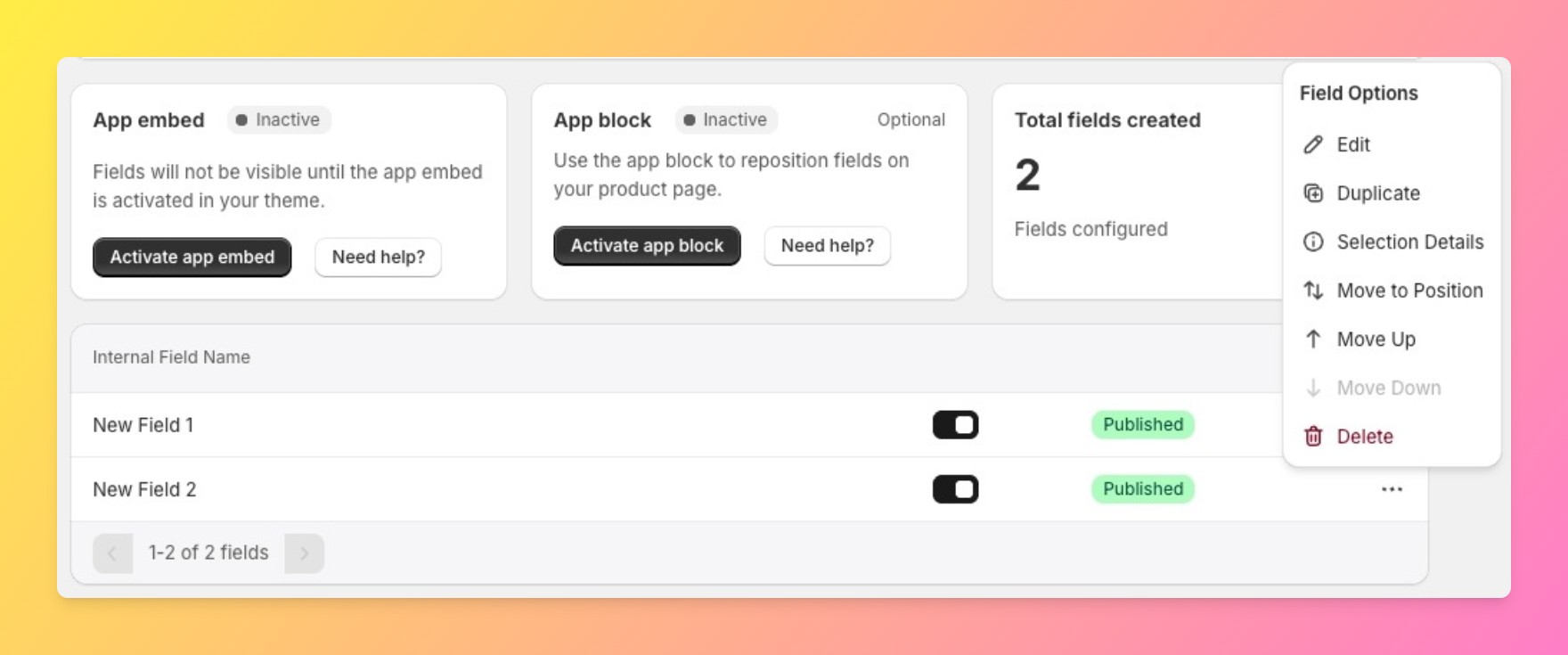
Say a personalized-mug store adds a textbox for the name, a dropdown for mug color, and an upload for a photo, in that order on the page, but saves them in the reverse order in the admin. The storefront always reflects the field order set in the dashboard, not the order fields were created, so reordering after the fact is the fix, not recreating fields from scratch. Use the “move to position” control to set text, then color, then photo, so the shopper fills out the form in a logical sequence.
Making Fields Required So Shoppers Can’t Skip Them
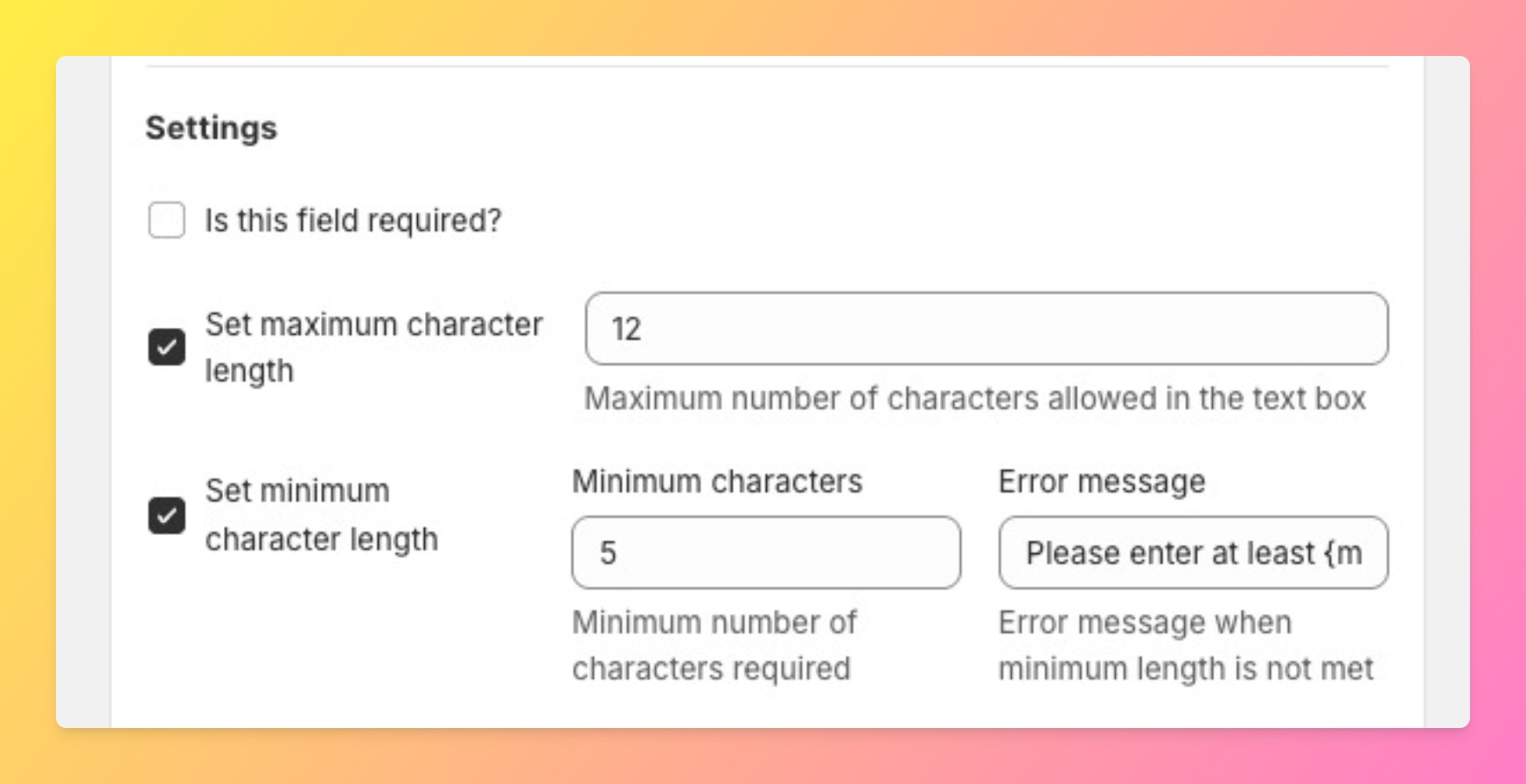
Each field has its own required toggle, independent of the others. A form only functions as a form if the fields that matter are actually required, an optional upload field next to a required textbox will get skipped by a meaningful share of shoppers, so decide deliberately which fields are must-haves versus nice-to-haves rather than requiring everything by default.
Here’s how the three field types split by job:
| Field Type | What It Captures | Required by Default? |
|---|---|---|
| Text input | Short typed answers, name, monogram, or note | No, set per field |
| Image upload | A photo or design file from the shopper | No, set per field |
| Dropdown | One choice from a fixed list | No, set per field |
Why doesn’t Shopify offer this natively? Because product variants and metafields are built for merchant-defined options, not shopper-submitted input at checkout, that gap between “options the merchant sets” and “data the customer provides” is exactly what a custom fields app exists to close.
One honest limit worth flagging: stacking three or more required fields on one product does add friction. We support ten field types because merchants ask for them, but that doesn’t mean every product needs five fields, the more required fields on a page, the more shoppers abandon before completing the form, so build only what the product genuinely needs.
For the storefront-preview side of this (seeing what a shopper typed or uploaded before add to cart), see our guide on customizing your Shopify product page. If image upload is the field you care about most, our dedicated guide to adding an image upload button on Shopify covers cropping, file limits, and Cart Transform conflicts in more depth. Fields that depend on each other (show the upload field only if a shopper picks a specific dropdown option) are covered in our step-by-step guide to Shopify conditional logic. Shopify’s own documentation on metafields is useful background on how product-level custom data works at the platform layer.
Frequently Asked Questions
- 1. Can I combine multiple custom fields into one form on a Shopify product page?
- Yes, any combination of the app’s ten field types can sit on the same product and be ordered to read as a single form.
- 2. Can customers upload an image and type text in the same field setup?
- Yes, upload and text input are independent field types that can both be added to the same product.
- 3. How do I make a dropdown field required before checkout?
- Toggle the required setting on that specific dropdown field, each field’s required setting is independent of the others.
- 4. Does image upload work alongside text and dropdown fields on the same product?
- Yes, upload is one of ten supported field types and can be combined with any of the others on one product.
- 5. Can I control the order fields appear in on the product page?
- Yes, use the field’s “move to position” control in the dashboard, the storefront reflects that order, not creation order.
- 6. What’s the difference between a “form” and separate custom fields on Shopify?
- There’s no technical difference, a “form” is just several custom fields placed and ordered together so they read as one unit to the shopper.



