

5 of the 7 causes behind personalization not showing in cart Shopify problems sit in your theme, not your app. The field sits outside the product form, the cart drawer skips properties, a quick add button bypasses the field, the property name starts with an underscore, or a script or bundle app drops the data. The other 2: the customer left the field empty, or you are checking the wrong screen.
Disclosure: we build Mini:Custom Fields Personalize, and “the field works on the product page but not in the cart” is the most common cart question in our support inbox, so this checklist comes from fixing it on real stores.
In this post:
- Where should you check first?
- The 7 causes at a glance
- 7 fixes for personalization not showing in cart
- How to test the fix in 2 minutes
- Fix it yourself or ask for help?
- Our honest take
- FAQ
Where should you check first?
Check the order in Shopify admin before you touch any code; it is the first step for any personalization not showing in cart Shopify issue. Place a test order with the field filled in, then open it under Orders. If the personalization shows under the product there, the data is saved and only the cart display is missing. If it is missing from the order too, the value never left the product page.
That one check splits the problem in two. We build Shopify apps for a living, so we have watched merchants spend an afternoon rewriting a cart template when the real issue was a quick add button that never showed the field at all.
Shopify stores personalization as a line item property: extra data attached to one product line. Every fix below is about getting that property into the cart request, or getting the cart template to print it.
Personalization not showing in cart Shopify: the 7 causes at a glance
Use the symptom column to jump to the likely cause.
| Symptom | Likely cause | Where to fix |
|---|---|---|
| Missing in cart and in the order | Field outside the product form | Theme or page builder |
| Missing only for some orders | Quick add on collection pages | Theme settings |
| Shows on cart page, not in drawer | Drawer template skips properties | Theme code |
| In the order, hidden everywhere else | Name starts with “_” | Field label |
| Vanished after installing an app | Script or bundle app drops data | App settings |
| Empty on some orders | Optional field left blank | Make it required |
| Looks fine in admin, customer says no | Checking the wrong screen | Cart page, drawer, checkout |
7 fixes for personalization not showing in cart on Shopify
Work through these personalization not showing in cart Shopify causes in this order, because the first two cause most cases.
1. The field sits outside the product form
Shopify only sends inputs that belong to the add-to-cart form. A text box placed by a page builder, a custom Liquid block or a section below the buy buttons can look right and still be outside that form. An app embed such as Mini:Custom Fields Personalize places the field inside the form for you. By hand, move the field inside the form, or by giving a hand-coded input a form attribute that matches the product form’s ID and a name like properties[Engraving]. Our guide to adding a custom text field on Shopify product pages shows the full snippet.
2. A quick add button skips the field
Many themes put a Quick add or Quick buy button on collection pages and homepage sections. It adds the product straight to the cart, so the customer never sees your personalization field. No app can change that theme behavior. Turn off quick add on collections that hold personalized products, so shoppers go through the product page.
3. The cart drawer template does not print properties
Cart drawers are often a separate, simpler template from the full cart page, and some themes leave line item properties out of the drawer. If the value shows at /cart but not in the slide-out drawer, the data is fine. Ask your theme developer to add a loop over item.properties to the drawer, or switch the cart type to the full page in theme settings.
4. The property name starts with an underscore
Shopify checkout hides any property whose name starts with “_”, and most themes hide it in the cart too. The prefix is meant for internal app data. If you named a field “_Engraving” to hide it, rename it to “Engraving”.
5. A script or bundle app drops the data
Some themes and apps build their own add-to-cart request and send only the variant and quantity. Some bundle and upsell apps rebuild the cart line and can drop the properties on the way. If the problem started right after installing an app, turn that app off, test again, and send its developer the result.
6. The customer left an optional field empty
An empty field saves nothing, so there is nothing to show. If every order needs the text, make the field required. In Mini:Custom Fields Personalize, the Required toggle (Basic plan) blocks Add to cart until the field is filled. See how to make a required field on a Shopify product page.
7. You are checking the wrong screen
The cart page, the cart drawer, checkout and the order page can each render properties differently. Check all four before you change code, so you fix the one screen that is actually wrong.
How to test the fix in 2 minutes
Every personalization not showing in cart Shopify fix needs the same test: one product and one test value you will recognize.
- Open the personalized product page in a private browser window.
- Fill every field with a test value such as “The Millers”.
- Click Add to cart from the product page, not from a collection page.
- Check the cart drawer, then the full cart at /cart.
- Go to checkout and look under the product name.
- Place the order with a 100% discount code and open it in Shopify admin.
When it works, the value sits under the product name on the cart line, like this.
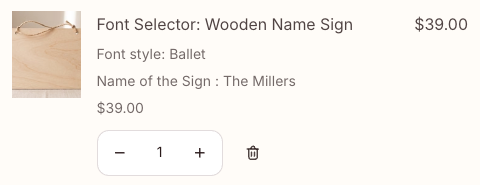
If personalization not showing in cart Shopify issues survive these tests, ask your app’s support to look at the store. One merchant on ours:
“Zel spent over 30 minutes creating a personalized video walkthrough for my store.”
Seeyoura, Netherlands, July 10, 2026 (Shopify App Store review)
Fix personalization not showing in cart Shopify issues yourself, or ask for help?
Most of these fixes need no code. Use this to decide:
- Quick add, underscore names, empty fields, wrong screen: fix it yourself in theme settings or the field label.
- Field outside the form on a page builder: use the builder’s own form element, or your app’s placement snippet.
- Cart drawer template edits: ask your theme developer or the theme’s support, since the code differs by theme.
- A bundle or upsell app dropping properties: ask that app’s developer, with the test result in hand.
Say you sell 50 personalized orders a week and 1 in 10 shoppers comes through a quick add button. That is 5 orders a week with no engraving text and an email thread for each one. Turning off one theme setting removes all of them.
Our honest take
I think most “personalization not showing in cart Shopify” problems are blamed on the app and caused by the theme. That is not an excuse: it means the fastest fix is usually a theme setting, and you should check it before you reinstall anything. A value that reaches checkout and the order page is saved, even when one cart drawer does not print it.
Mini:Custom Fields Personalize (4.9 stars from 146 reviews, Built for Shopify, as of November 2026) saves each answer under its own Cart Label, so every cart line and order shows which field a value came from.
The caveat on our side: Mini:Custom Fields Personalize places fields inside the product form through App Embeds, but it cannot stop a theme’s quick add button from skipping the product page, and it cannot make a cart drawer print properties its template leaves out. For those, the fix lives in the theme. Our post on Shopify cart custom fields covers the cart side in more depth.
FAQ
Why is my personalization not showing in the cart on Shopify?
Usually the field is outside the product form, a quick add button skipped it, or the cart drawer template does not print line item properties. Check the order in Shopify admin first: if the value is there, only the cart display needs fixing.
Why do custom fields show on the cart page but not in the cart drawer?
The drawer often uses a separate, simpler template that leaves line item properties out. The data is saved. Add a loop over item.properties to the drawer, or switch to the full cart page in theme settings.
Why does personalization show in the cart but not at checkout?
Check whether the property name starts with an underscore, since Shopify checkout hides those. If not, a bundle or upsell app may be rebuilding the cart line; turn it off and test again.
How do I see line item properties in Shopify admin?
Open the order under Orders. Each property shows under the product it belongs to, as “Name: value”. If it is not there, the value never reached the order.
Does quick add skip personalization fields on Shopify?
Yes, in most themes. Quick add puts the product in the cart from the collection page, so the customer never sees the field. Turn quick add off for personalized products.
Can I fix personalization not showing in cart Shopify issues without code?
Often, yes. Turning off quick add, renaming an underscore field, making a field required or switching the cart type are all settings. Only cart drawer template changes need code.