

Shopify low stock alerts actually split into two different needs that most searches blur together: an alert that goes to you as the merchant, and a message that shows the shopper “Only 3 left” on the product page. Shopify’s one native option for the first, Stocky’s daily low-stock email, is being retired after August 31, 2026. For the second, Shopify has never had a built-in option at all. Hey!Scarcity Low Stock Counter (5, 135 reviews) sets up the storefront version in about 2 minutes, free plan included.
In this post:
- Shopify low stock alerts: what the phrase actually means
- The native option: Stocky’s low-stock email (and why it’s going away)
- A storefront low stock alert with Hey!Scarcity
- Choosing a threshold that means something
- Common mistakes
- How to choose
- FAQ
Disclosure: I’m the founder of Minimate Apps, and we build Hey!Scarcity Low Stock Counter, the storefront app this post walks through. The native-vs-app distinction below, including Stocky’s retirement date, comes straight from Shopify’s own documentation, not a sales pitch.
Shopify Low Stock Alerts: What the Phrase Actually Means
Say you run a store with 400 SKUs and someone on your team asks for “a low stock alert.” That request could mean two completely different builds: an alert that lands in your inbox so you can reorder, or a badge on the product page so the shopper feels the urgency and buys now. Building the wrong one wastes a setup cycle and still leaves the actual need unmet.
Here’s the quick way to tell them apart:
| What you want | How to get it | Where it lives |
|---|---|---|
| An alert that comes to you, the merchant | Shopify Flow, or a dedicated alert app | Your inbox or admin, the shopper never sees it |
| A message shoppers see on the product page | A storefront app like Hey!Scarcity | Live on your product and collection pages |
The rest of this post covers both, starting with the merchant-side option since it’s the one with an expiration date attached.
The Native Option: Stocky’s Low-Stock Email (and Why It’s Going Away)
Shopify’s own Stocky app, the free inventory tool bundled with Shopify POS, has a Low Stock report with an option to receive a daily low-stock email. It’s genuinely native, built by Shopify, no app install required. But it comes with real limits worth knowing before you rely on it: the email is passive, not triggered the moment stock drops, it only goes to one email address, and Shopify’s own help documentation describes it as useful mainly for a single owner checking in once a day.
The bigger issue: Shopify’s Stocky documentation now carries a retirement notice. Stocky stops working after August 31, 2026, folded into Shopify’s newer Inventory management section, which covers tracking and counts but doesn’t carry over a low-stock email of its own. Shopify’s own recommendation once Stocky is gone: “consider installing a third-party inventory alert app from the Shopify App Store, or setting up an inventory automation using Shopify Flow.” That’s the honest state of native shopify low stock alerts as of this writing, not a gap we’re inventing to sell an app.
If you want to stay fully native, Shopify Flow can replicate a merchant-side alert: trigger on “Inventory quantity changed,” condition it on “Inventory quantity is less than [your threshold],” action “Send an email.” It takes longer to configure than installing an app and only covers the merchant-alert half of this post, not the storefront badge.
A Storefront Low Stock Alert With Hey!Scarcity
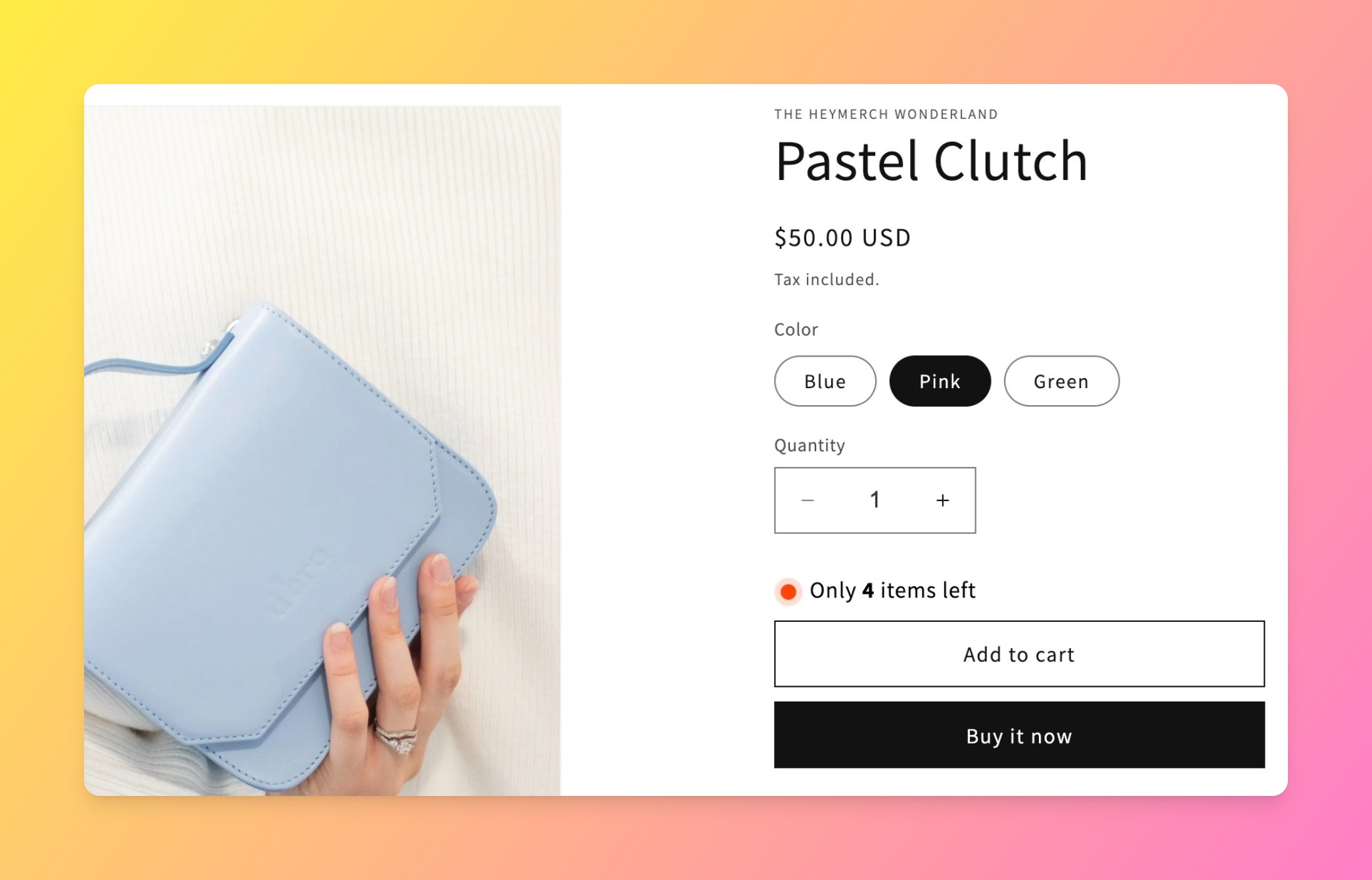
For the half of shopify low stock alerts that Shopify has never covered natively, the “Only 3 left” message a shopper sees before they add to cart, here’s the setup with Hey!Scarcity Low Stock Counter:
- Install Hey!Scarcity Low Stock Counter from the Shopify App Store and open the app dashboard.
- Set your low stock threshold, the inventory number below which the badge starts showing.
- Choose your message wording, for example “Only {count} left in stock” or “Hurry, almost sold out.”
- Pick where it displays: product page, collection page, or both.
- Save and preview on a live product page, then adjust a test variant’s inventory to confirm the badge triggers correctly.
The free Starter plan covers stores with fewer than 3 products and the first 5,000 page views, enough to test this on a small catalog before deciding whether to upgrade.
Choosing a Threshold That Means Something
A threshold set too high makes every product look perpetually low on stock, and shoppers stop believing it within a week. A threshold set too low means the badge rarely fires at all. A reasonable starting point: look at your average weekly sell-through per SKU and set the threshold at roughly 2 to 3 days of normal demand, so the badge appears while there’s still genuine, honest urgency behind it, not as a permanent fixture.
Review it quarterly. A threshold that made sense at your Q1 sales volume can read as dishonest scarcity by Q4 if your sell-through has doubled and the badge still fires at the same old number.
Common Mistakes
- Setting one global threshold across a catalog with wildly different sell-through rates per product.
- Leaving the badge on a product that’s been “low stock” for three months straight, which trains shoppers to ignore it.
- Confusing a merchant-side alert with a storefront badge and building only one when the actual need was both.
- Not testing the badge on mobile, where a cramped product page can bury a low-stock message below the fold.
How to Choose
- Need to know when to reorder, and you’re comfortable with a once-a-day email to one address: Shopify Flow, while it’s still free to build yourself.
- Need shoppers to see urgency on the product page itself: Hey!Scarcity, since nothing native does this.
- Need both the merchant alert and the storefront badge: run Flow for your own inbox and Hey!Scarcity for the storefront side, they solve different jobs and aren’t a replacement for each other.
One honest limit worth stating plainly: Hey!Scarcity shows a badge, it doesn’t manage your reordering or purchasing. If what you actually need is a merchant-side reorder trigger, Flow or a dedicated inventory app is the right tool, not a storefront scarcity badge wearing a different hat.
“I don’t normally review apps but I saw almost instant results with adding this one, 3 sales within 24 hours, then a further 2 sales the next day. I’m a new store and had been averaging around 3 a week so to see 3 in one day for such a simple change has really impressed me! Plus it was really easy to use.”
Source: Two Happy Magpies, United Kingdom (Shopify App Store review)
As of this writing, Hey!Scarcity Low Stock Counter holds a 5.0 rating across 135 Shopify App Store reviews, 95% of them five stars, for a widget whose entire job is a single honest number on a product page.
See our guide on 5 proven ways to leverage scarcity for the messaging side of this, and how low stock messaging appeals to different shopper types if you’re deciding what the badge should actually say once it’s live.
Frequently Asked Questions
- 1. Does Shopify have a built-in low stock alert?
- Only through Stocky’s daily low-stock email, and that feature is being retired after August 31, 2026. There’s no built-in storefront “Only X left” message on any plan.
- 2. How do I show “only X left in stock” on my Shopify product page?
- You need a dedicated app, since this isn’t a native Shopify feature. Hey!Scarcity Low Stock Counter adds it with a threshold and custom wording, no code required.
- 3. What low stock threshold should I use?
- Start around 2 to 3 days of normal sell-through per SKU, then adjust quarterly as your sales volume changes, so the badge still reflects real, honest scarcity.
- 4. Can I still get a low stock alert by email as a merchant, not just a storefront badge?
- Yes, with Shopify Flow: trigger on inventory quantity changed, condition it below your threshold, and send yourself an email. It’s free but requires building the workflow yourself.
- 5. Does a low stock badge slow down my store?
- A well-built one shouldn’t. Hey!Scarcity renders the badge client-side off your existing inventory data rather than adding extra page requests.
- 6. Will a low stock badge show the real inventory number or a fake one?
- Hey!Scarcity supports both a real, live inventory count and a cookie-persisted fake stock mode for merchants who want urgency messaging without exposing exact SKU-level numbers. Which one to use is a judgment call, and we’d lean toward real numbers whenever your actual inventory supports it.