

Customizing a low stock badge shopify stores use is really four separate settings, not one: the message text for each stock state, the badge color, whether the icon pulses, and the quantity threshold that triggers it in the first place. Hey!Scarcity Low Stock Counter ships all four as independent controls, four distinct message states (low in stock, sold out, more in stock, continue selling), a pulse animation option, and per-product or per-collection thresholds. This post walks through exactly where each setting lives.
In this post:
- What “customizing” the badge means
- Editing the message text for each stock state
- Changing the badge color and icon
- Turning the pulse animation on or off
- Setting the quantity threshold
- Applying custom badges to collection pages
- FAQ
What “Customizing” the Low Stock Badge Means on Shopify
Most merchants who search for a low stock badge shopify setup assume there’s a single “customize” button. There isn’t, not because the app is limited, but because a badge that fires on four different stock states needs four separate message slots, plus its own controls for color, animation, and the number that triggers it. Treat these as four small decisions instead of one big one and the setup takes a few minutes, not an afternoon.

Editing the Message Text for Each Stock State
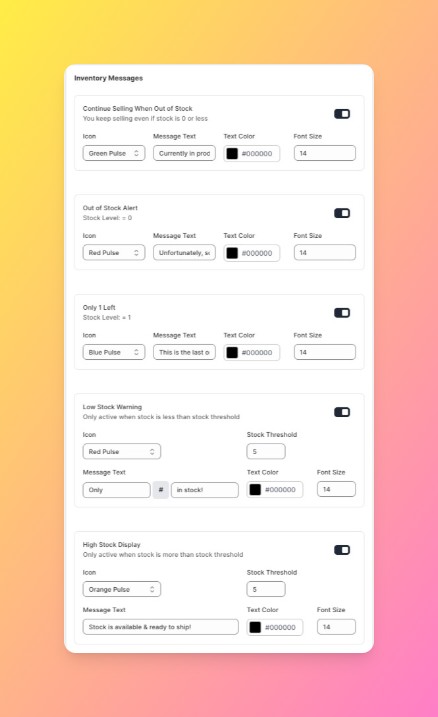
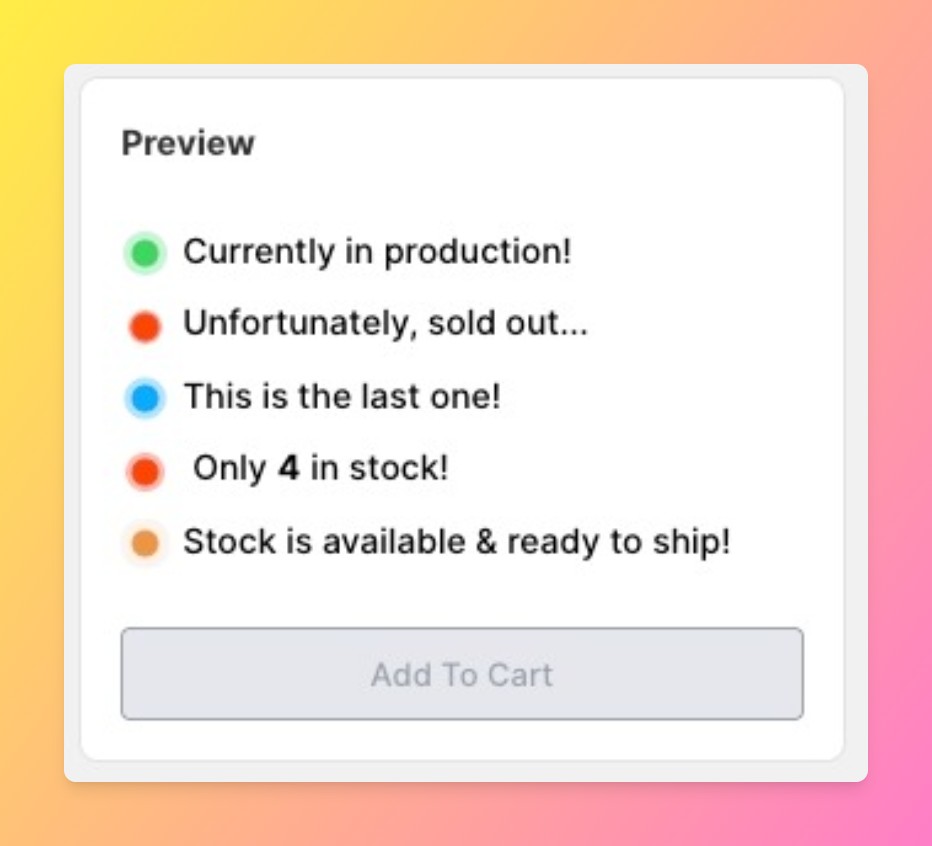
Hey!Scarcity supports four message states: low in stock, sold out, more in stock, and continue selling (for products with inventory tracking turned off). Each state has its own text field in the app dashboard, so “Only 3 left!” for a low-stock badge doesn’t have to match the wording on a sold-out badge. Update the wording per state and save, no theme code required.
Changing the Badge Color and Icon
Color and icon selection apply across all four states today, changing the color updates every badge state on the storefront, not just one. One honest limit worth stating here: if you want a sold-out badge in a different color than a low-stock badge, the current settings don’t support that split. For most stores it doesn’t matter, but if color-coding by urgency level matters to your brand, know that going in.
Turning the Pulse Animation On or Off
The pulse animation on the badge icon is an optional effect, not a default, and it’s toggled in icon settings. It’s a small detail, but it’s the one most likely to make a badge feel urgent rather than just informational. Worth testing with it on for a week and comparing against a week with it off before assuming subtlety wins.
Setting the Quantity Threshold That Triggers the Badge
The threshold decides when “more in stock” flips to “low in stock,” and it’s set per product, with a collection-wide default so new products don’t launch without one. Say a store carries 40 SKUs and leaves every threshold at the default of 5. A fast mover that sells 30 units a week will flash “low stock” for days before it’s actually scarce, while a slow mover that sells 2 units a month never triggers the badge until it’s already sold out. Setting per-product thresholds fixes both problems at once.
Applying Custom Badges to Collection Pages, Not Just Product Pages
Collection-page display is a separate on/off toggle from product-page display, but it inherits the same message text, color, and threshold settings. There’s no separate customization pass required once product-page settings are in place, just switch on collection-page display and the same badge logic carries over.
Here’s where each of the four settings actually lives, in one place:
| What | Where It Lives | Applies To |
|---|---|---|
| Message text | Message settings, per state | Product + collection pages |
| Badge color | Style settings | All states |
| Pulse animation | Icon settings | Icon only, optional |
| Trigger threshold | Stock settings | Per product, collection-wide default |
Why doesn’t Shopify just show this by default? Because Shopify’s own inventory display is binary, in stock or out of stock, with no concept of a “low stock” threshold at all. That gap is the entire reason this category of app exists, and it’s worth understanding before assuming a badge should be built into the theme.
For the difference between a countdown-style display and a simple badge, see our guide to inventory countdown vs. low stock badge options. If you’re deciding whether a low stock badge is worth setting up at all, we’ve written up what the data says about whether showing low stock increases sales. For a broader list of options beyond Hey!Scarcity, see our roundup of Shopify plugins for low stock and urgency. Shopify’s own documentation on inventory policies is useful background on how “continue selling when out of stock” affects what a badge can show in the first place.
Frequently Asked Questions
- 1. Can I change the text on my Shopify low stock badge?
- Yes, each of the four message states (low in stock, sold out, more in stock, continue selling) has its own editable text field.
- 2. How do I change the color of the low stock badge?
- Badge color is set in style settings and applies across all four message states at once, there’s no per-state color option today.
- 3. Can I set a different message for out-of-stock vs. low-stock items?
- Yes, sold out and low in stock are separate message states with independent text fields.
- 4. Does the low stock badge support animations?
- Yes, an optional pulse animation can be toggled on the badge icon in icon settings.
- 5. Can I customize the low stock badge on collection pages too?
- Yes, collection-page display is a separate toggle from product-page display, and it uses the same message, color, and threshold settings.
- 6. What quantity triggers the low stock badge to appear?
- Whatever threshold you set per product, with a collection-wide default applied to new products automatically.



